Struggling to get everything done on Instagram?
Between sourcing/creating content, posting it at the best times for your audience, engaging with your audience, keeping up with trends, and all the other small details — the work can seem endless!
AI tools help social media account owners create, edit, source, and post content in RECORD time.
And here’s what’s changed:
You don’t even have to leave Instagram to start using AI anymore.
Meta has been packing AI into Instagram and its other apps, so you can now:
- Chat with Meta AI in your DMs or while searching Instagram.
- Ask Meta AI to help write captions in Stories and DMs on mobile.
- Edit Story photos with 30+ AI effects powered by Meta’s Muse Image model, or type your own prompt to make a custom edit (US only).
- Generate and edit images or create short videos inside Meta AI chats. Usage is limited, with more available through Meta One Core for $7.99 a month or Premium for $19.99.
- Create your own custom AI with AI Studio.
- Ask Meta AI to summarize pretty much any post or Reel.
- Use the free Edits app for video editing, its new AI assistant, and "First Draft" on iOS to turn a batch of clips into a roughly-edited Reel with 1 tap.
Pretty cool, right?
YES.
But there’s still a big gap.
Most of Instagram’s built-in AI is designed to add creative flair to something you’re ALREADY working on. A lot of it is also rolling out in the US first or gives you limited usage, forcing you into a subscription.
In other words, it won’t plan your week, write a month of captions in your brand voice, generate a batch of feed images, or schedule your posts for you.
That’s where the 7 tools in this guide come in.
They fill the gaps Instagram’s own AI leaves behind, and you don’t need a huge budget to get started. In fact, 4 of the 7 have a free plan.
Let's get started!
Quick answer: Which AI tools should you use for Instagram?
The FASTEST setup is simple: use a free AI writer, a scheduler with AI built in, and Instagram’s own free video editor.
You don’t need 10 different tools fighting for your attention.
- Use ChatGPT to brainstorm ideas and get a solid 1st draft for free.
- Use Post Planner to write captions and hashtags, generate images, and schedule your content (free plan available).
- Use Google Veo when you need to CREATE video, then Edits by Instagram to cut and polish your Reels for free.
- Use Remini when a good photo is ruined by blur or poor image quality.
The 7 AI tools for Instagram at a glance
Here are all 7 tools at a glance. (On a phone, swipe the table sideways.) Click any name to jump to its section:
| Tool | Best for | Free option | Paid price |
|---|---|---|---|
| ChatGPT | Ideas, first drafts, quick images | Free plan | $20per month, Plus plan |
| Post Planner | Captions, hashtags and AI images | Free planUnlimited AI writing | $9per month, billed annually |
| Remini | Fixing blurry or low-res photos | Free trialPaid plan priced in the app | In-appsubscription after the trial |
| Google Veo | Creating video from a prompt or photo | Limited free useIncluded with some Workspace plans | $19.99per month, Google AI Pro |
| Post Planner | Automated and bulk scheduling | Free plan | $9per month, billed annually |
| Edits by Instagram | Cutting and captioning Reels | FreeNo watermark | FreeEdits Plus coming via Meta One |
| Claude | An AI agent that plans and drafts from your files | Free planAgent features need a paid plan | $20per month, Pro plan |
Prices were checked in October 2026. Every price in this article is the US price, shown as a monthly rate billed annually unless mentioned otherwise.
1. Best general AI tool for Instagram: ChatGPT
If you hear “AI,” there’s a good chance ChatGPT is the 1st tool that comes to mind.
And for Instagram, it can save you a TON of time before you ever hit publish.
Instead of staring at a blank caption box, you can use ChatGPT to brainstorm ideas, draft captions, answer questions, and quickly turn a rough thought into something you can actually work with.
The trick is giving it enough context to sound like YOU instead of every other AI-generated post on Instagram.
ChatGPT can also generate images now. And with a paid plan, you can use it for much bigger jobs than writing 1 caption at a time (I’ll show you how below).
Key use cases
- Generate content ideas, outlines, roadmaps, and more.
- Craft compelling Instagram posts and captions.
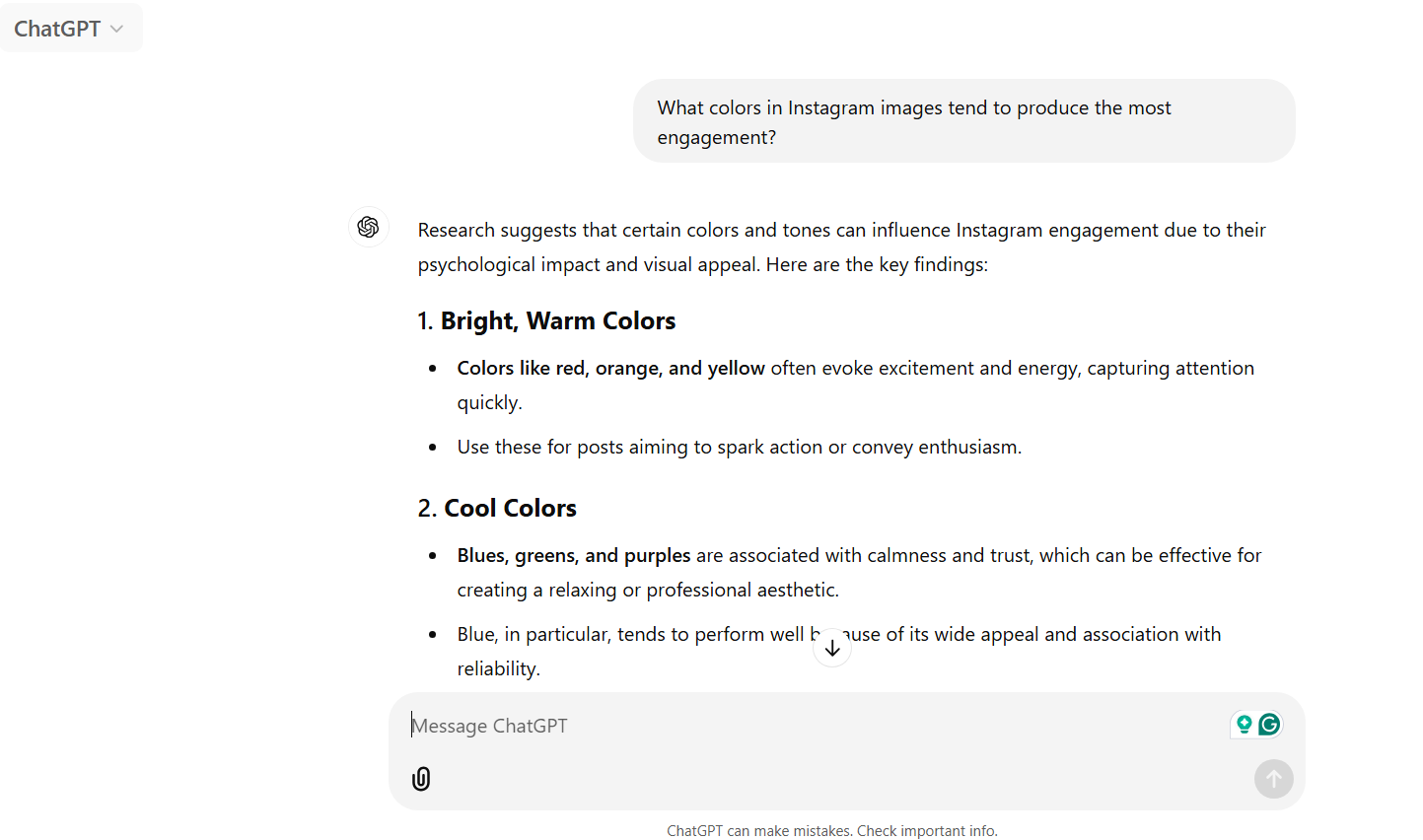
- Get quick answers to almost any question you have. For example, you could ask ChatGPT, “What colors in Instagram photos tend to produce the most engagement?”
- Generate a quick image or mock-up for a post when you don't have a photo (the free plan has limits, but the Plus plan has more).
How to use it
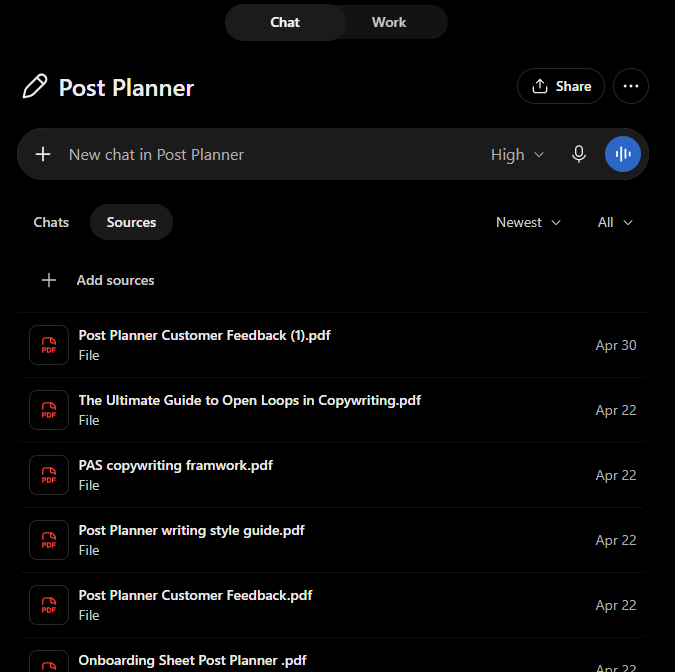
1. Start by creating a Project for your brand. A Project gives ChatGPT its own instructions, uploaded files, and memory, so add your brand voice, audience, content pillars, and 10 of your best captions. Plans allow 5 to 40 files, which gives you plenty of room to teach it what your brand actually sounds like.
2. Next, tell ChatGPT EXACTLY what you need. Include your audience, tone, and goal. For example, you could ask, “Write 5 engaging Instagram captions for a fitness brand promoting a new workout app.” The more useful context you give it, the less generic the response will be.
3. If the 1st response misses the mark, don’t start over. Ask for variations or tell ChatGPT what to change until you get closer to what you had in mind.
4. Then EDIT the result before posting it. Add your own wording, examples, opinions, and personality so the finished caption actually sounds like your brand.
ChatGPT has gotten much more useful for repeatable social media work in 2026. Memory on Plus and Pro can remember what it learns about your brand across chats, GPT-6 Astra (September 2026, Plus plan and up) can handle longer jobs like researching a month of post ideas and turning them into a calendar, agent mode can browse websites for you, and scheduled tasks can run the same prompt every Monday.
There’s a free plan, while Plus costs $20 a month.
Tips for using ChatGPT effectively
- Experiment with various prompt styles to discover what works best for your needs. Try variations on the same prompt to see what gets the response closest to what you were looking for.
- Conversational commands work! Try prompts like “Make this sound more fun” to tweak responses. ChatGPT understands human language naturally, so don’t think you have to talk to it like a robot.
- ALWAYS edit, personalize, and humanize the final output for better engagement. ChatGPT is a great place to START, but you should never copy and paste directly from ChatGPT to your Instagram posts. Your audience will be able to tell, and your engagement will suffer.
2. Best for generating posts, captions and images: Post Planner
Post Planner is built to make creating and publishing social content faster, without forcing you to bounce between a bunch of different tools.
A big part of that is its AI writing tool, which is made specifically for social media posts.
What does that mean, exactly?
Instead of starting every caption from scratch, you can give it a few details about what you want to say and get several usable directions in seconds.
And it doesn’t stop at the caption anymore. You can generate the image in the same Composer too, so you can go from an empty post to something ready to publish without leaving Post Planner.
Even better: every plan, including the free plan, comes with UNLIMITED AI writing, captions and hashtags.
Key use cases
- Create engaging captions tailored to your audience.
- Generate multiple variations of the same post to explore different approaches.
- Generate hashtags for the post in the same tool (Instagram now allows 5 per caption, so make them count).
- Generate an image from a text prompt right inside the Composer, on any plan.
How to use it
Let’s start with the caption.
1. Click "Create Post" in the top-left corner to open the Composer.
2. Click the green "Write with AI" wand.
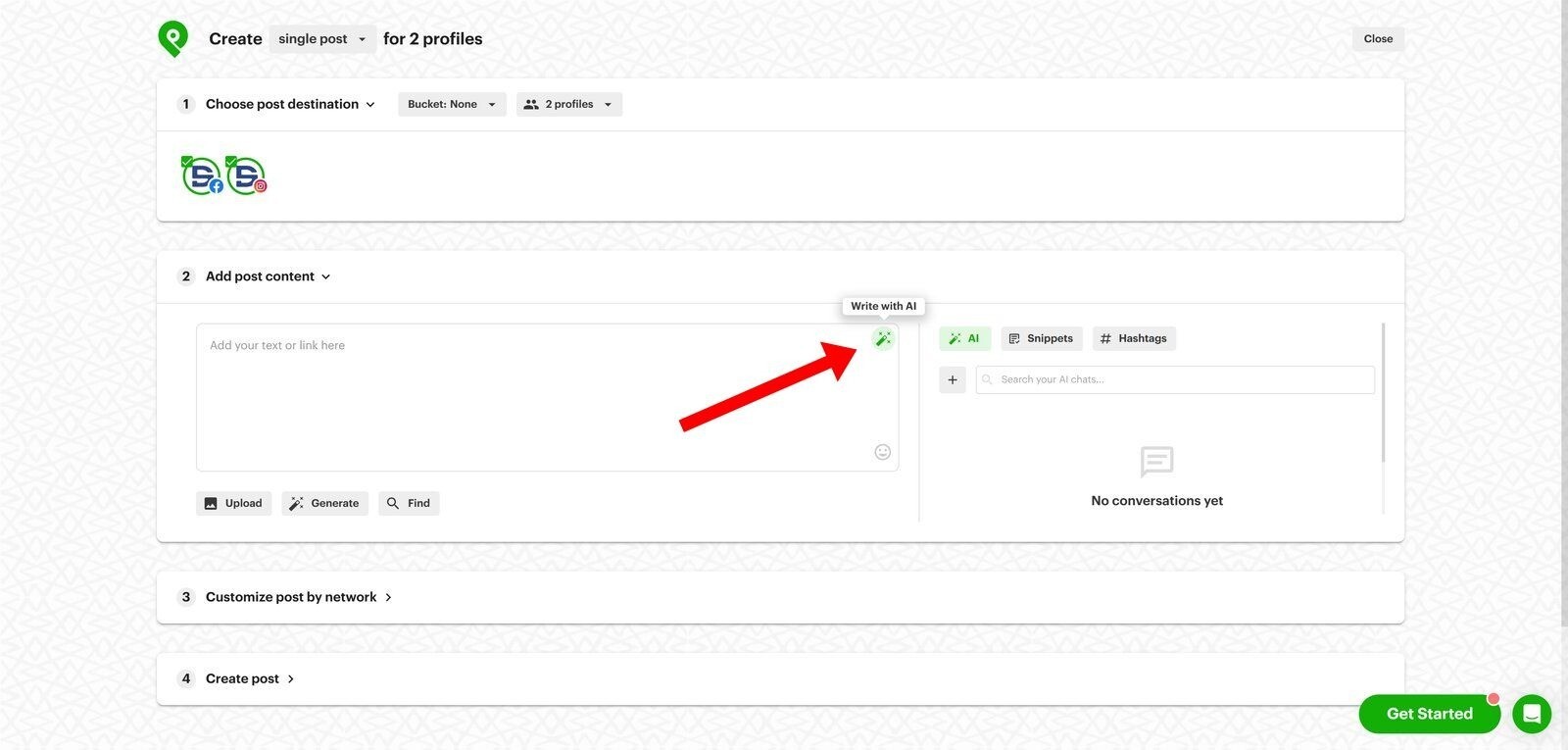
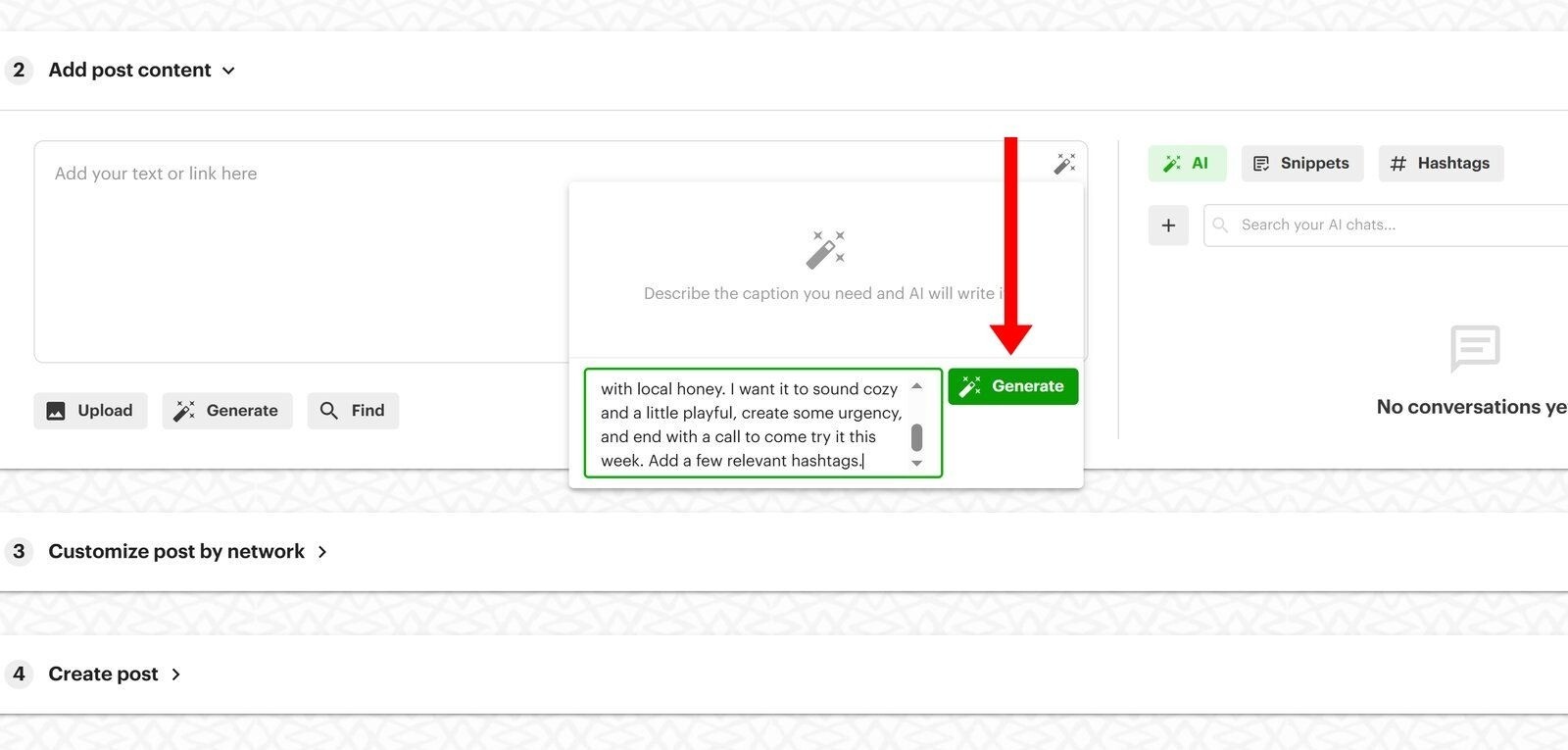
3. Tell Post Planner what you want the post to say in the caption box. Give it the important details, what you want the post to accomplish, the tone you’re going for, and the format you want back.
For example, you could type: "a short, playful caption to promote our new honey lavender latte this week, with a few hashtags."
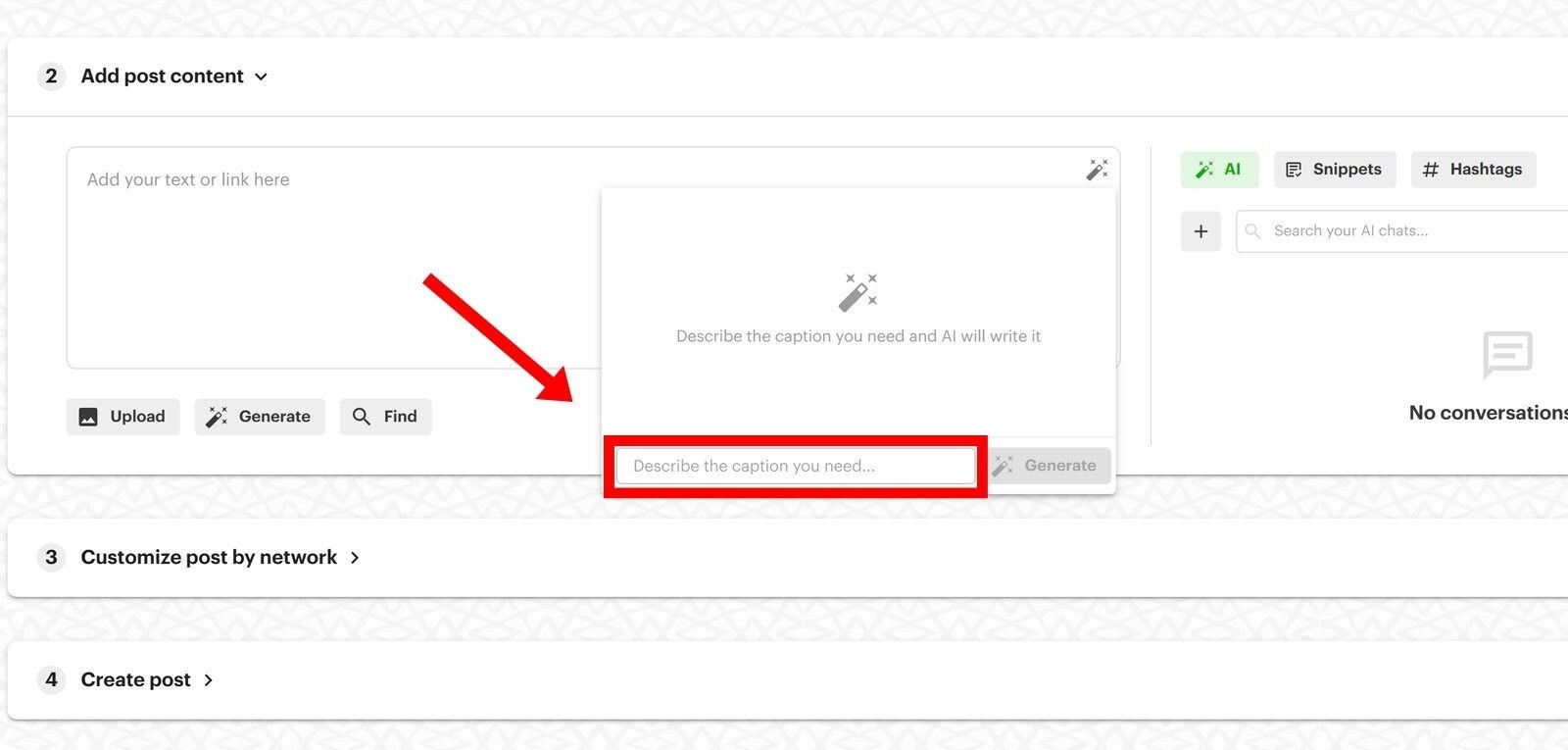
4. Click "Generate," and Post Planner will give you several versions to choose from.
5. Pick the version that gets closest to what you want. Use the copy icon, paste it into your post, remove the other variations, and make any final edits so it sounds like your brand.
This gets even more useful when you’re creating content for several networks at once.
TIP: If you’re working in the multi-post Composer, "Write with AI" works there too. Click into the version for each network and generate a separate caption for each one instead of forcing the exact same copy everywhere.
Now, here's how you can generate stunning images with AI:
1. In the Composer, click the "Generate" button with the magic wand icon.
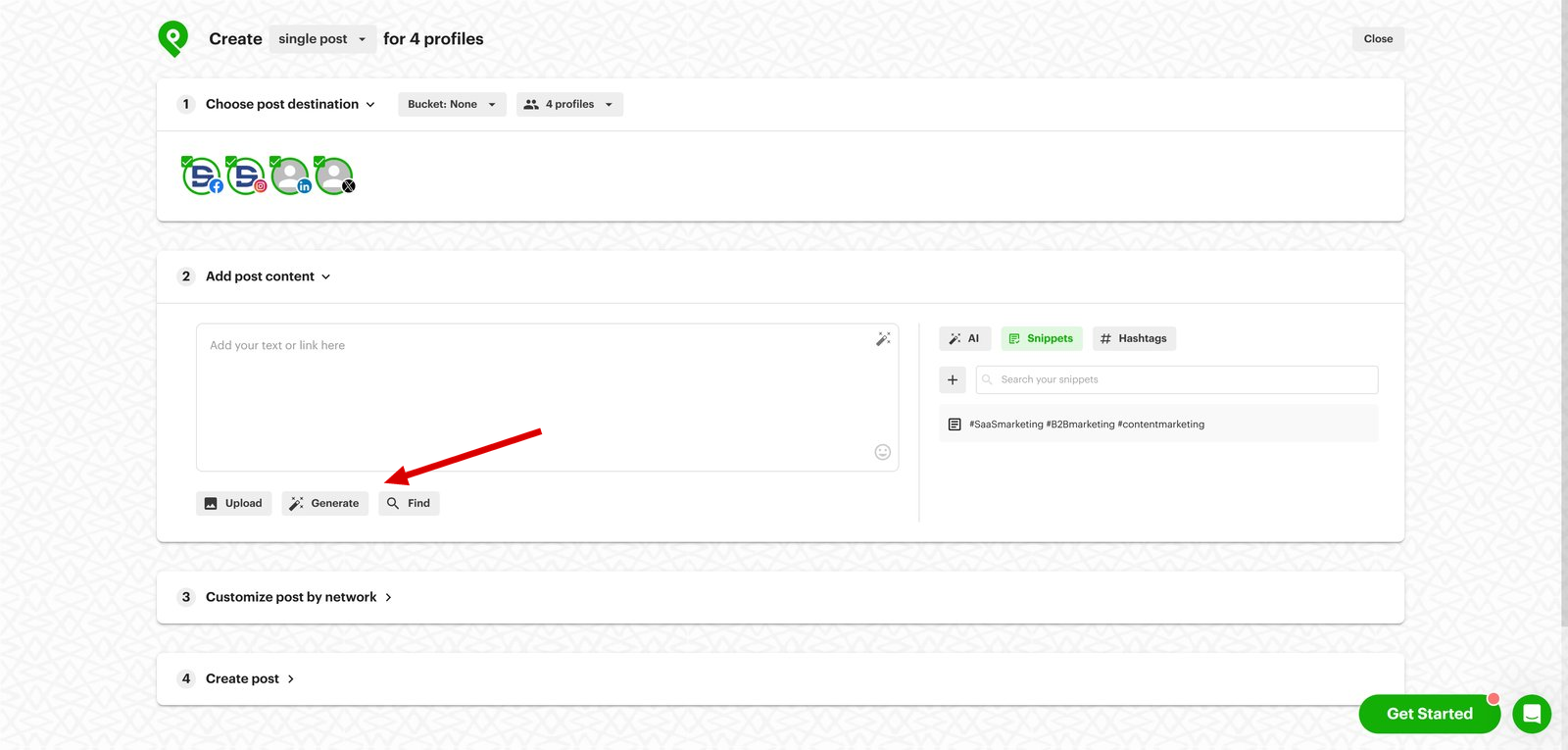
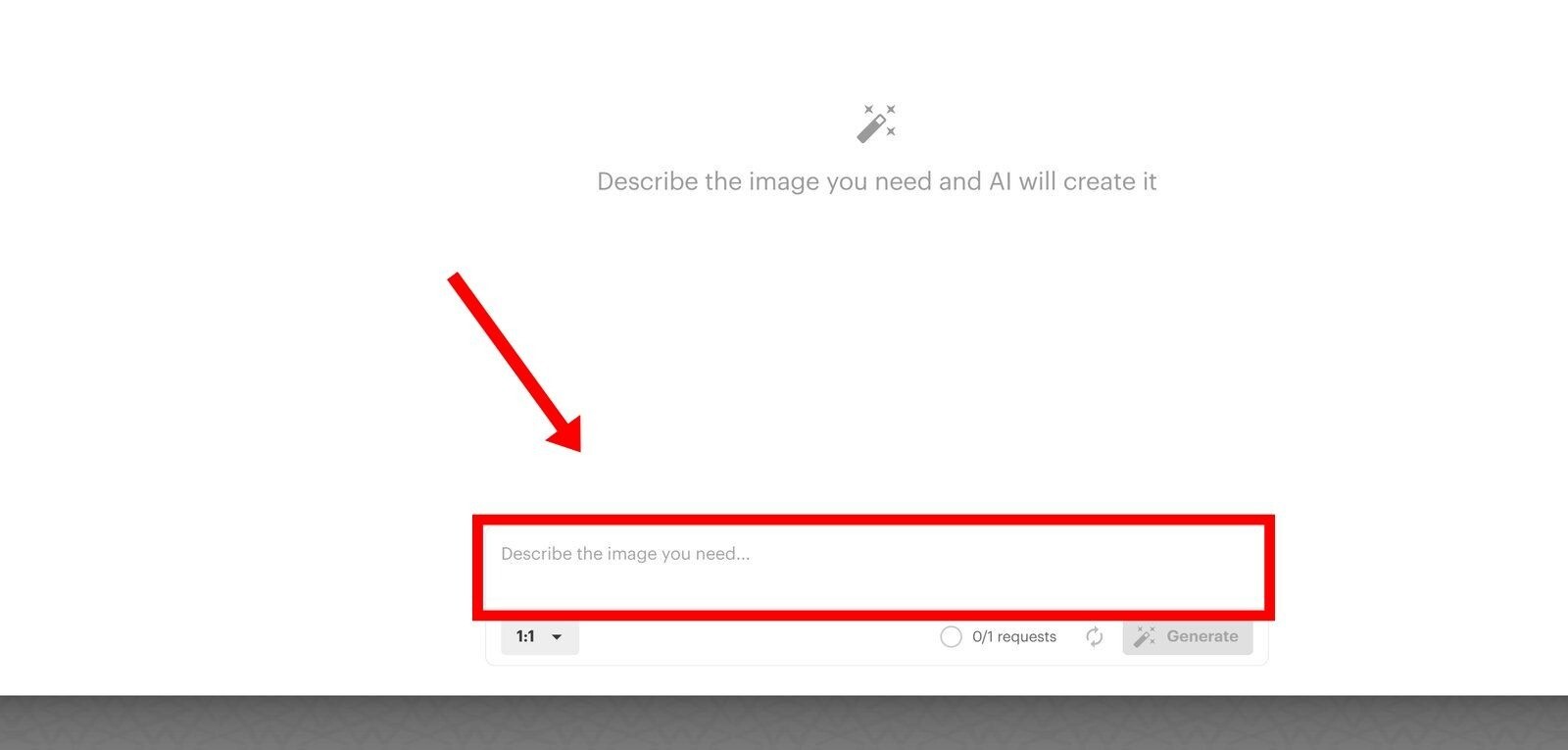
2. Describe what you want the image to look like. Include the main subject, where the scene takes place, the lighting, the visual style, and the overall mood.
For example: "a cozy latte on a wooden café table, warm morning light, photorealistic."
3. Want to tweak it before posting? Click the pencil icon to open the image in the Content Studio, where you can add text, filters, blurs or stickers.
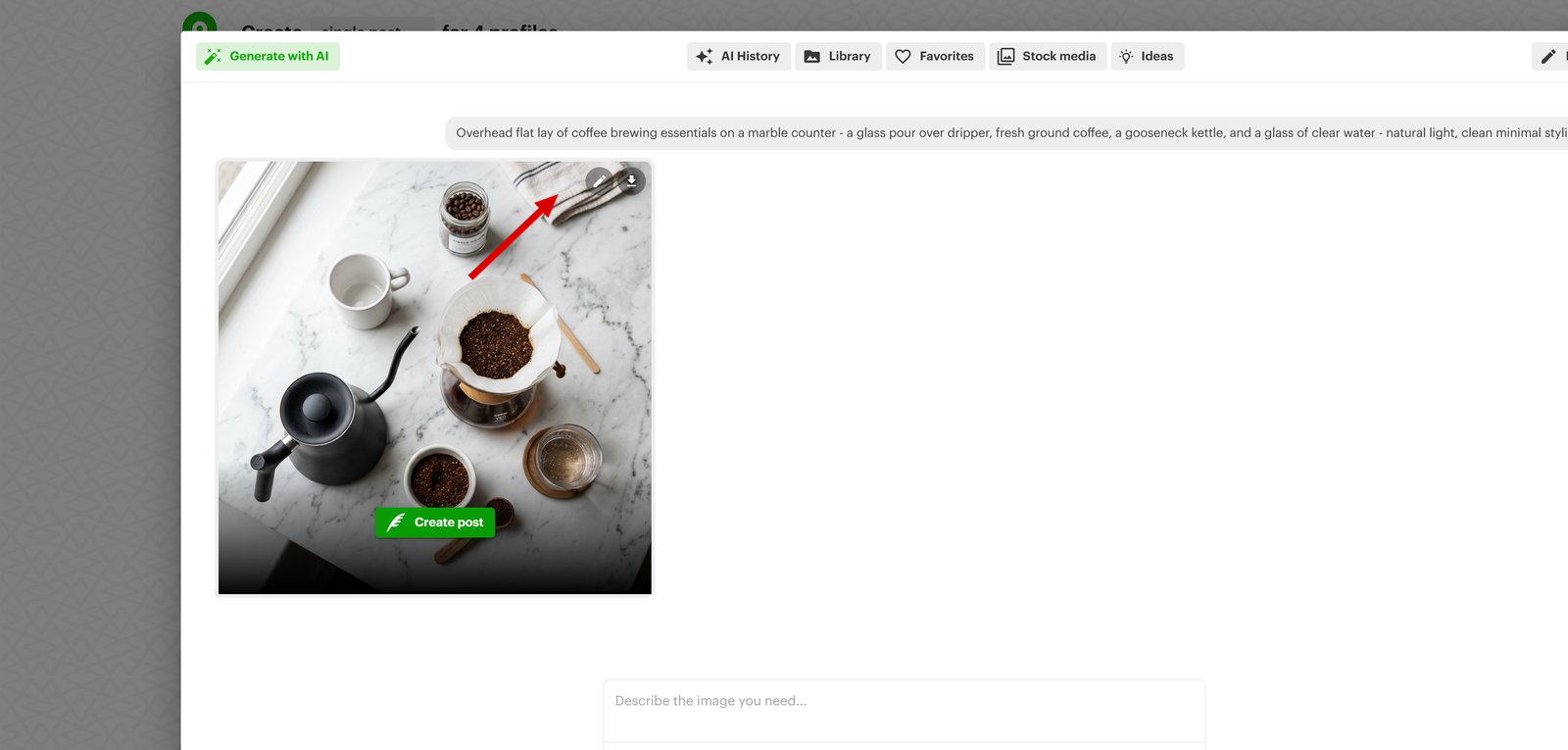
4. Click "Create post" when you’re happy with it, and the image will be added to your post.
Image generation is included on every plan, with a monthly limit.
Tips for using Post Planner effectively
- Grab these free 50 Instagram templates.
- Be specific. "A caption about our sale" gives the AI almost nothing to work with. "A 2-line caption announcing 20% off candles this weekend, warm and a little cheeky" gives it a MUCH clearer target.
- Remix what already works. Find a post in your niche that's getting real engagement (Content Streams or Instagram search), figure out what made it work, then use those ingredients to describe your own image and caption to the AI. The goal is inspiration, not copying.
- EDIT anything generated by AI! Post Planner’s AI tool is fantastic but can never replace a human entirely. Edit everything to fit your brand’s tone and voice.
3. Best for photo editing: Remini
Instagram posts generate the most engagement when they contain high-quality images with high-quality editing.
One problem. What if you’re not a professional editor and don’t have access to one?
That’s where Remini comes in.
Remini is a software dedicated to editing and enhancing images with AI, meaning it takes hardly any time to take photos and turn them into Instagram-worthy masterpieces.
Let’s talk about it!
Key use cases
- Enhance photo quality for older or lower-resolution images.
- Give your Instagram photos the appearance of professional editing.
- Using generative AI to create incredible-looking portraits for Instagram.

How to use it
The web version of Remini helps you enhance blurry or low-resolution images.
All you have to do to use it is upload the picture you want to improve.
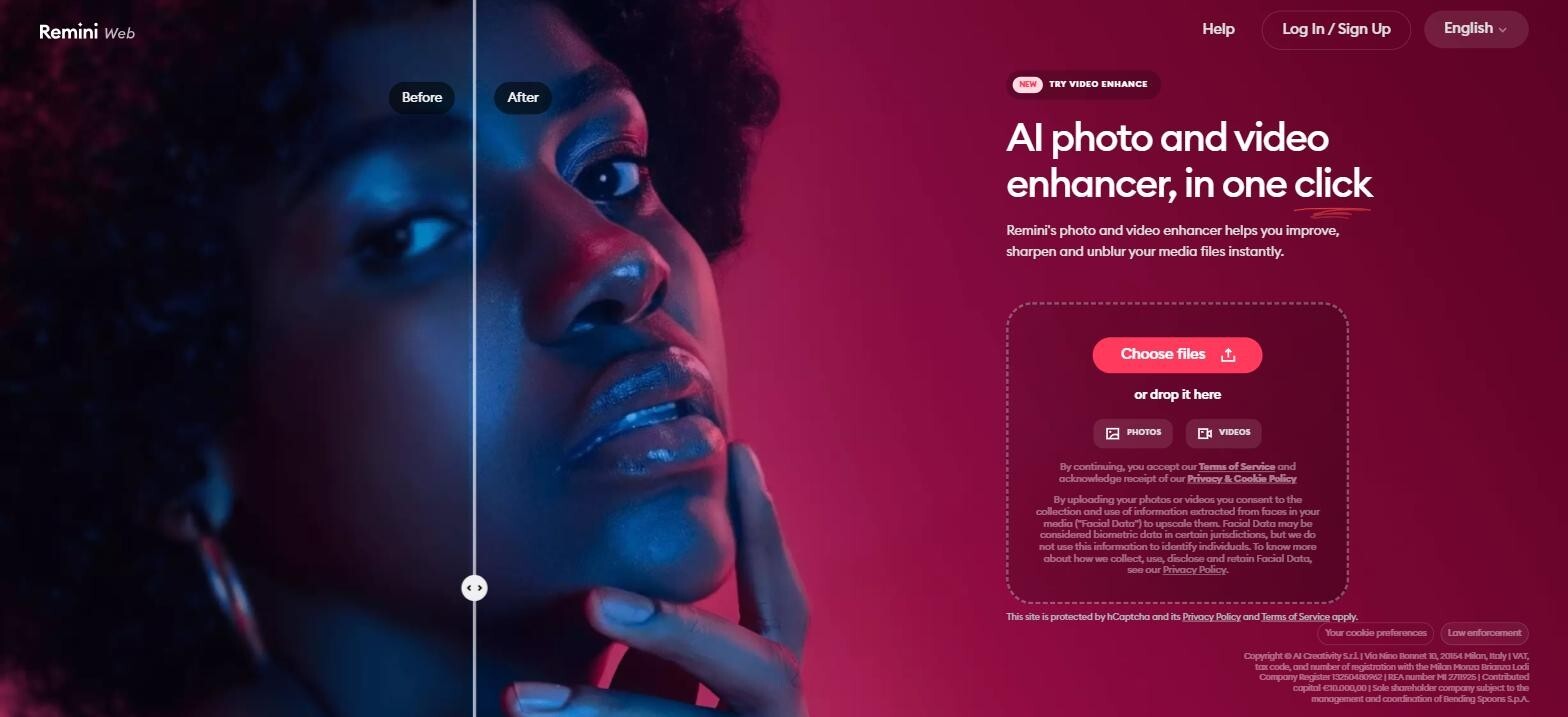
You can select other editing options in the left-hand toolbar to add something like color correction, background blur, or facial correction.
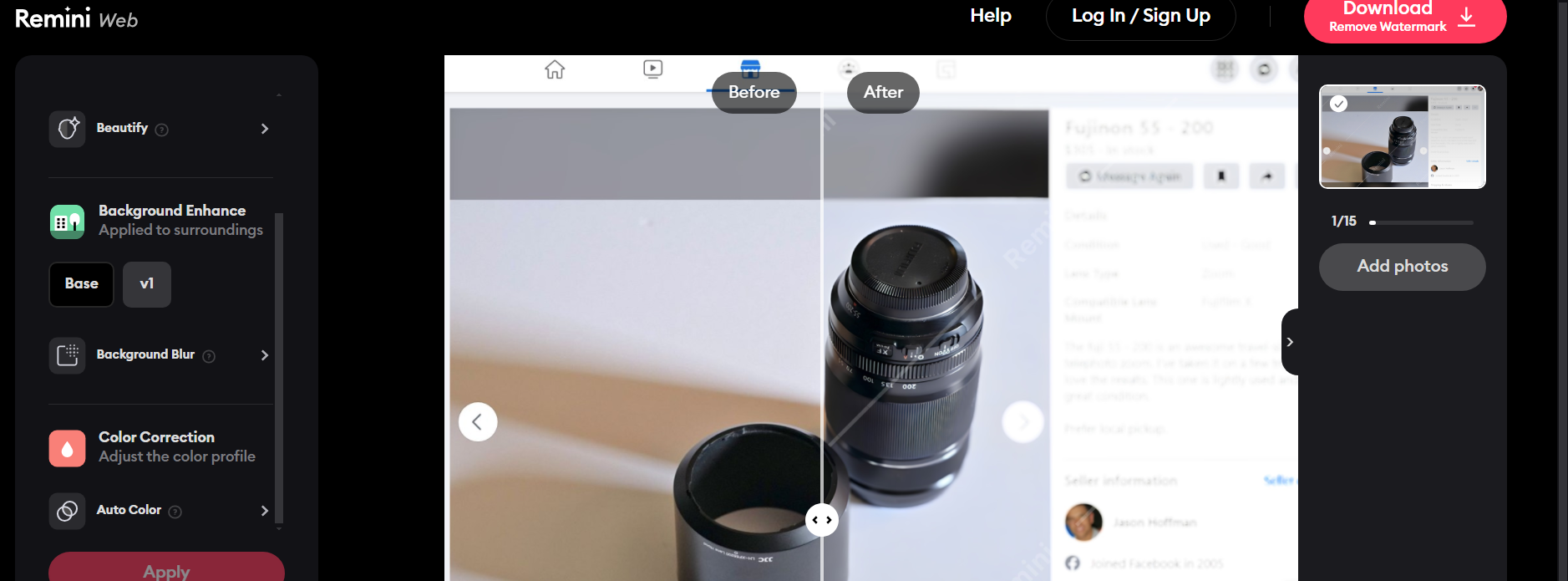
The Remini app (not on desktop) allows for generative AI to create hyperrealistic photos based on your existing pictures. For example, you can upload a selfie and have Remini change the background or even turn you into an animated version of yourself as shown below.

Remini gives you a free trial, then it's a paid subscription priced inside the app.
Tips for using Remini effectively
- Use high-resolution source images for even better results.
- Experiment with different filters and refinements to find the ideal look for your photos.
- Avoid over-editing, as natural-looking images perform better on Instagram.
4. Best for video creation: Google Veo
Writing captions and creating still images is one thing.
But Instagram is built around Reels, which leaves you with another problem: What if you need video and don’t have anything to film?
That’s where Google Veo comes in. Veo 3.1 can turn a written prompt or one of your own photos into a short, realistic video clip with sound inside the Gemini app.
Let’s talk about how to fit it into your Instagram strategy.
Key use cases
- Produce short promotional clips in minutes with ZERO camera work.
- Turn a product photo into a moving clip for Reels and Stories.
- Create B-roll that matches your brand when you have no footage to cut.
How to use it
1. Open the Gemini app at gemini.google.com or on your phone using an account with video generation.
2. Choose "Video," then describe the clip the way you'd brief a videographer: what's in the shot, how it moves, how the camera moves, the lighting, and how long it should run.
For example: "slow push-in on a latte being poured on a wooden counter, warm morning light, steam rising, 8 seconds, vertical."
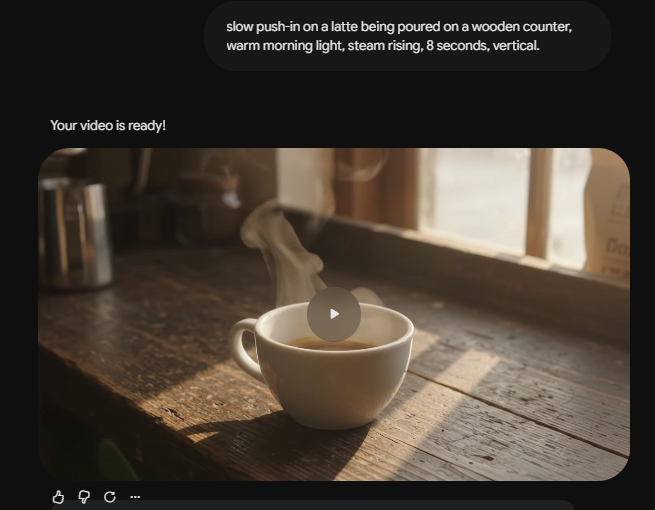
3. Generate the clip and watch it all the way through. If it isn’t quite what you pictured, change the prompt and try again until you get closer.
4. Download the finished clip and use it in a Reel. We’ll cover the editing side in section 6.
Video generation is available through Google’s paid AI plans. Google AI Pro costs $19.99 a month and includes 1,000 monthly AI credits, while Google AI Ultra costs $249.99. Free Gemini accounts get very limited video generation.
Here’s a tip most people miss:
I don’t pay for a separate AI video plan at all, because my Google Workspace Business Standard account already includes the Gemini app with Veo video generation (up to 3 videos a day). If you pay for Workspace Business Standard or Business Plus, check your Gemini app before you buy anything.
Tips for using Google Veo effectively
- Give Veo plenty of detail. The more clearly you describe the scene, movement, lighting, and look you want, the better chance you have of getting a clip that matches what you had in mind.
- Keep your clips short, visual, and fast-moving. That fits the way people actually consume Reels.
- Watch closely for the usual AI weirdness. Hands, text, and scenes with several people moving at once can still look off, so if the result screams AI, change the prompt and generate another version.
5. Best for automated post scheduling: Post Planner
We talked about how good Post Planner is at helping you generate text for your Instagram posts, but it doesn’t stop there.
One of Post Planner’s greatest strengths is its ability to help users schedule their social media posts in advance.
Post Planner helps you source content from around the web, quickly create posts for your followers based on proven content, and schedule your content to post at the exact right time.
Key use cases
- Save time by managing all your social channels from one place.
- Source proven content from around the web or create your own using AI, proven post ideas, and a high-quality content editor.
- Maintain a consistent content calendar effortlessly.
- Automating content recycling for high-performing posts.
How to use it
The whole idea is to decide what you want to post and WHEN once, then let Post Planner handle the repetitive part.
Here’s how:
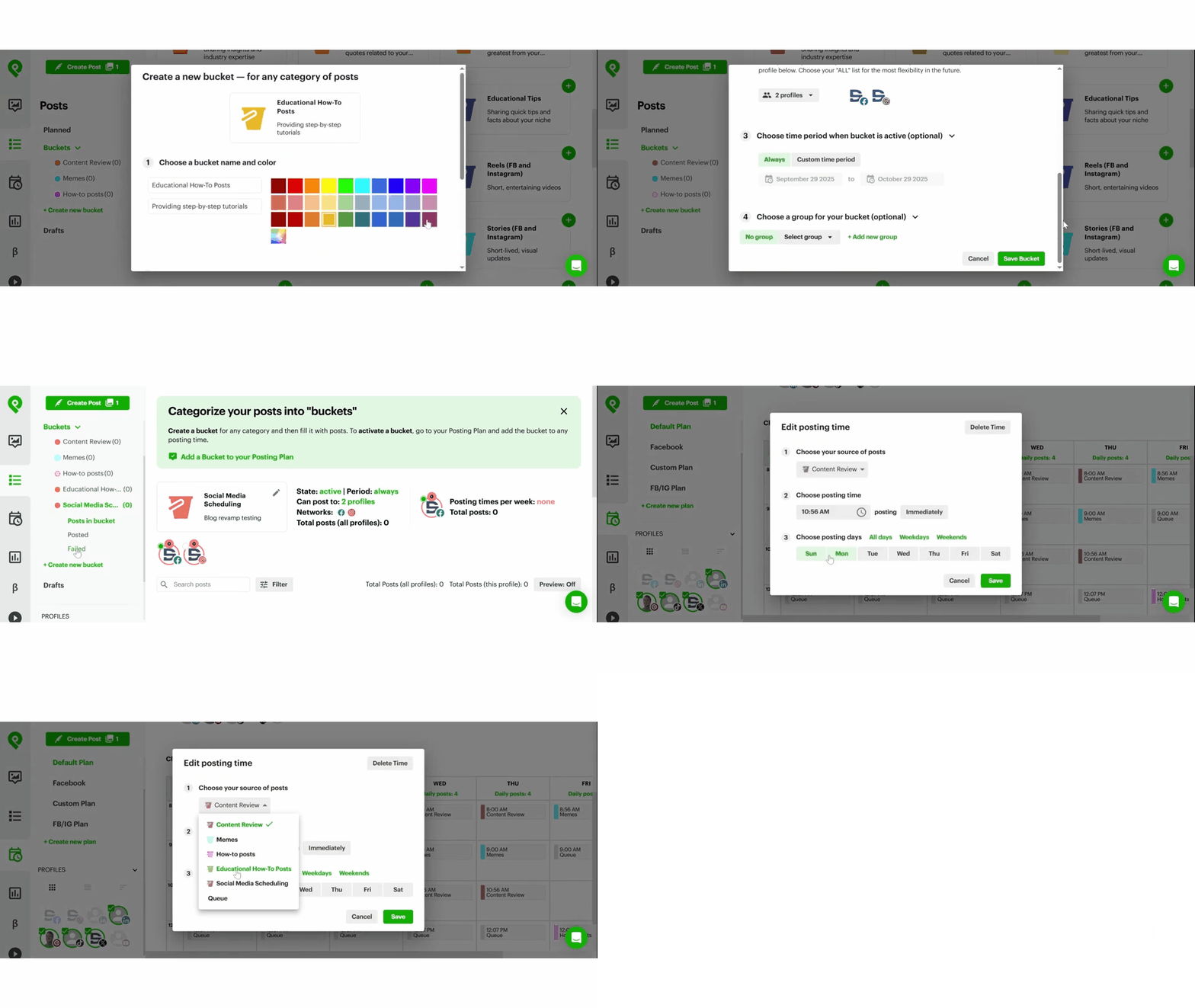
1. Start with your "Posting Plan." This is the weekly schedule that tells Post Planner which days and times you want your posts to publish.
Set those time slots once, and every new post you add can drop into the next available spot automatically.
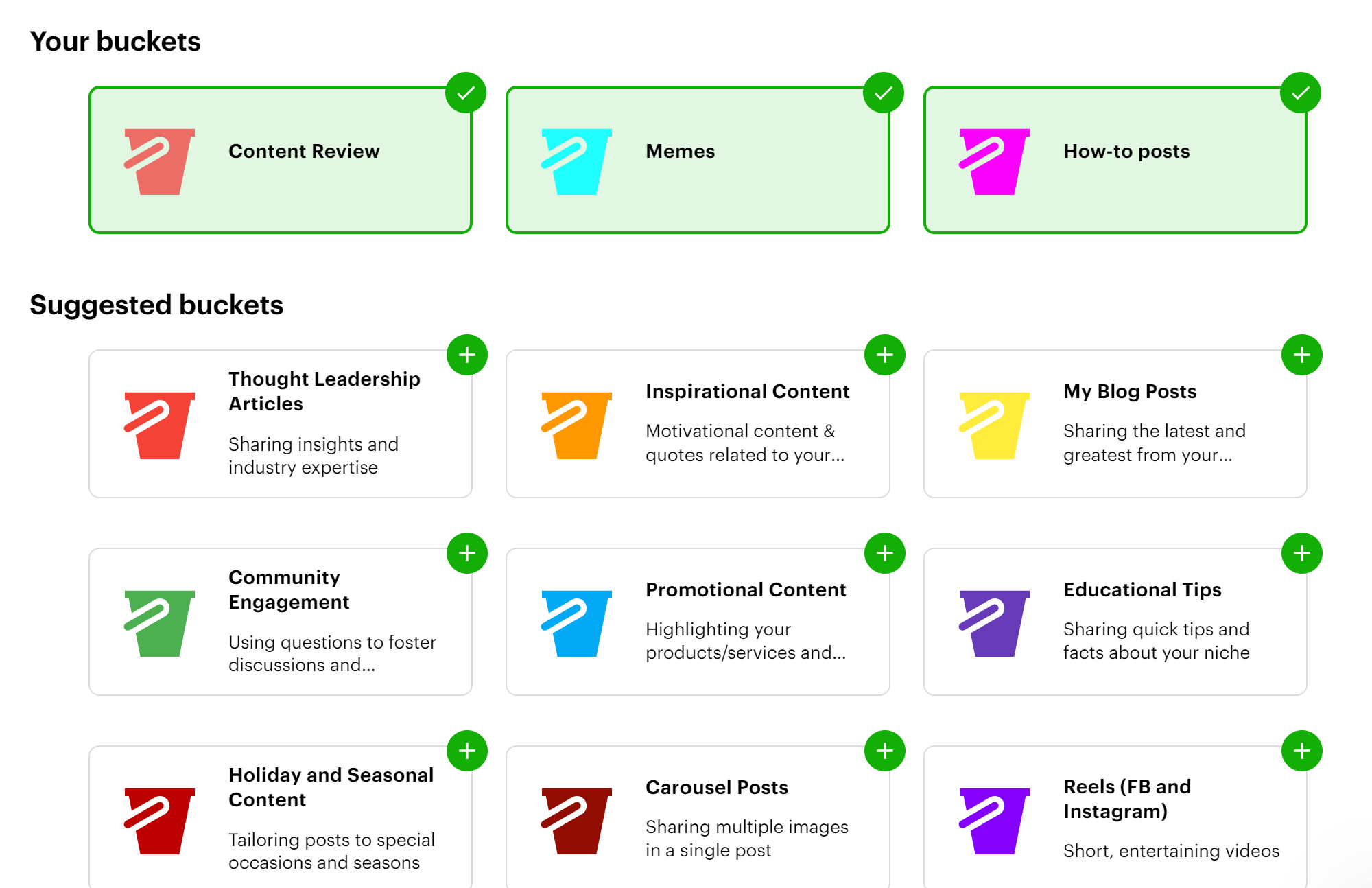
2. Next, organize your content into "Buckets." Think of Buckets as categories like promos, tips, or memes that each get their own spots in your Posting Plan.
That way, you don’t accidentally end up posting 5 promos in a row just because those happened to be the next posts you created.
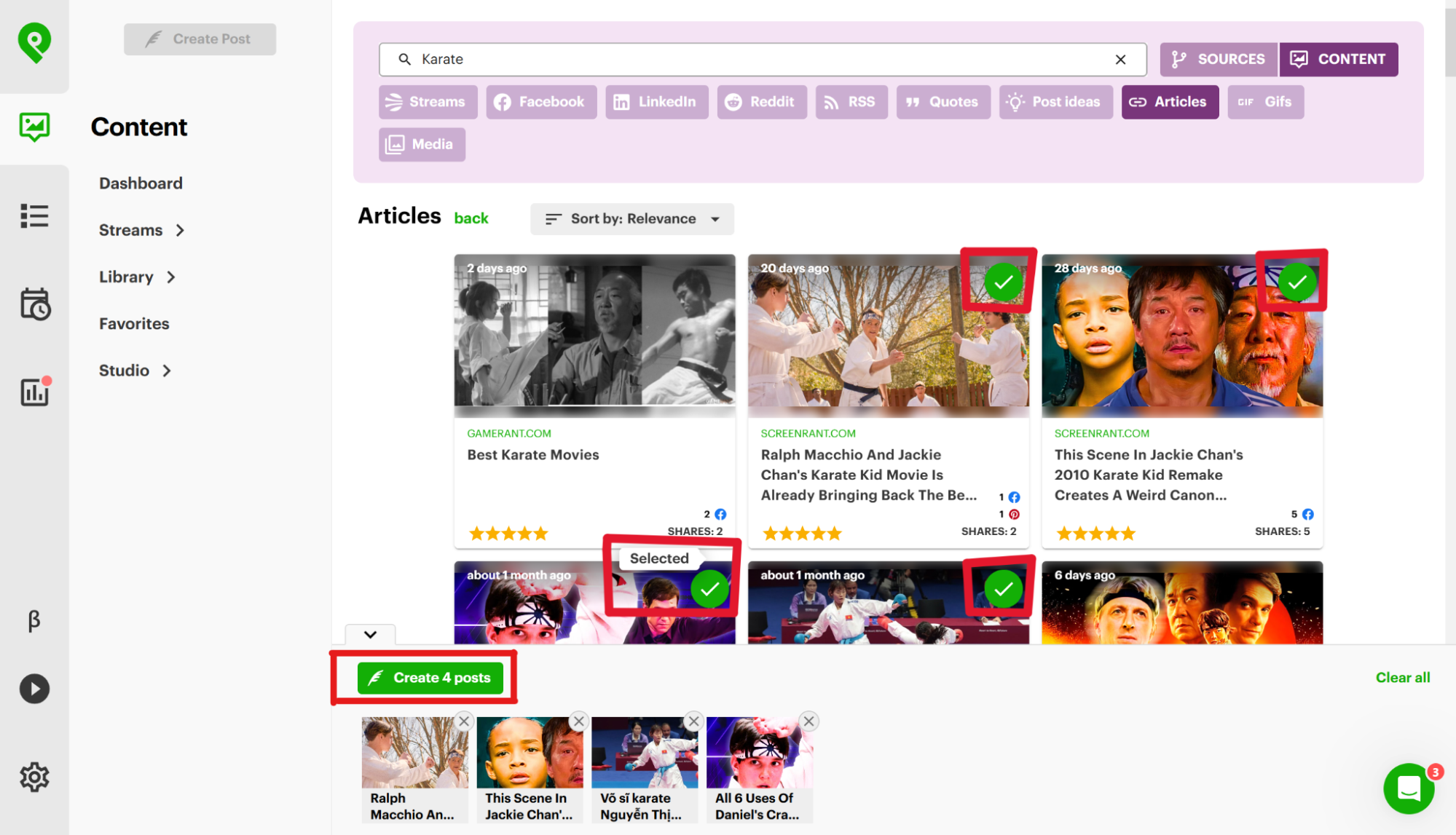
3. Now you need something to publish. You can search "Content Streams," which are ready-made feeds of posts that have already proven themselves in your niche, select the ones you want, or create your own posts using the AI tools from section 2.
4. Finally, check "History" to see how your past posts performed. When you find something your audience clearly liked, use it again instead of constantly starting from ZERO.
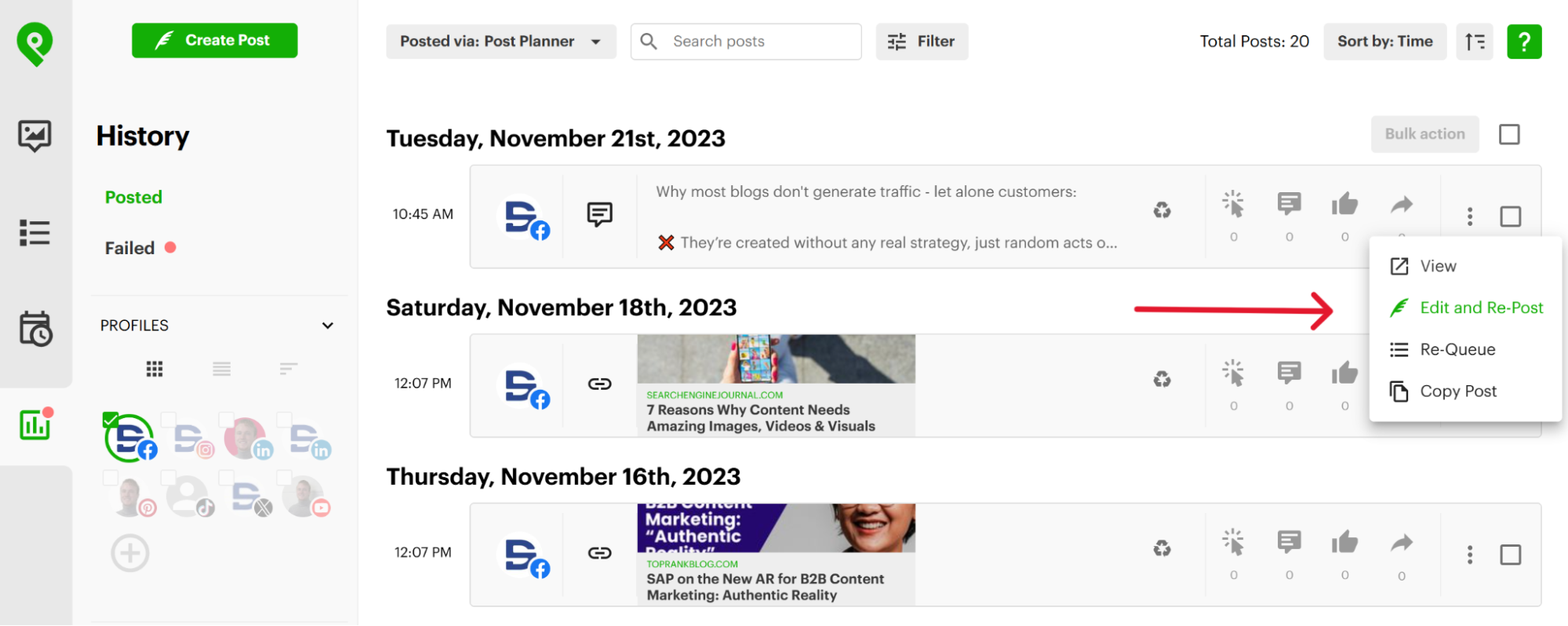
Every time you add a new post, Post Planner will automatically schedule it to one of your available posting times. That means you NEVER have to think about when to log into Instagram and post your content. Post Planner handles that for you!
Want to schedule a whole month in one sitting?
Switch the Composer to multiple posts and load everything in bulk. You have 5 ways to do it:
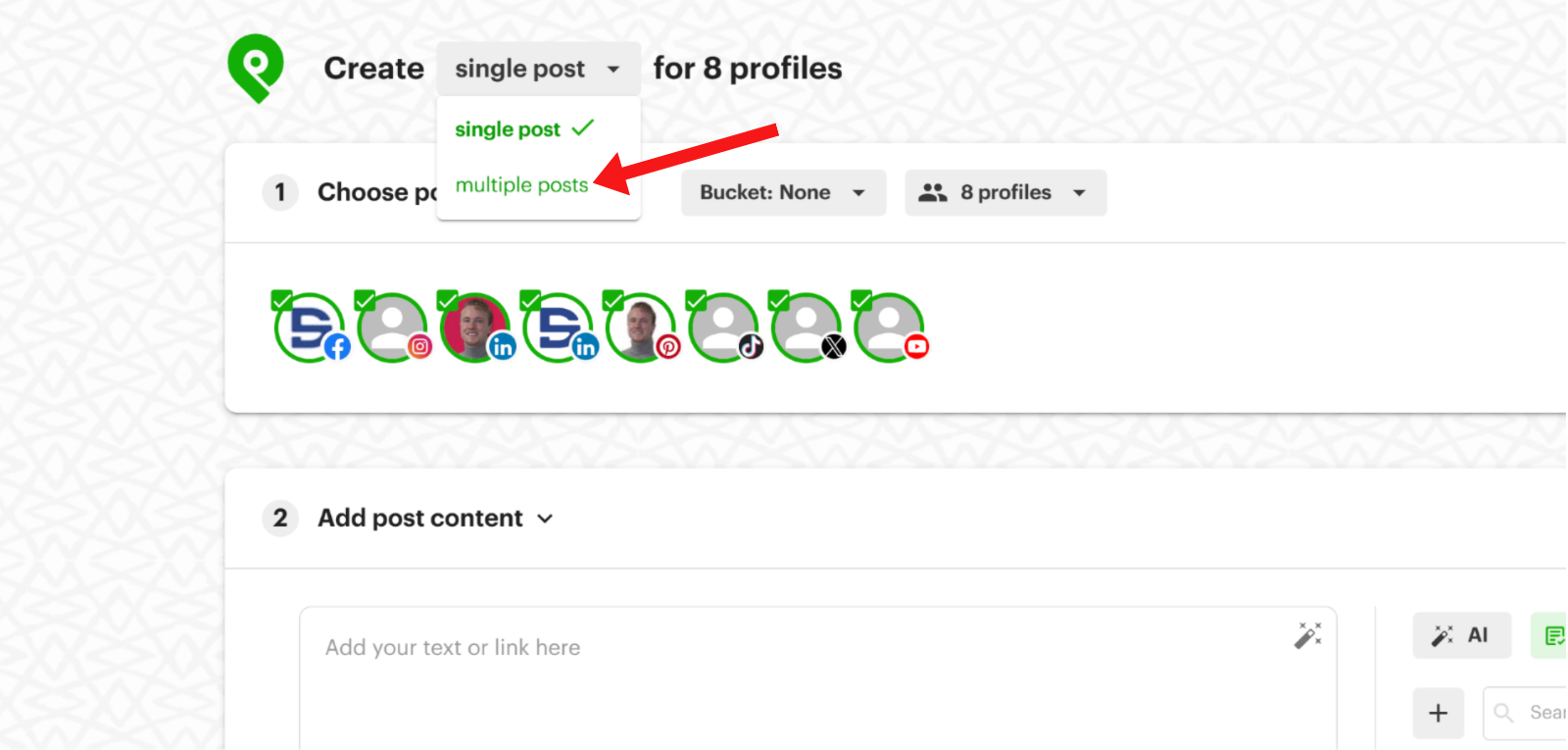
- Upload a batch of images, or add videos from your Library. Each one becomes its own post.
- Paste an RSS feed URL, and each article becomes a separate link post.
- Upload a spreadsheet containing all your posts.
- Choose posts from Content Streams and other feeds (as previously mentioned).
- Use the Post Planner Chrome extension to grab images from any web page.
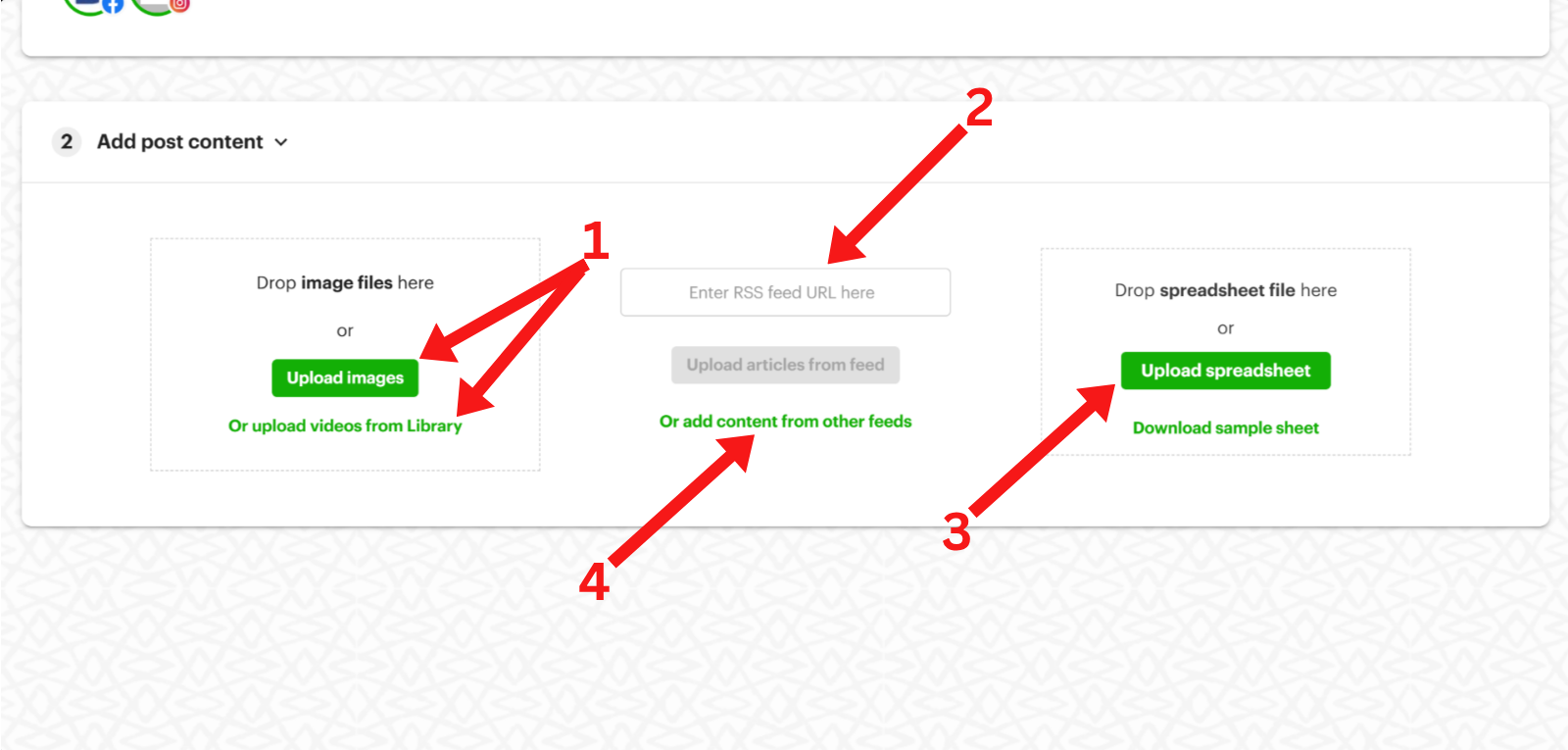
The spreadsheet is the fastest of the 5, especially if you’re using AI to help build your posts.
Here’s how:
1. Open the multi-post Composer and click "Download sample sheet".
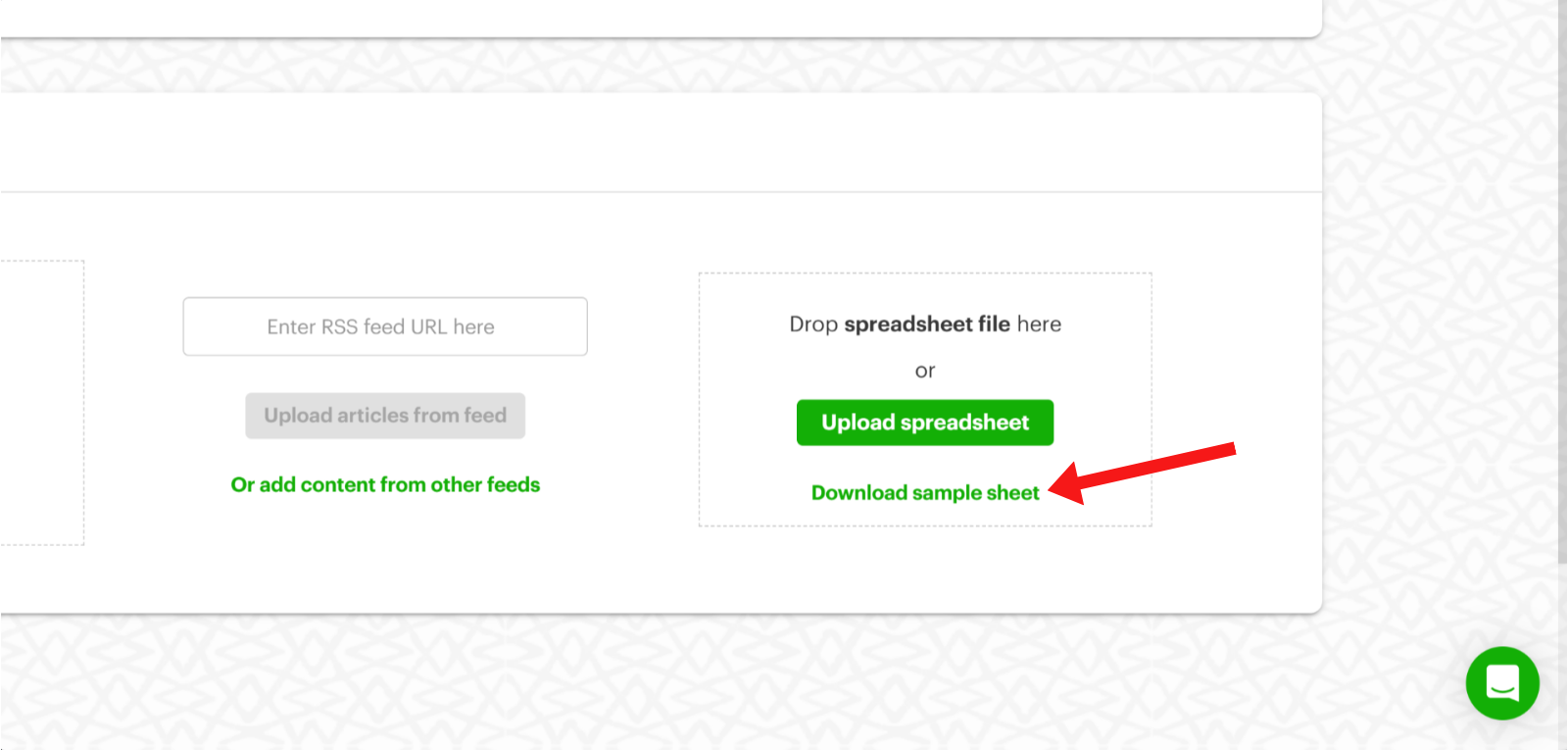
2. Give the spreadsheet to ChatGPT or Claude along with your brand notes, then ask it to fill out 1 row for every post you want to create.
Each row can include the caption, a link when needed, the image or video URL, a first comment, the number of minutes before that comment publishes, and "reel" or "story" when the post isn’t a regular feed post.
Want the post to follow your Posting Plan? Leave the posting-time column blank.
If a post HAS to go live at a specific moment, put the exact date and time in that row instead.
3. If you’re adding your own images, store them in your Post Planner Library first. Select the images, click "Bulk actions," then "Download links of selected" and paste those URLs into the media column of your spreadsheet.
Google Drive and Dropbox share links don’t work here, so use the links from your Post Planner Library.
4. Back in the Composer, click "Upload spreadsheet" and select your .xlsx or .csv file.
Each row in the spreadsheet now becomes its own post.
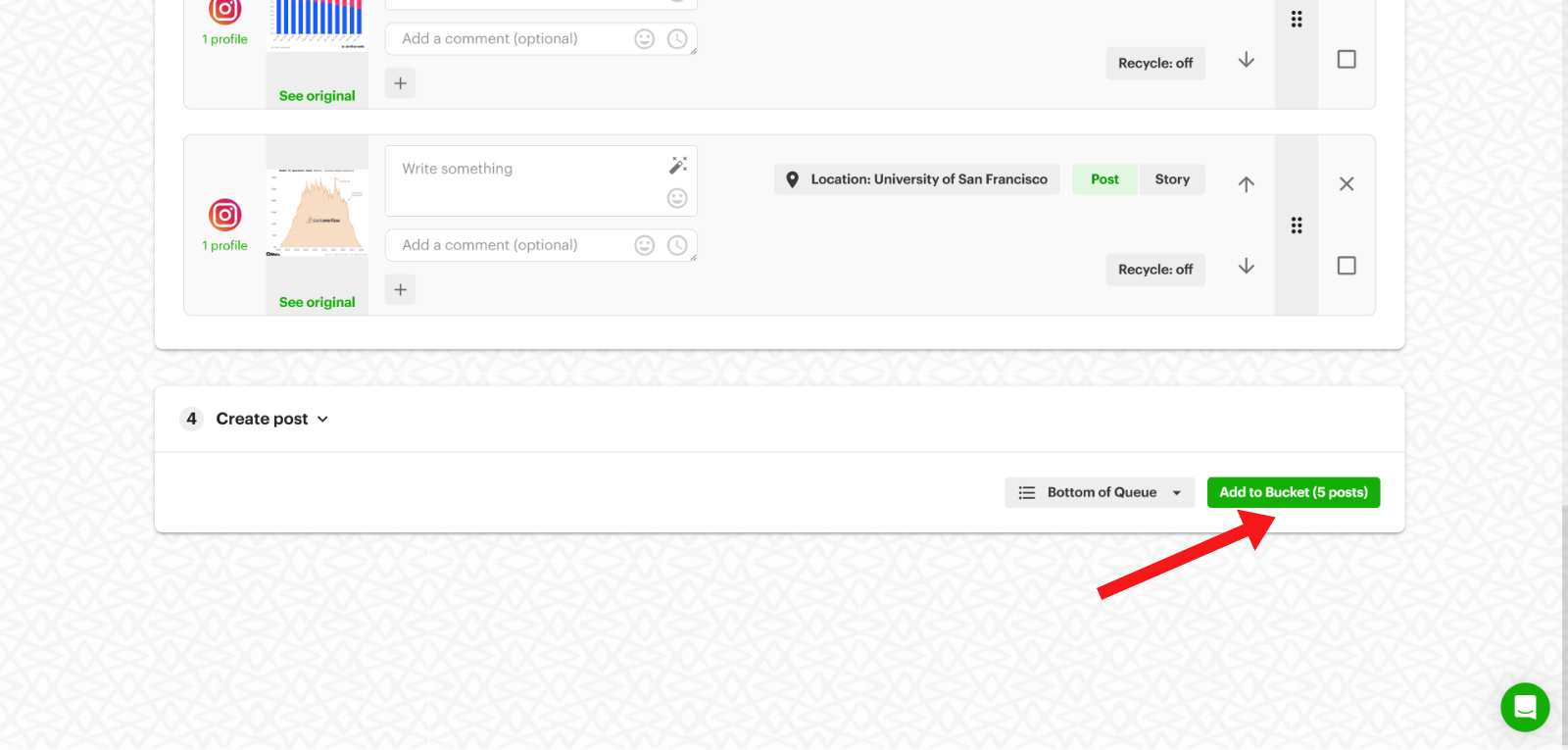
5. Before you add everything to your schedule, make your final changes in bulk. You can reorder the posts, apply 1 caption to all of them, turn on "Recycle" for evergreen posts, then click "Add to Queue" or "Add to Bucket".
One important warning: Don’t delete the instruction rows at the top of the sample sheet or move its columns. The upload depends on them staying where they are.
Tips for using Post Planner effectively
- Utilize engagement analytics (in Posts > History) to identify the best posting times for your audience.
- Mix curated content with owned content to keep your schedule fresh and relevant.
- Take advantage of the time you save with automation features to focus more on community engagement.
- Make 1 spreadsheet per Bucket. It keeps your Posting Plan organized and makes a failed row easy to find.
6. Best for video editing: Edits by Instagram
Video editing is HARD.
And it gets even more annoying when the “easy” editing apps either charge you to unlock the useful stuff or stick their logo on your finished video.
Edits is Instagram’s free answer to that problem for iPhone and Android. Sign in with your Instagram account and you get a proper timeline for cutting clips, adding captions, applying effects, and polishing a Reel before you publish it.
You can export the finished video without a watermark too. Let’s talk about how to work it into your Reels.
Key use cases
- Make precise cuts, add captions, and clean up your Reels from your phone using frame-level timeline editing.
- Save the visual style you use over and over with Kits, then reuse templates to make future videos match.
- Use Restyle to change a clip with a written prompt, or use Extend to animate a still image (Extend is US only).
- Learn from the Reels you’ve already published using performance insights and the built-in AI assistant.
How to use it
1. Download Edits from the App Store or Google Play and sign in with the same Instagram account you want to work with.
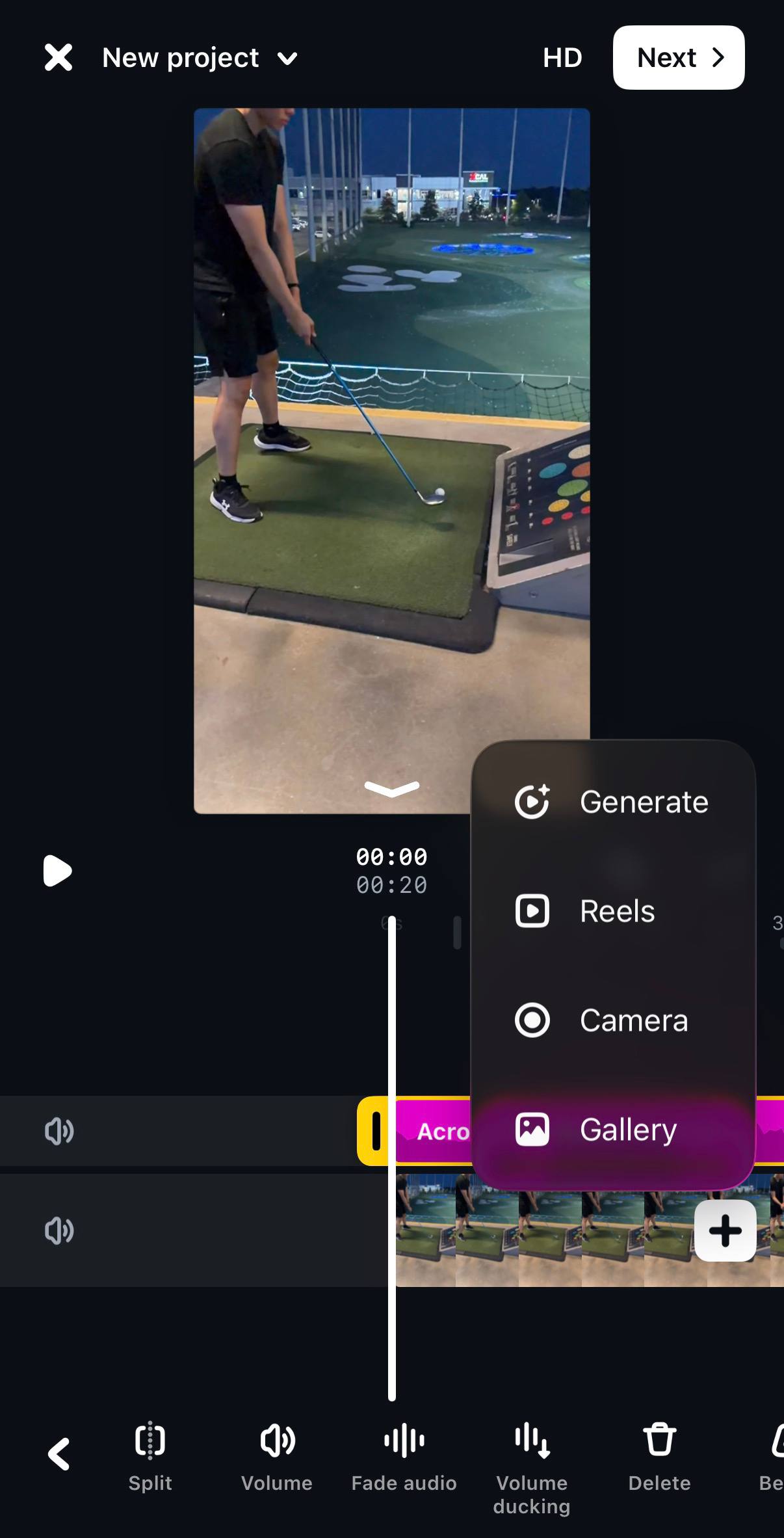
2. Open a new project and pull in footage from your camera roll, or record it inside the app. If you’re filming yourself speaking, you can use the teleprompter to keep your script in front of you.
3. Build the video on the timeline by trimming clips and moving them into the right order. From there, you can generate auto captions, search for music based on the vibe you want, and add transitions, green screen, or effects.
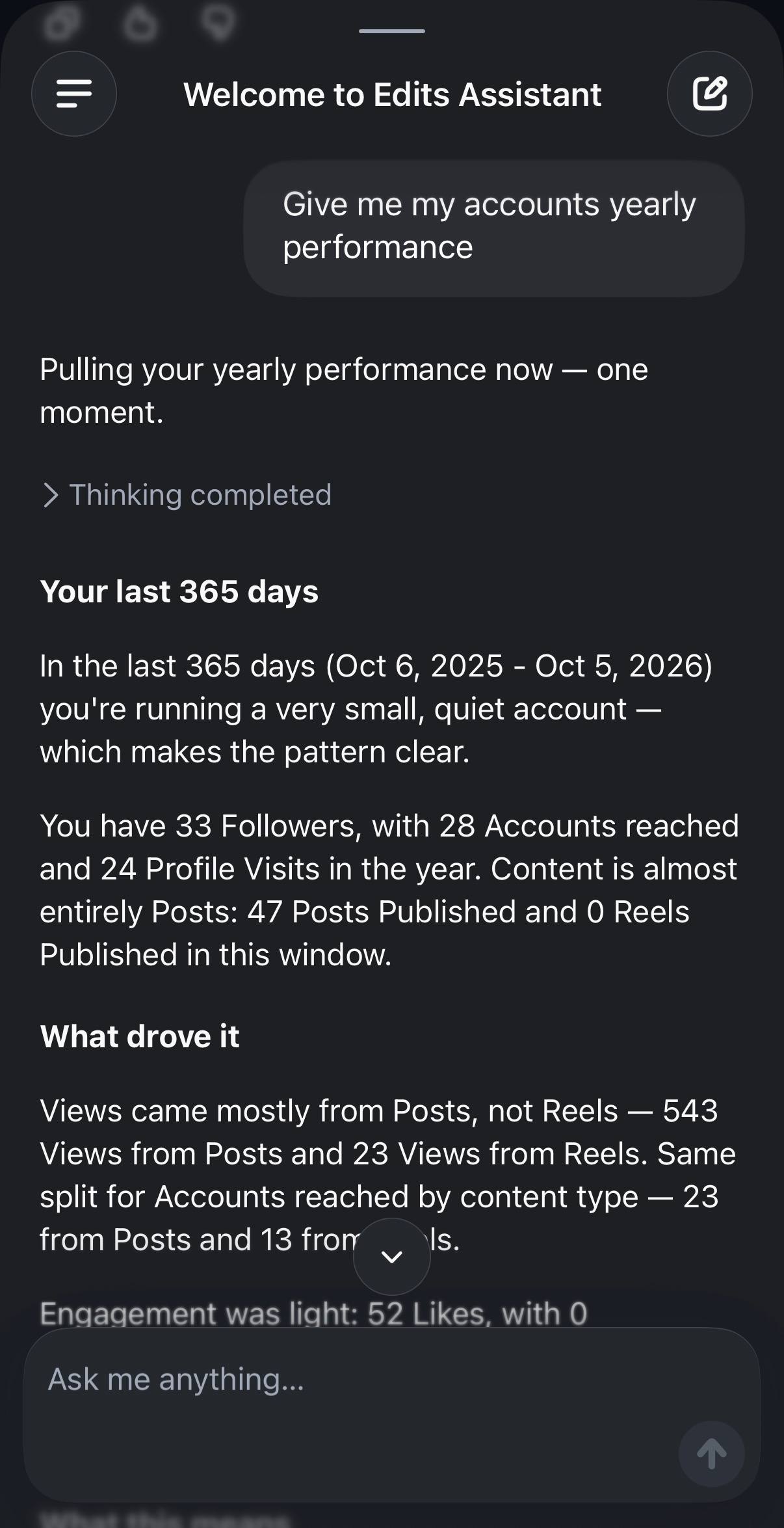
4. Once you have some Reels published, try asking the Edits assistant what your audience is responding to.
It can use your own follows, views, retention, Likes, and shares to find patterns across previous Reels. It can also surface audio that’s trending in your niche, and the assistant is free with a daily prompt limit.
5. Export the final video without a watermark, then upload the file to Post Planner to schedule it. On iOS, your export can be up to 15 minutes long.
Edits is getting more capable too. Instagram is testing both carousel creation and a desktop version, while heavier assistant usage will be offered through an Edits Plus plan on Meta One.
Tips for using Edits by Instagram effectively
- Get to the point FAST. The first 2 seconds should give people a reason not to swipe away.
- Build a Kit with your usual fonts, colors, and caption styling so you aren’t recreating your brand look every time you edit a Reel.
- Before choosing your next idea, compare up to 3 previous Reels with the assistant and look for the patterns worth repeating.
7. Best AI agent for Instagram: Claude
So far, every tool on this list has still required you to tell AI what to do 1 task at a time.
An AI agent changes the workflow.
Instead of asking for a caption, then asking for another caption, then building the calendar yourself, you tell it what you want FINISHED and let it work through the job.
Claude is Anthropic’s AI, and its agent features (Anthropic called them Cowork until this fall; they’re now simply part of Claude) are built for that kind of work. Give it access to a folder, explain the result you need, and it figures out the steps and creates the actual files for you.
ChatGPT can do the same kind of work on paid plans with agent mode and Projects. So if you already pay for ChatGPT, there’s no reason to add another tool just for this. Here’s what that looks like for Instagram.
Both tools can work with the places where you already keep information, which means they don’t have to start from an empty prompt every time. Claude can connect to Google Drive, Gmail, HubSpot, Notion, and Slack through connectors, as well as services with an MCP server. ChatGPT has its own apps and connectors directory. The point is simple: your existing brand files, previous content, and performance data can become the source material for the work.
Key use cases
- Review last month’s Instagram performance and turn what worked into a plan for the next month, including the reasoning behind each idea.
- Produce 30 captions based on your actual brand material instead of trying to explain your voice from scratch every time.
- Build the bulk-upload spreadsheet from section 5 with 1 completed row for every post.
- Run the same planning workflow every Monday and save the draft in a folder for you to check.
How to use it
1. Give the agent something GOOD to work from. Put your brand voice guide, content pillars, and 10 top-performing captions together in 1 folder.
2. Connect the places that contain useful source material. Drive can give it access to brand assets, while Gmail can surface real customer questions that could become future Instagram posts.
3. Now ask for the finished deliverable instead of feeding it a separate prompt for every post.
For example: "Plan and write October for our Instagram: 4 posts a week, carousels on Tuesdays, Reels on Fridays, in the voice from the folder. Put it in a spreadsheet with a caption, 5 hashtags and an image prompt per row."
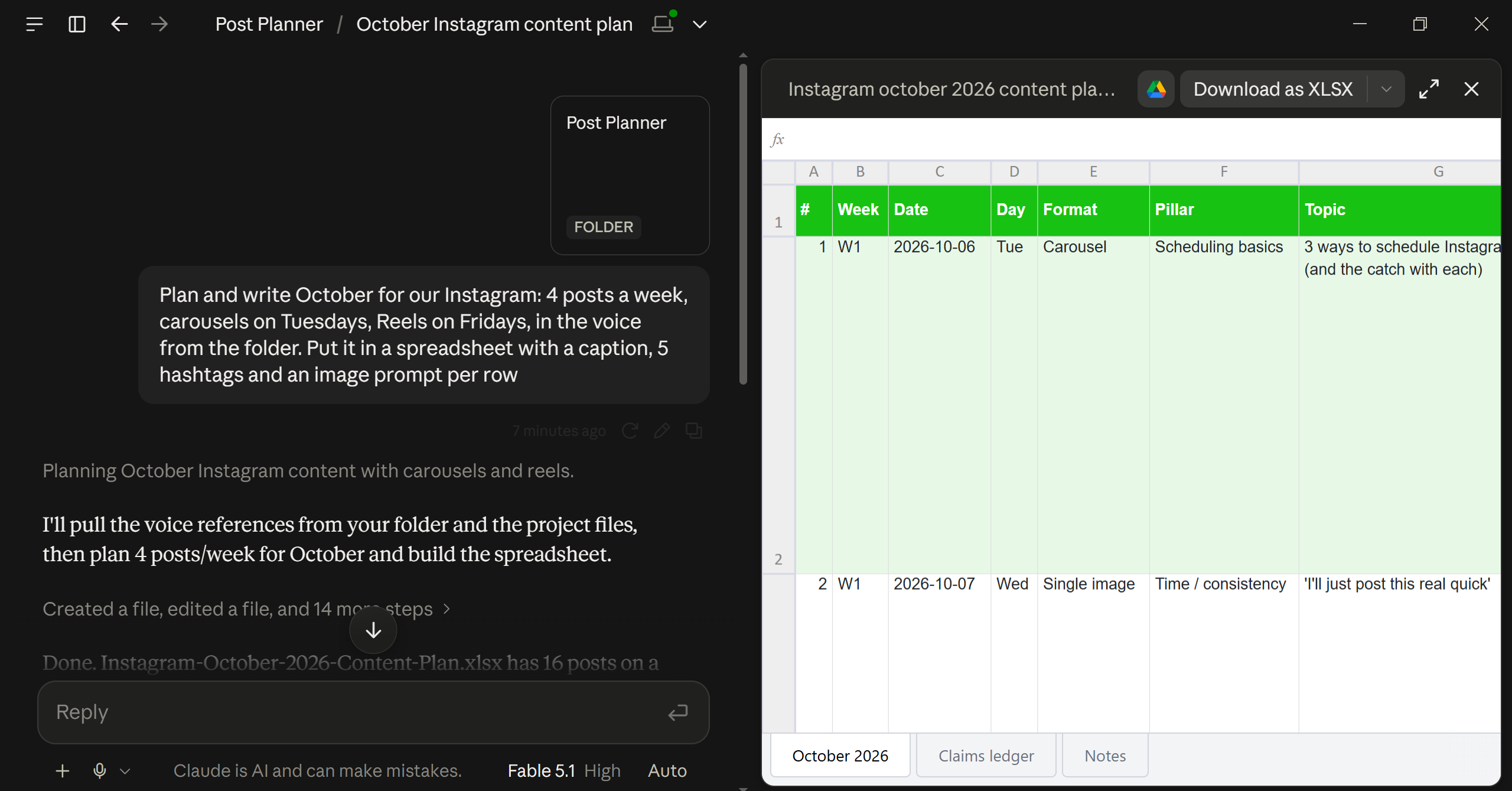
4. Go through the finished file line by line, make your edits, then move the approved content into Post Planner.
The agent features are on Claude’s paid plans, starting with Pro at $20 a month. ChatGPT Plus is also $20 a month.
Tips for using Claude effectively
- Feed it strong source material. If your folder barely explains your brand, the content it produces will sound just as generic.
- Keep a human between the draft and Instagram. The agent can do the heavy lifting, but YOU should still approve everything that gets published.
- Use the agent for planning and creation, not for replacing your publishing system. Let it prepare the work, then let your posting schedule handle when it goes live.
How to pick the right AI tools for your Instagram
Don’t start by buying 5 subscriptions.
See how far you can get with the FREE options first: Meta’s built-in AI, Edits, ChatGPT’s free plan, and Post Planner’s free plan. Once you know which part of your workflow is STILL eating your time, that’s the job worth paying to improve.
I’d also avoid looking for 1 magical tool that does everything. You’ll usually get better results by choosing the best tool for each job and keeping the workflow simple.
Whatever you use, don’t publish AI copy untouched. Rewrite it until it sounds like something YOU would actually say.
The same idea applies to hashtags. Instagram caps you at 5 per post now, so use 5 that are closely related to the content instead of stuffing in anything vaguely relevant.
And don’t automate fake engagement. Let AI help you create and plan content, but never use it to automatically Like posts, follow accounts, or leave comments. That’s the kind of activity Instagram restricts accounts for.
Frequently asked questions about AI for Instagram
Is there an AI for Instagram?
Yes. Instagram has AI built RIGHT into the app now.
Meta AI can answer questions and help write captions, Muse-powered effects can edit your Stories, AI Studio lets you build custom AIs, and the free Edits app includes its own AI assistant.
But those tools don’t cover everything.
If you want to plan content, write posts in bulk, generate images, and schedule everything ahead of time, you’ll still need tools like the ones above.
What is the best AI content generator for Instagram?
ChatGPT and Post Planner are both great choices!
ChatGPT excels in versatility while Post Planner focuses on social media-specific content, and it generates images on every plan.
How to use ChatGPT for Instagram?
The best way to use ChatGPT for Instagram is to brainstorm content ideas, craft captions, and develop content strategies by providing detailed prompts and editing the output to align with your brand.
Read the section on ChatGPT above for a more detailed discussion of how to incorporate ChatGPT into your Instagram strategy. Remember: ALWAYS edit your AI output to match your brand’s tone and voice.
Are there free AI tools for Instagram?
YES, so you don’t need to start by buying a stack of subscriptions.
Meta AI and Instagram’s Story effects are free, as is Edits. ChatGPT also has a free plan.
Post Planner has a free plan too, which includes unlimited AI writing, captions and hashtags, plus a monthly allowance of AI images.
Will Instagram label or penalize AI-made posts?
Instagram can add an "AI info" label to images that are fully AI-generated or contain AI metadata.
That label by itself doesn’t reduce your reach.
The "AI-generated profile" rule is about accounts presenting an AI person as a real person, not a business using AI to help write captions or create graphics.
What CAN hurt your reach is reposting content you didn’t meaningfully change. Original posts created with help from AI are fine.
Can AI schedule my Instagram posts for me?
Yes.
You can write the caption and generate the image with Post Planner’s AI, or have an assistant fill out the bulk spreadsheet for you.
Then, add everything to your Posting Plan and Post Planner publishes each post on schedule.
Ready to start using AI to create better Instagram posts?
Mastering AI for Instagram doesn’t have to be overwhelming.
Starting with the 7 AI tools above will help you reduce the time it takes to find the perfect tools for your business. Before long, you’ll master using AI to save yourself time and improve engagement on Instagram!
Don’t forget that Post Planner offers a free account, making it an easy choice for businesses and creators starting their AI journey.
Good luck!








No Comments