Want to get better marketing results from LinkedIn?
YES? You need to do 2 things:
- Consistently publish a steady stream of high-quality content.
- Consistently engage with your audience (virtually network).
Notice the common theme? It's CONSISTENCY.
This is true whether you're a business owner, marketer, recruiter, networker, sales professional, or job seeker.
In this post, I'll show you 12 of the best LinkedIn tools to help you do everything from responding to messages to automating your posting schedule.
These tools will CONSISTENTLY save you time, improve your content, and explode your engagement.
Feel free to skip ahead using the table links:
1. Best for content discovery and scheduling: Post Planner
Growing a LinkedIn audience takes CONSISTENT posting. And consistent posting takes a system.
Most business owners and marketers don't have one.
I used to be one of them… waking up every morning, spending 1-2 hours scrambling for a post idea, creating it from scratch, and crossing my fingers for growth.
Post Planner solves all 3 of those problems in one place.
Post Planner's Content Streams let you pull high-performing content from LinkedIn pages, RSS feeds, or topics — so you never stare at a blank screen wondering what to post. Find something worth sharing, add it to your queue, and Post Planner publishes it automatically at whatever time you set.
You can also bulk-schedule dozens of post ideas at once, organize them into content buckets by topic, and set your best posts to recycle automatically — so content you create once keeps working for months.
Need to write a caption fast? The built-in AI writer handles that too.
The result: a fully loaded LinkedIn post scheduler that can run on its own, without you logging in every day.
I like to add my competitors’ LinkedIn company pages to a custom Content Stream. Post Planner will surface their top-performing posts so I can spy on what's resonating with our shared audience. That alone helps me to constantly publish posts that resonate.
Pros
- Very budget-friendly
- Easy content curation saves tons of time.
- Design posts without needing a separate tool
- Advanced content scheduling and planning features
- Preview what your LinkedIn posts will look like before publishing.
- Compatible with all content formats, including videos and carousels
-
Automate the first comment on your posts for link CTAs
Cons
- Lack of deep analytics
-
No messaging features
Features
-
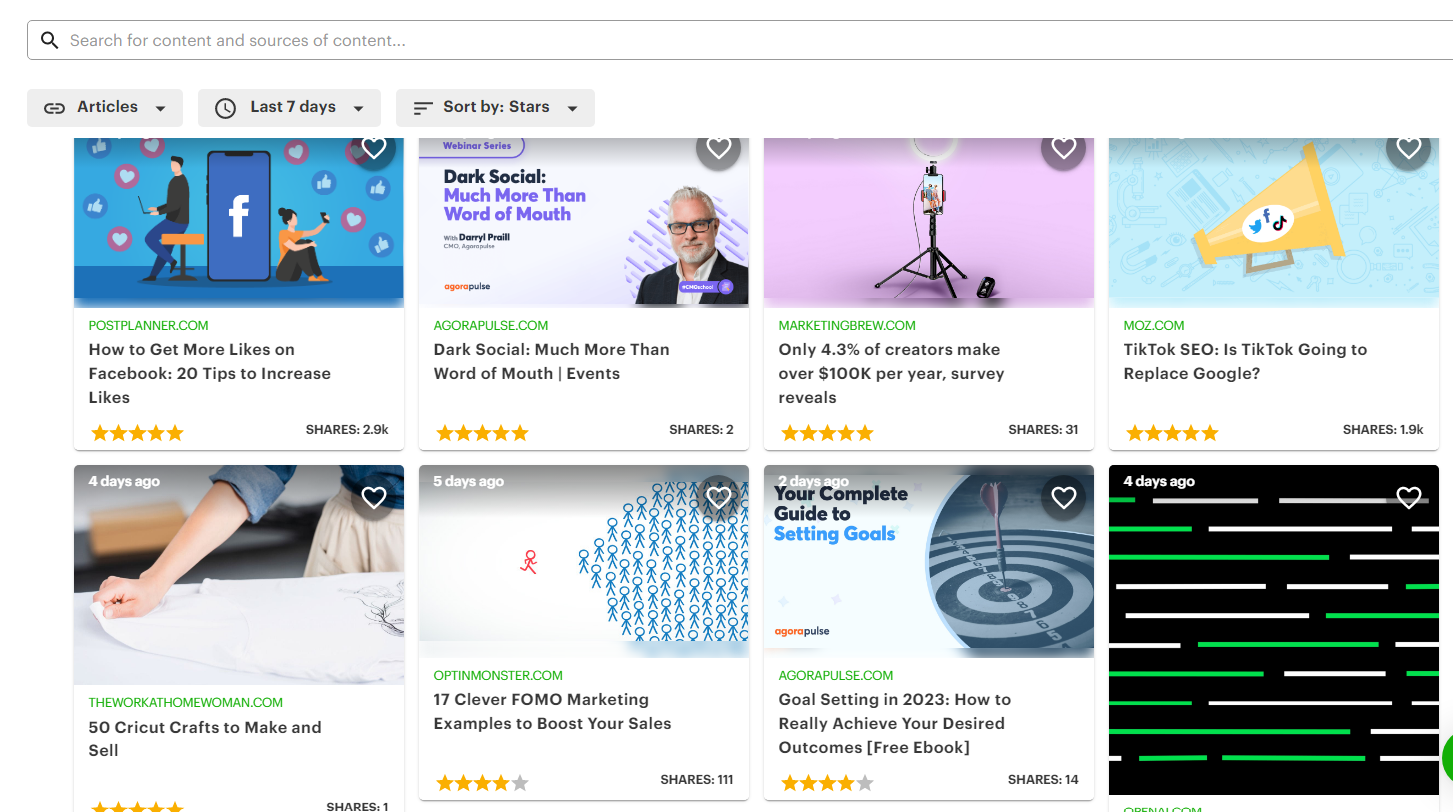
Content discovery - Use Post Planner’s “Content Streams” to discover high-performing content from around the web.
-
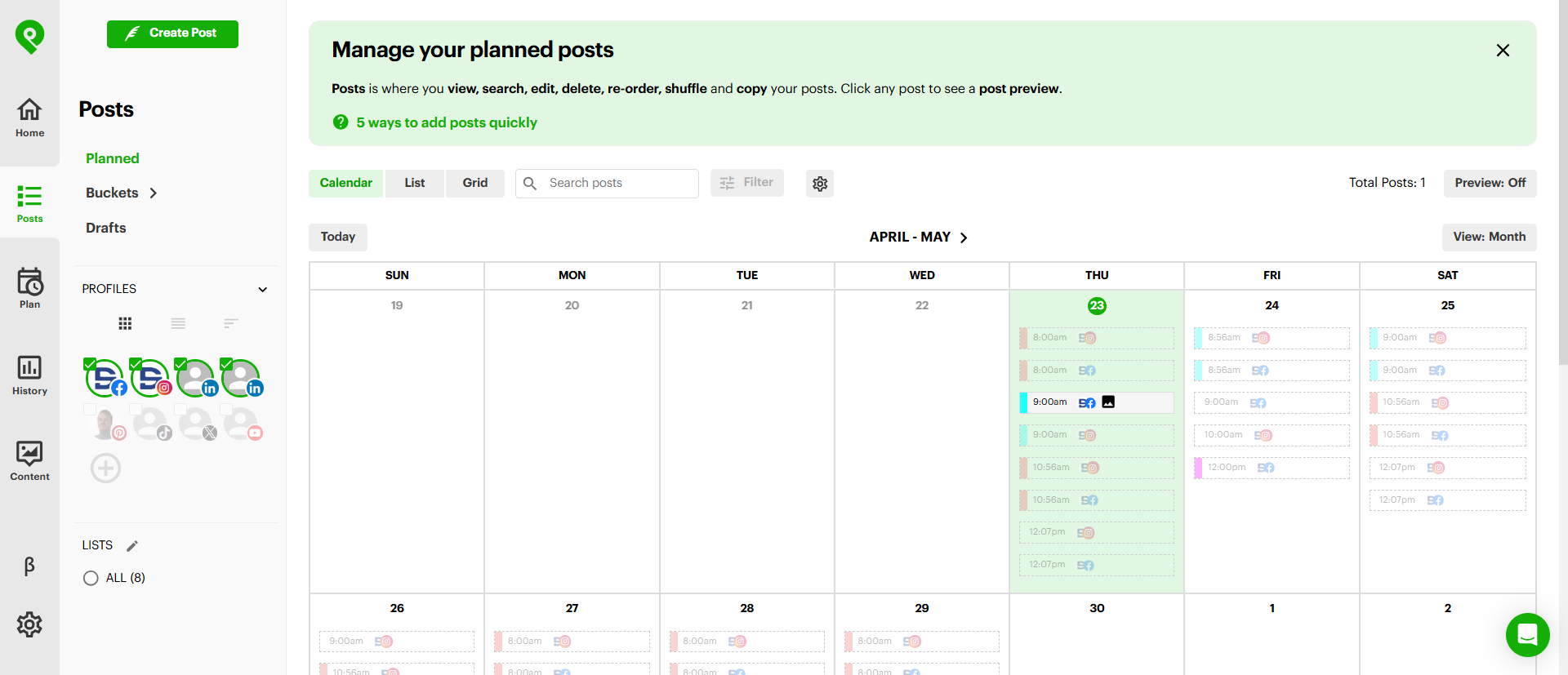
Content scheduling with automatic posting - Schedule your content to post automatically to your social media networks, saving time and increasing consistency.
- PDF scheduling - Use Post Planner’s scheduling features to schedule LinkedIn Carousel posts (which require PDF formatting).
- Bulk post scheduling - Schedule multiple posts (to multiple networks) simultaneously.
- Post analytics and recycling - Determine which posts perform the best and schedule them to recycle through your calendar automatically
-
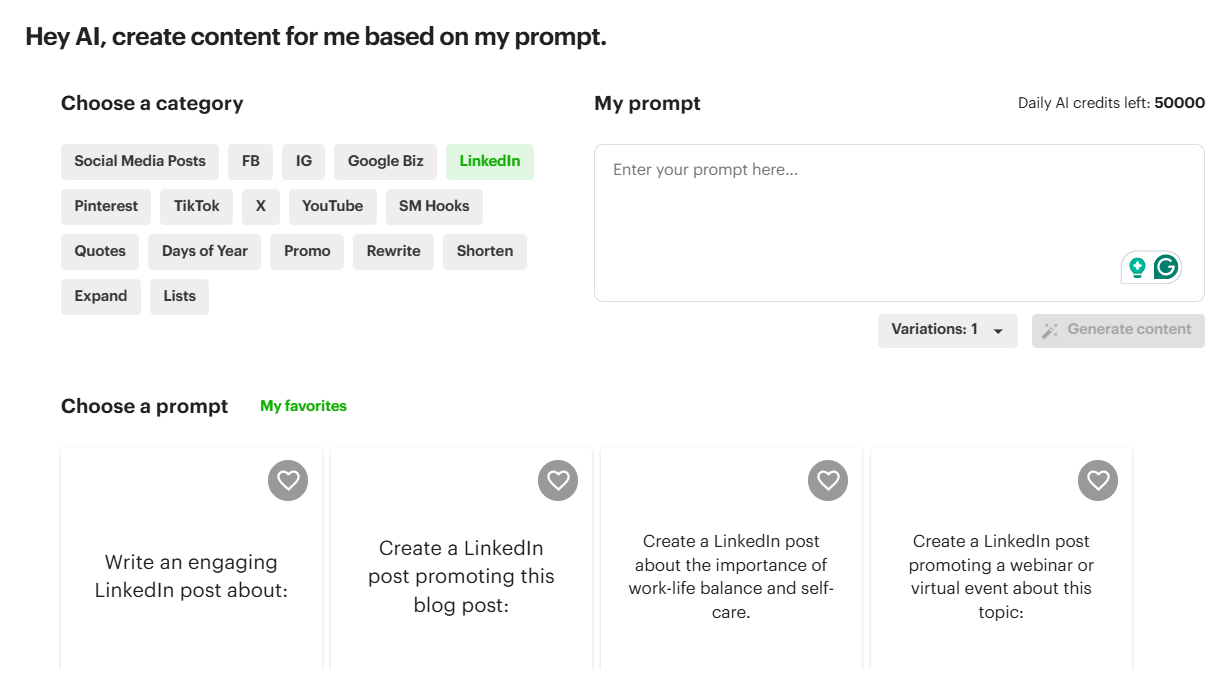
AI post writer - Use Post Planner’s text suggestions to save time creating captions for your LinkedIn photo posts
- First comment scheduling - Automatically schedule the 1st comment on a LinkedIn post, ideal for sharing links without reducing your post's visibility. You can also schedule multiple comments with a custom delay to jumpstart engagement on your posts.
-
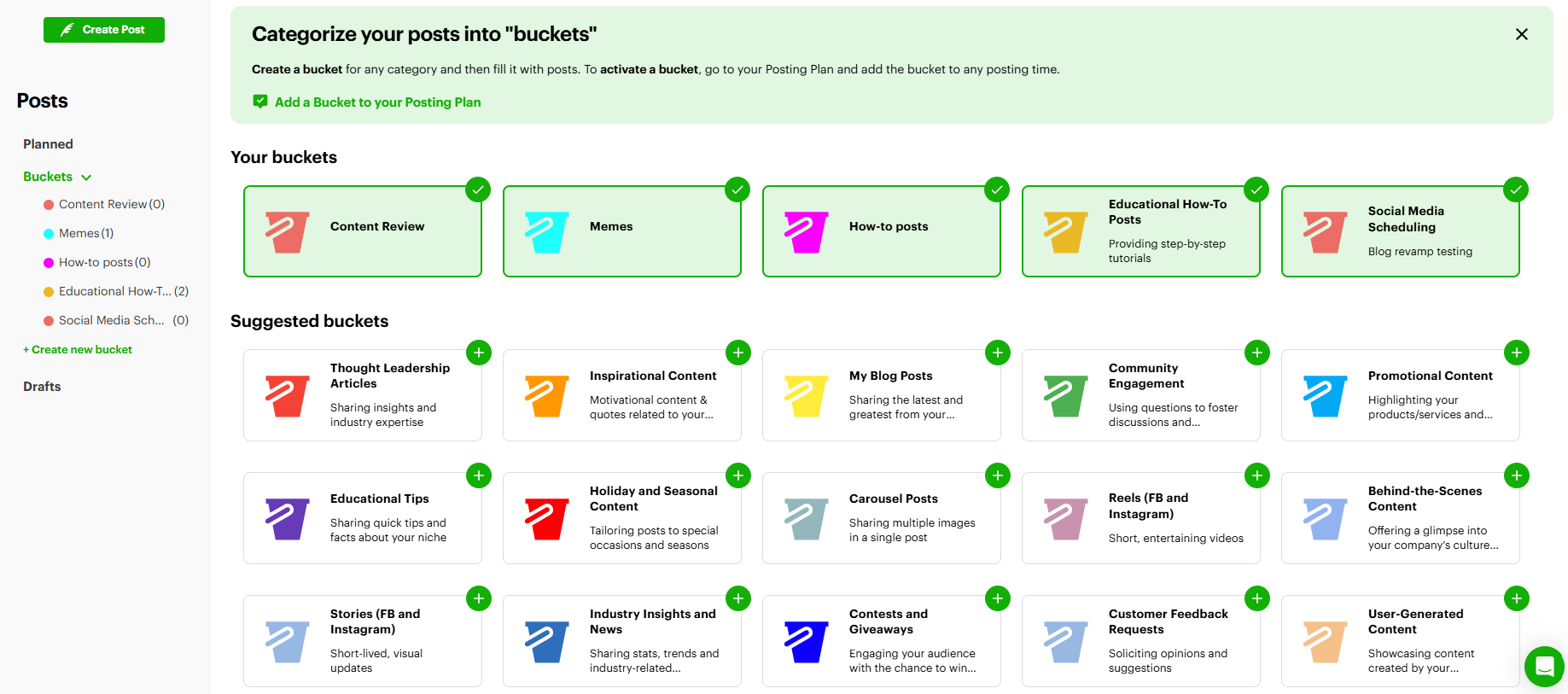
Content organization - Use “Content Buckets” to categorize your content and ensure the right types are posted at the right times. Restrict content buckets to specific time periods to keep your content calendar structured.
-
Design media - Built-in photo-editing tools in the Content Studio (and with Canva integration)
Reviews
Post Planner gets high reviews for its time-saving features and core functionality: quickly finding and posting great content to LinkedIn (and other social media channels).
Here’s what Jena V. has to say about using Post Planner:
"What do you like best about Post Planner?
From the dashboard to the support team, my experience with PostPlanner has been phenomenal! The platform is incredibly user-friendly.
Navigating it truly feels like a walk in the park. Everything is designed to save time and make social media management stress-free. On top of that, their support team is outstanding, super responsive, helpful, and always willing to go the extra mile.
It’s rare to find a company that combines such a powerful platform with such genuine customer care. I highly recommend PostPlanner to anyone looking to simplify and supercharge their social media strategy! 😃
What do you dislike about Post Planner?
Not so much a dislike as something that could be developed.
When posting, the system would automatically optimize the design for different social media platforms.
Or, when giving me a warning about my post's compatibility, it would allow me to adjust it to meet the standards. Then I could post everything at once, vs. going back to make the adjustments separately and then posting again.
What problems is Post Planner solving, and how is that benefiting you?
Being able to pick, choose, and schedule tons of great ideas that are shareable across my platform without concerns of copyright or trademark issues.”
Pricing
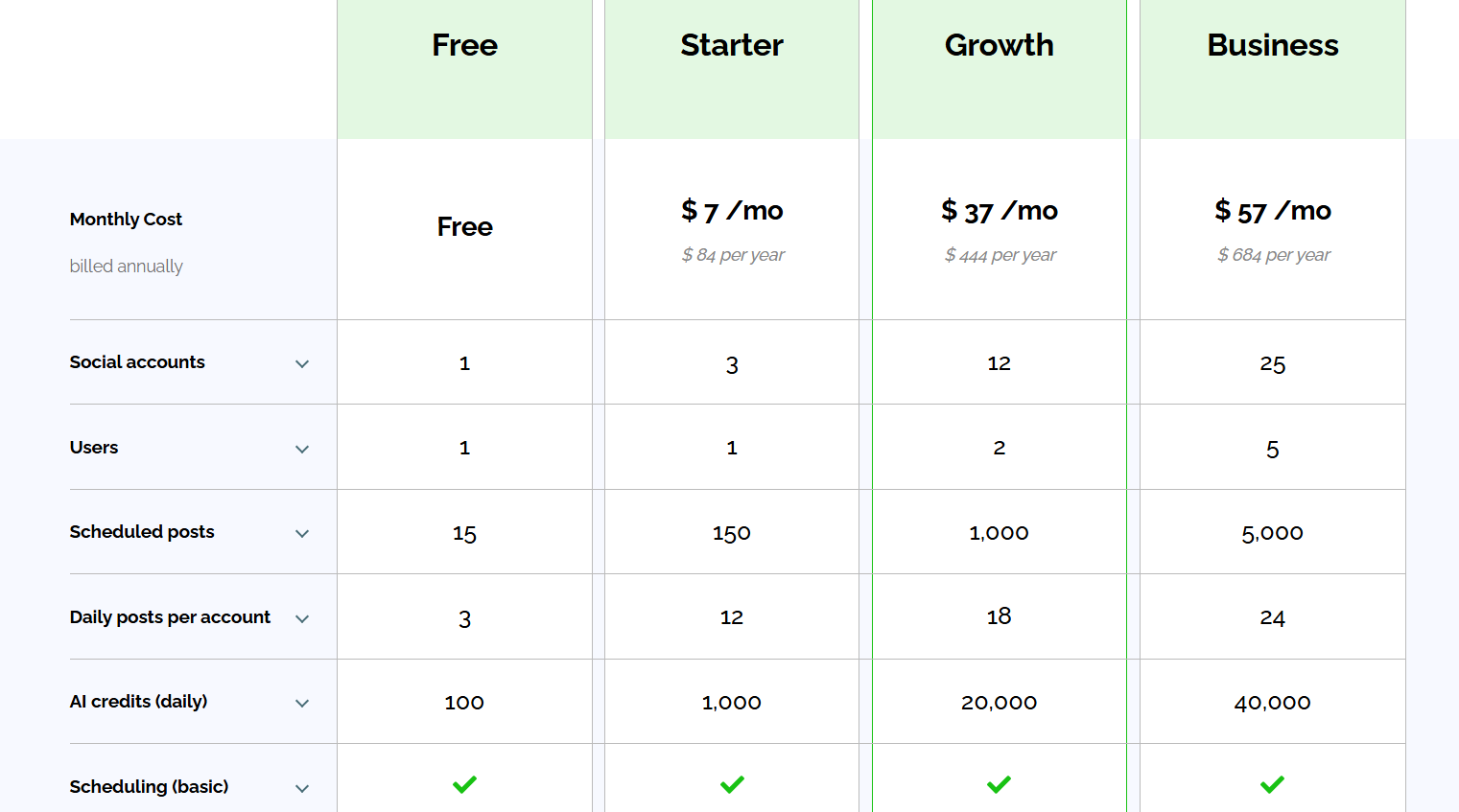
Post Planner offers 4 different plans to meet anyone’s growing social media needs (prices below are for annual plans, but monthly plans are available for a slightly higher rate):
- The free plan allows you to manage 1 social account with 3 daily posts and up to 15 scheduled posts.
- Starter plan is $7/mo and allows you to manage 3 accounts, with 12 daily posts per account and up to 150 scheduled posts.
- Growth plan is $37/mo and lets you manage 12 accounts, with 18 daily posts per account and up to 1,000 scheduled posts.
-
Business plan is $57/mo and lets you manage 25 accounts, with 24 daily posts per account and up to 5,000 scheduled posts.
 2. Best for AI writing, research, and ideation: Claude.ai
Claude is an AI tool that I’ve found to be the best for writing content for social media, blogs, and websites.
For LinkedIn specifically, Claude stands out for its ability to match brand tone and brainstorm post angles for complex ideas.
Before I discuss this tool and our other AI tools on this list, let me offer a disclaimer: You should NEVER trust an AI tool to write a complete article or post.
Even though AI technology has come a long way, it still should be fact-checked and edited.
So, use Claude to help you create a rough draft or outline, then go through and ensure it’s up to snuff.
Pros
- Great at drafting LinkedIn articles and thought leadership posts based on detailed content briefs and past posts.
- Can handle extremely large documents easily. You can paste long video transcripts, reports, research papers, and blog posts into Claude as context for great first drafts.
- Produces very consistent results compared to ChatGPT
-
Claude makes it easy to maintain brand tone across generated posts.
Cons
- The constant new features and updates make it a constant learning experience.
- Claude’s usage limits can be very restrictive, especially during high-demand periods.
-
It can still hallucinate or ignore previous instructions at times.
Features
- Long-context understanding - Claude can process long documents, call/podcast transcripts, industry reports, blogs, images, infographics, and research papers. This is great for curative, trend-based, and thought-leadership posts based on trending data points or interviews.
-
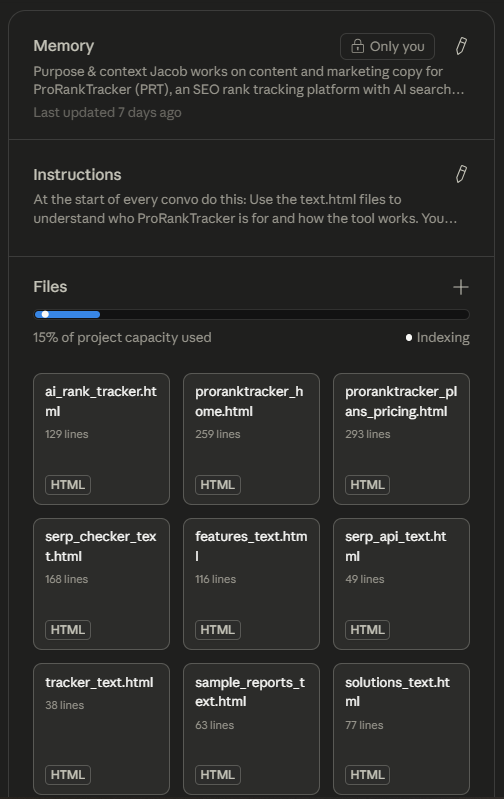
Projects - Save your brand voice, target audience, and recurring instructions so Claude maintains consistency across multiple sessions without re-prompting.
-
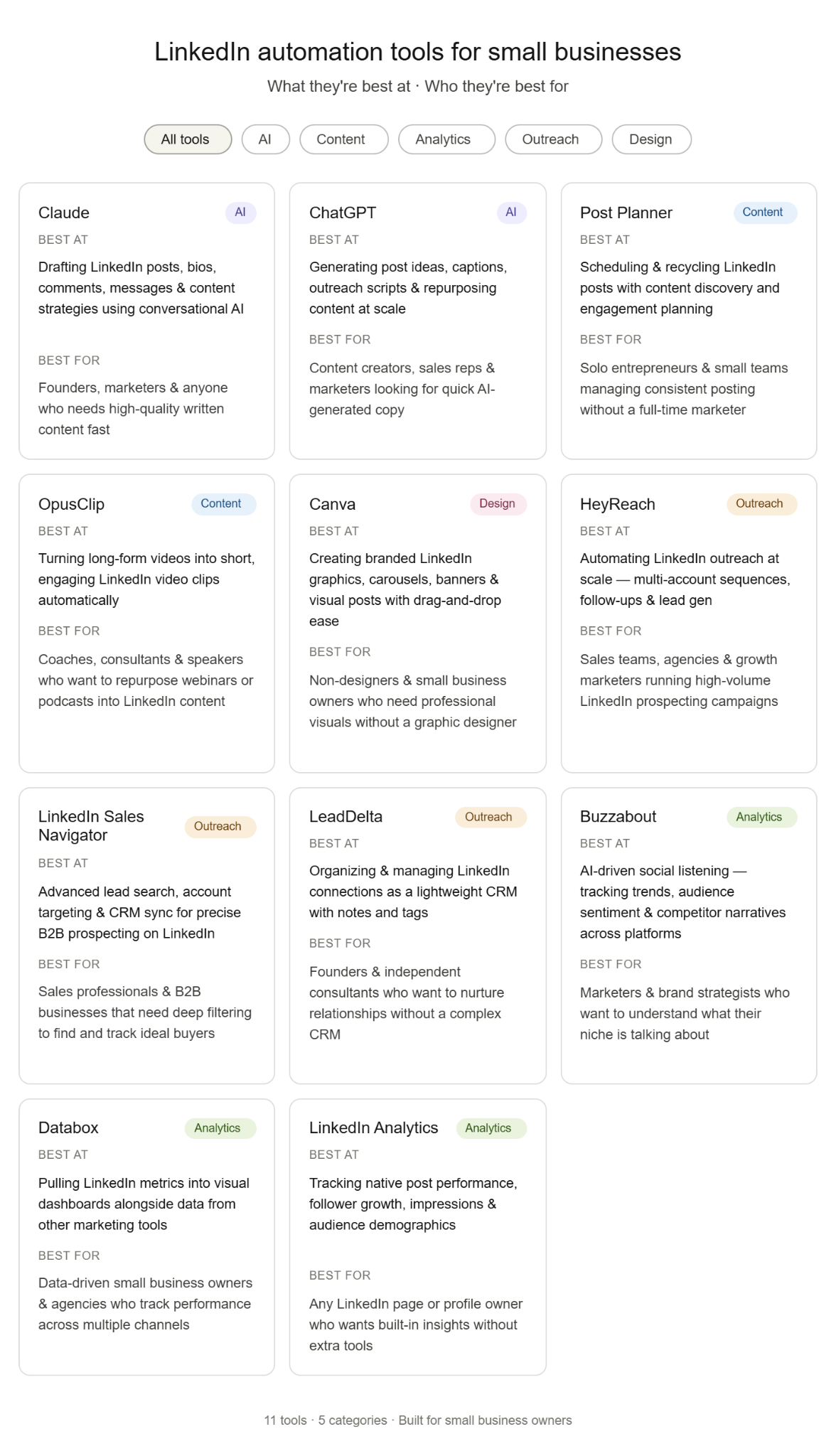
Artifacts - Turn data, frameworks, or ideas into visual content directly inside Claude. Think flowcharts, infographics, and data visualizations you can drop straight into a LinkedIn post to make it stand out in the feed. Here's one I made for this exact article:
- Skills - You can create a “LinkedIn Writing” skill in Claude where you jot down who you’re writing for (their role, content preferences, struggles, etc.), your writing style (based on past posts and internal style guides), to make sure your outputs are a lot more on-brand and LinkedIn-ready.
-
Style — Upload a few of your best-performing LinkedIn posts and Claude will match your voice. Useful if you've spent years building a personal brand and don't want AI to flatten it.
Reviews
Claude gets excellent reviews, with many people noting that it significantly improves their writing productivity. The most frequent positive comments relate to ease of use and response accuracy.
The most common negative comments relate to the token limits, which can be restrictive for heavy users.
Here’s what Alpana C. has to say about using Claude:
"What do you like best about Claude?
I can run multiple threads simultaneously without diluting the output. For example, I could be working on content, summarizing documents, and analyzing data at the same time on separate threads, at the same speed - it helps me multitask with minimal prompts.
What do you dislike about Claude?
At times, I have received incorrect answers. And at times, I have to make the prompt very simple and clear for Claude to understand my request.
What problems is Claude solving, and how is that benefiting you?
I work as a PR agent, marketer, and link builder. So Claude helps me in streamlining brand tone, messaging, and everything across all channels. It thoroughly checks the content on our website and reports any discrepancies. It helps me save time and work on high-level strategy and creative decision-making for my sites and projects. I work on various projects, each with its own set of guidelines. I can upload these rules to the project folder of the Claude and sit back, relax, and it will make sure these are implemented.”
Pricing
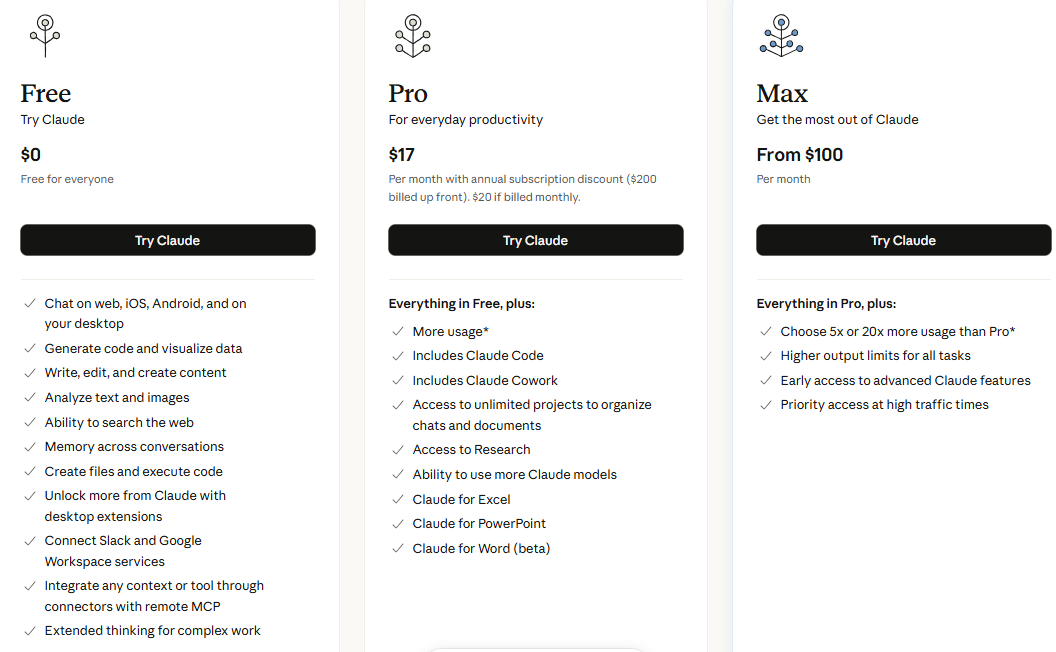
Claude offers a free tier and paid plans for individual users. Many people get by on the free version, but here's what you get when you upgrade:
- Pro tier is $17/mo (paid annually) and gives you access to Claude Cowork, Claude Code, and Claude Research, among other advanced features.
-
Max tier starts at $100/mo and lets you choose 5x or 20x more usage than the Pro tier. You also get priority access during high traffic windows.
3. Best planning AI tool: ChatGPT
Almost everyone has heard of ChatGPT, and many have incorporated it into their workflows.
But does generative AI have a place in helping social media managers market their business on LinkedIn?
Yes! For example, consider these uses of ChatGPT for LinkedIn marketing:
- Upload your product details to ChatGPT and have it generate a list of ideas for LinkedIn posts about your specific product. (The Projects feature works best for this.)
- Ask ChatGPT to create a 10-post (or any number of posts) sequence for your upcoming LinkedIn marketing campaign.
-
Have ChatGPT generate several caption options for your posts. Then, you can select and edit the one you like best.
You’ll notice that all 3 of these suggestions involve brainstorming. That’s where ChatGPT shines!
Pros
- Provides instant AI-generated responses to almost any prompt
- Can assist with content creation, image generation, brainstorming, and marketing strategies
- Capable of generating various writing styles and tones
- It can reduce the time it takes to create high-quality images and graphics.
-
Capable of generating images in almost any style imaginable, which can increase the variety of the images in your LinkedIn feed.
Cons
- Responses may sometimes be generic (often fixed by using better prompts and Projects).
- You still have to edit everything generated by AI, which can sometimes take a while (but still much quicker than generating everything yourself!).
- Images occasionally turn out distorted or are obviously AI-generated.
-
Notoriously inconsistent, especially during long conversations
Features
- AI-powered text generation allows users to produce large volumes of text in seconds rather than hours.
- Integrations with various third-party tools through the ChatGPT API
- Ability to summarize and analyze data
- Able to read, edit, and offer suggestions on your existing content. You can ask specific questions, such as “How can I optimize this content for SEO?” that ChatGPT can answer.
- Supports multiple languages
- ChatGPT has access to the internet, so you can use it to find knowledge you would never otherwise discover, making it perfect for uncovering strategies for your social media campaign.
- Agent Mode autonomously completes multi-step tasks, like researching competitors, scraping data, or filling out workflows on your behalf
- Deep Research browses and synthesizes hundreds of web sources into a structured report. This is useful for building data-backed LinkedIn posts or trend analysis
-
Image generation lets you create custom visuals directly inside ChatGPT without needing a separate design tool

Reviews
ChatGPT is the most popular AI tool on the market, and its reviews reflect that. Users frequently mention the broad range of uses, flexibility, time savings, and ease of use as significant benefits of ChatGPT.
More negative comments generally focus on the high price of the advanced plans.
Here’s what Roger G. has to say about using ChatGPT:
"What do you like best about ChatGPT?
What I like best about ChatGPT is its incredible ability to act as a high-level brainstorming partner and linguistic editor. In my work as a writer and proofreader, it is an invaluable tool for exploring different nuances in tone or quickly generating alternative phrasing for complex marketing copy.
What do you dislike about ChatGPT?
My biggest concern is the persistence of “hallucinations”; the tool still struggles to admit when it doesn't know an answer, which forces me to double-check every fact and citation to maintain professional standards. Additionally, for a Spanish-speaking editor, it’s frustrating that it often mixes different regional variants of the language in a single text.
What problems is ChatGPT solving, and how is that benefiting you?
It is exceptionally effective at generating the first draft of a text, providing a solid foundation that helps me overcome blank-page syndrome. In addition, it significantly increases productivity: tasks that used to take hours, such as repurposing a long article into several social media posts or brainstorming subject lines for an email campaign, now take minutes with ChatGPT. It basically gives me back several hours a week, allowing me to handle more clients without sacrificing the quality or the “human touch” that my work is known for."
Pricing
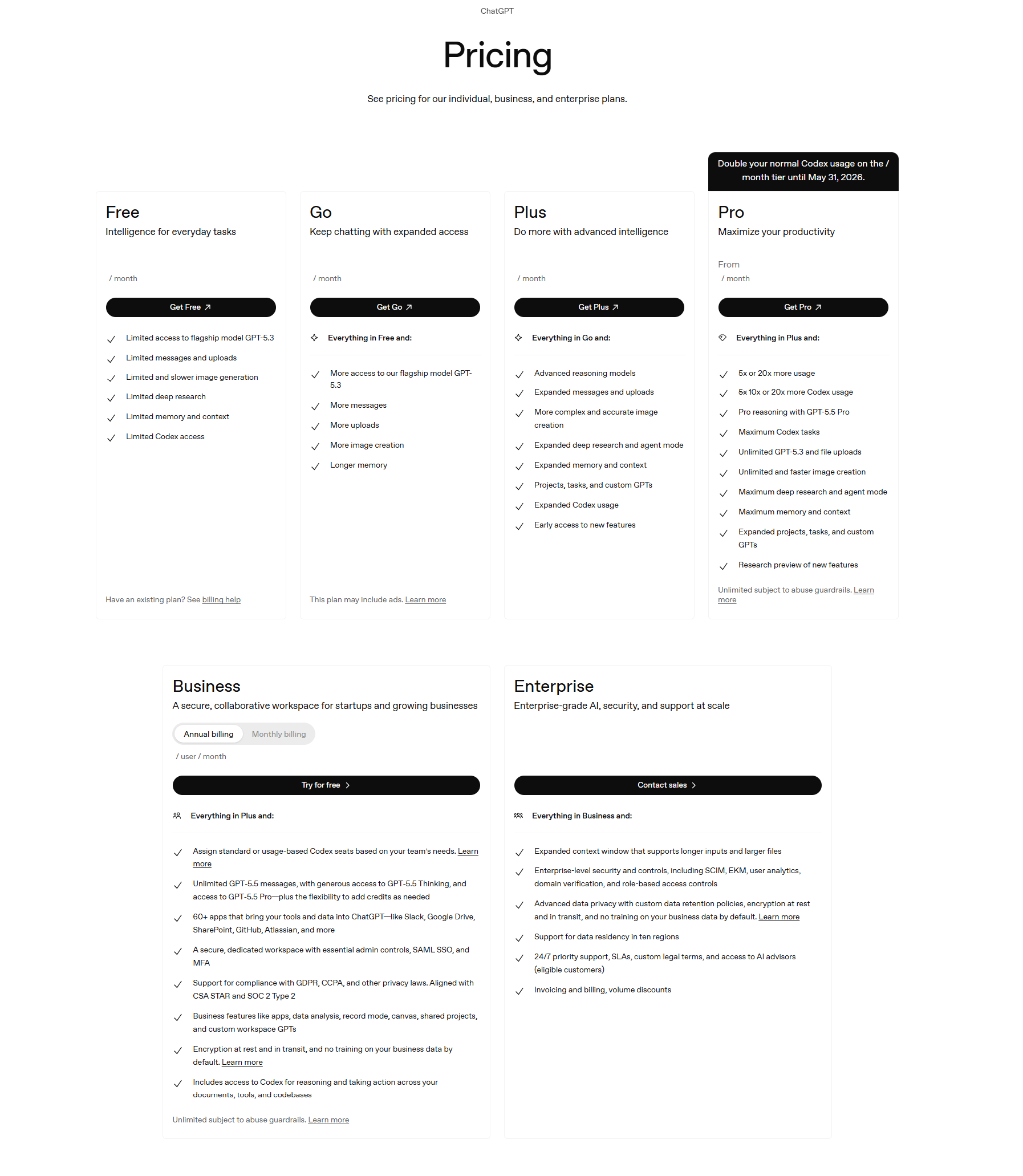
ChatGPT offers a free tier and several paid plans. Many users get by on the free version, but here's what you get when you upgrade:
- Go is $8/mo and gives you higher message volume than free, but excludes Deep Research, Agent Mode, and advanced reasoning.
- Plus is $20/mo and gives you full GPT-5.5 access, image generation, Agent Mode, and 10 Deep Research runs per month.
- Pro is $200/mo and gives you unlimited messages, unlimited image generation, and maximum Deep Research and Agent Mode capacity.
- Business starts at $20/user/mo (annual) and gives teams shared workspaces, admin controls, and no data training by default.
-
Enterprise is custom pricing for larger organizations.
4. Best AI for video editing: OpusClip
One of the newest and best types of content for generating engagement on LinkedIn is short-form video.
Many LinkedIn users scroll through short videos to find new content related to their niche, which means it’s the perfect opportunity for you to get discovered!
But making a ton of short videos can be highly time-consuming and challenging.
That’s where OpusClip comes in. It turns your long-form videos into short “Reels” that you can post on LinkedIn (and other networks like Facebook, TikTok, YouTube, Twitters/X and Instagram).
For example, it can take a video interview and break it into up to 55 LinkedIn short videos with just a few clicks!
Pros
- Converts long videos into short, engaging videos
- Uses AI to highlight the most engaging segments
- Saves a lot of editing time
-
Affordable pricing
Cons
- AI may not always select the best highlights.
-
Limited customization options on free and Starter plans
Features
- AI-powered video clipping - Quickly create shareable video clips without needing advanced technical skills
-
Auto-captioning, subtitles, reframing, and b-roll generation - Make your videos more accessible, engaging, and polished with just a few clicks
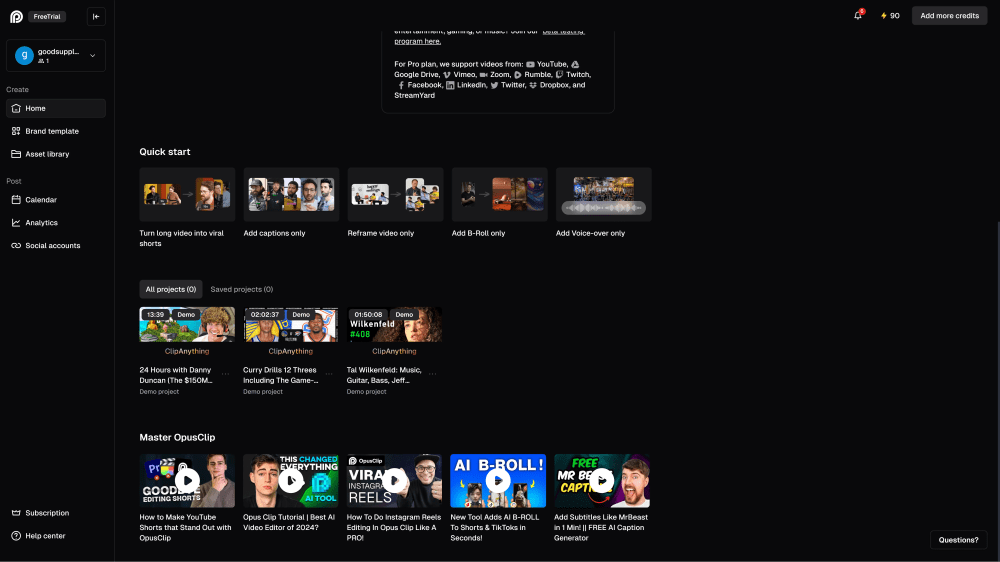
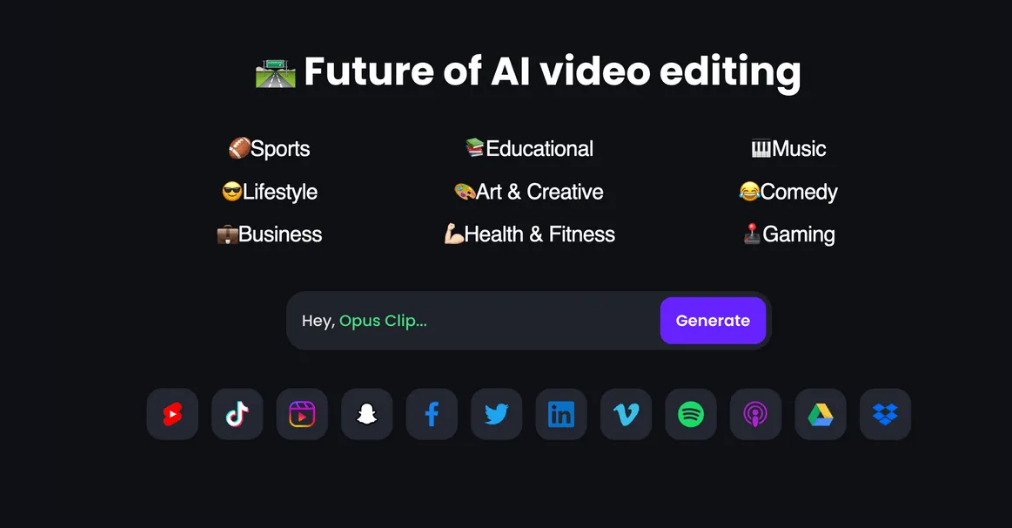
- Post directly to your social media from OpusClip - Save time and ensure consistency across your marketing channels
- Customizable aspect ratio - Ensure your videos are tailored to fit the specific dimensions and requirements of each social media platform
- Virality Score - The AI-generated Virality Score helps you gauge how likely a video is to go viral
-
AI editing prompts - Customize your videos with natural-language commands instead of complex video-editing settings.
- Team accounts - Collaborate with multiple users on video creation.
- Customizable video templates - Save time and effort by using templates that align closely with your creative vision
-
Supports multiple languages
Reviews
OpusClip gets excellent reviews, with many customers mentioning the time savings, ease of use, and team features.
Negative comments generally state that they felt OpusClip had trouble selecting the best clips for viral videos or auto-framing moving subjects.
Here’s what Cameron Y. has to say about using OpusClip to create short videos for his social media:
"What do you like best about OpusClip?
OpusClip takes long-form video content and turns it into polished, engaging short clips with incredible accuracy. The AI is excellent at identifying the strongest moments, adding dynamic captions, and producing social-ready edits that look like they were done by a professional editor. What used to take hours now takes minutes, and the quality consistently exceeds my expectations. It’s become an essential part of my content workflow.
What do you dislike about OpusClip?
The platform occasionally needs a bit more flexibility with fine-tuning clip selections, especially when I want to keep a very specific moment or transition. Rendering queues can be slow during peak times, but nothing that disrupts overall productivity. The time savings and the overall quality of the output far outweigh these minor limitations.
What problems is OpusClip solving, and how is that benefiting you?
OpusClip solves the time-consuming challenge of repurposing long-form content into short, high-performing social media clips. Instead of manually searching for highlight moments, editing captions, adjusting layouts, and exporting multiple versions, the AI handles it all automatically. This saves me hours each week and ensures I always have a steady stream of polished, platform-ready content. It allows me to maintain a consistent posting schedule, reach wider audiences, and focus more on strategy rather than tedious editing work."
Pricing
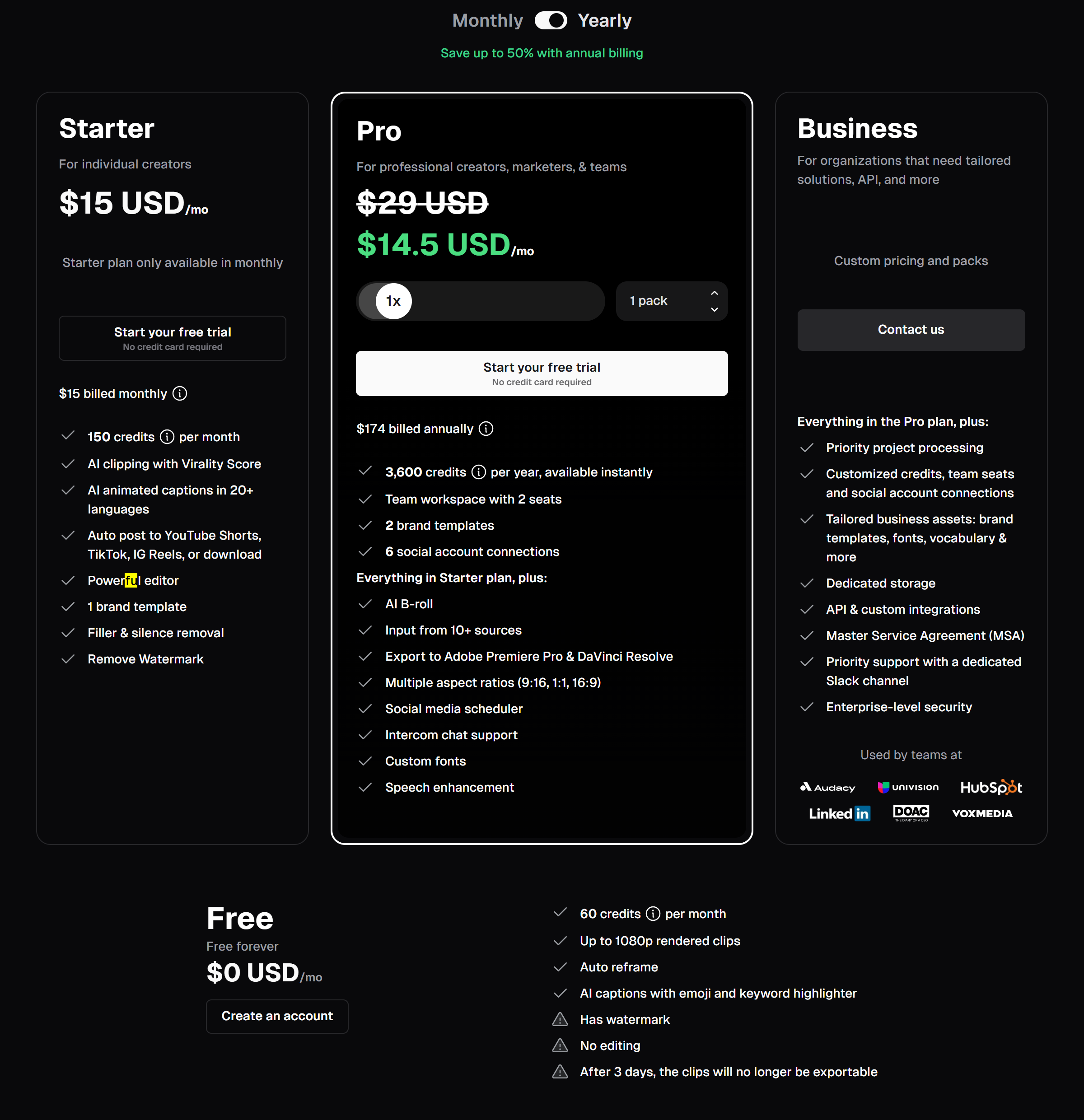
OpusClip offers a free tier with 60 credits per month and several paid plans:
- Starter is $15/mo (monthly only, no annual option) and gives you 150 credits per month
- Pro is $29/mo (or $14.50/mo billed annually at $174/year) and gives you 3,600 credits per year (1 pack), with the option to add up to 15 packs if you need more.
-
Business pricing is custom
5. Best LinkedIn CRM: LeadDelta
As LinkedIn has become more than just a networking platform. Many businesses now use LinkedIn to interact with their leads, prospects, and customers.
If you’re looking for a customer relationship management (CRM) tool for LinkedIn, LeadDelta should be near the top of your list.
LeadDelta is a place to manage your customer relationships AND network from one dashboard.
I personally use LeadDelta to help manage my manual outreach to leads and keep tabs on my favorite accounts.
Pros
- Bulk actions without needing to open LinkedIn (like removing connections)
- Use templates to make outreach more efficient.
- Robust tools to help you manage contacts and relationships more efficiently
- Use a Chrome Extension to manage contacts directly from LinkedIn.
- Automation that won’t get you banned
-
Can help sales teams work in unison
Cons
-
LeadDelta shines most with contact management, but not with helping you improve your LinkedIn content, so I recommend pairing it with content tools like Post Planner.
Features
-
Contact manager - Manage all your LinkedIn contacts from one place, including bulk follow/unfollow, advanced filtering, and direct messaging
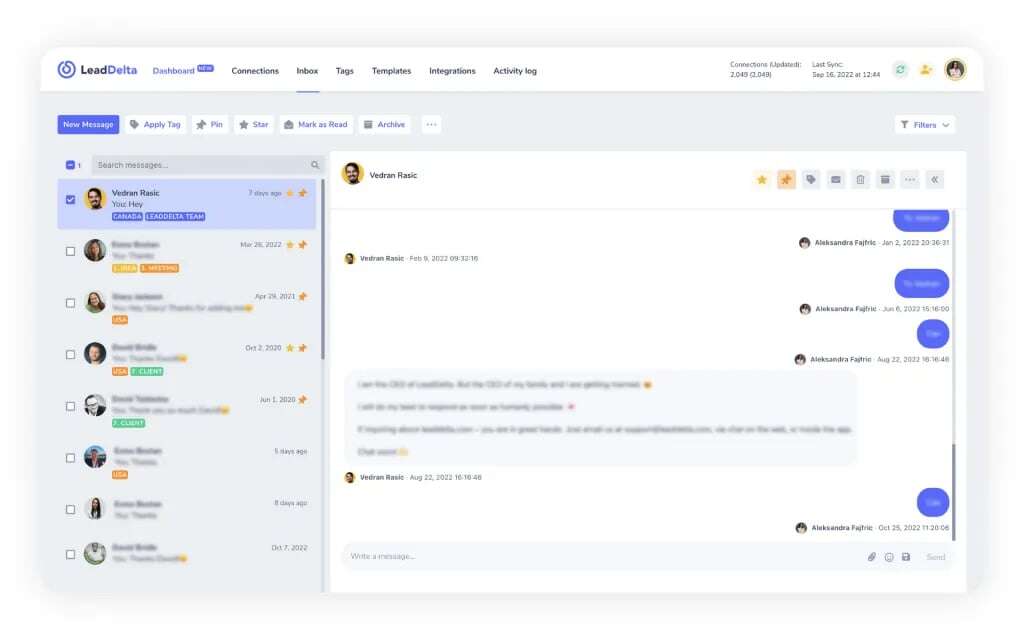
- Smart Inbox - Pin, star, tag, and filter messages for easier management
-
Bulk messaging - Send personalized messages to multiple connections at once without looking spammy
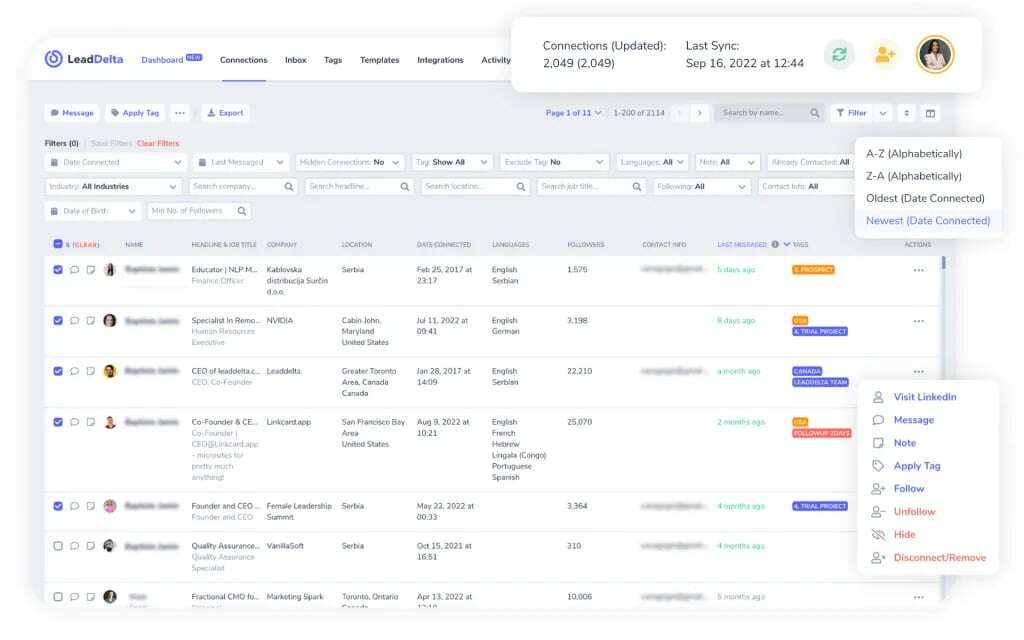
- Connection filtering - Find relevant contacts based on industry, activity, or location
-
LinkedIn sidebar - Perform actions on a connection while using LinkedIn instead of bouncing back and forth between LeadDelta and LinkedIn.
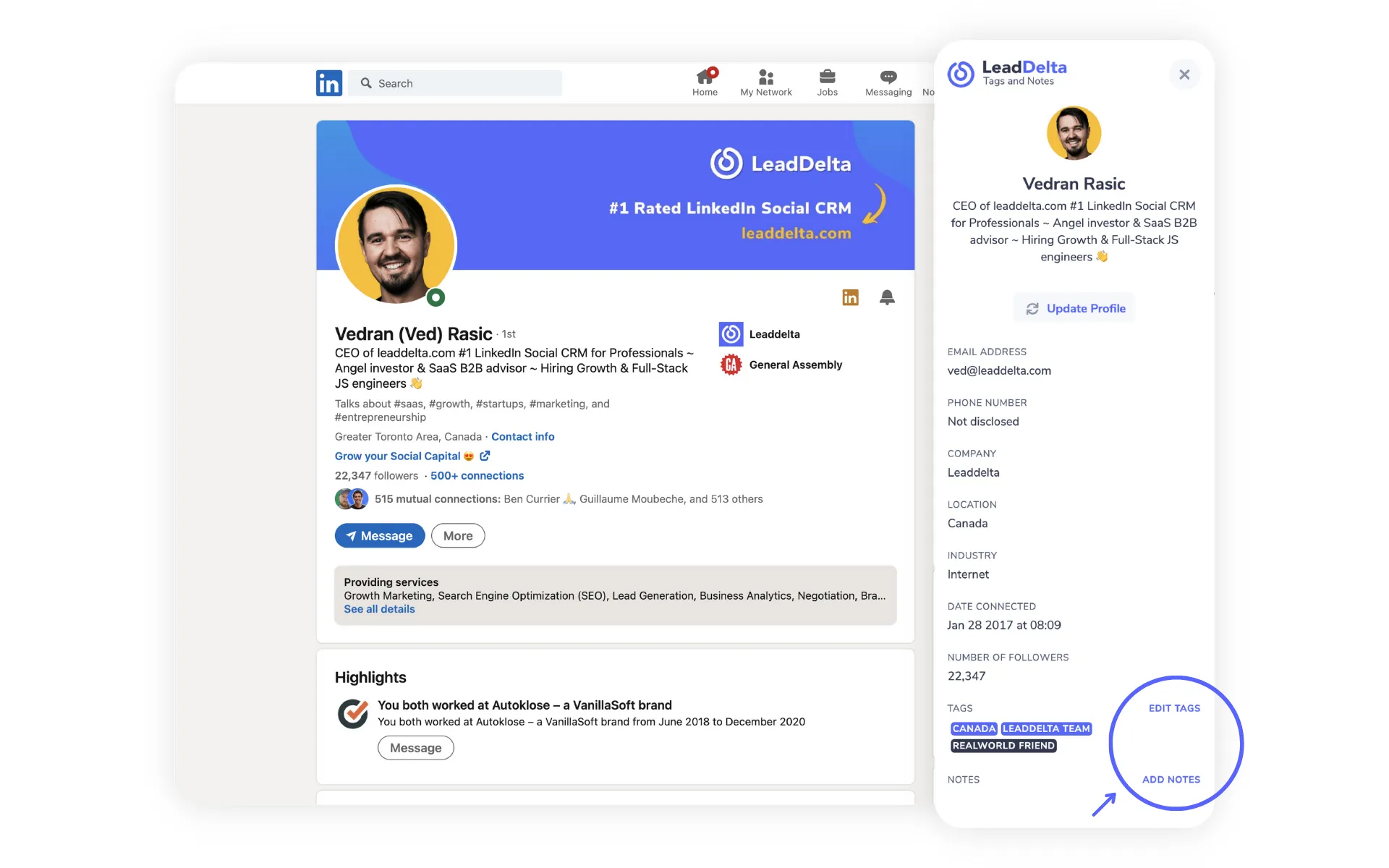
- Notes, tasks, and reminders - Store key details about LinkedIn connections for more effective follow-ups
- Export contact data - Back up and analyze your LinkedIn network
- Workspaces - Pool all your company’s connections and build a single, integrated, cross-referenced professional network at the company level.
- Custom feeds - Pick who matters, then use the custom feed to comment thoughtfully while tracking your engagement.
-
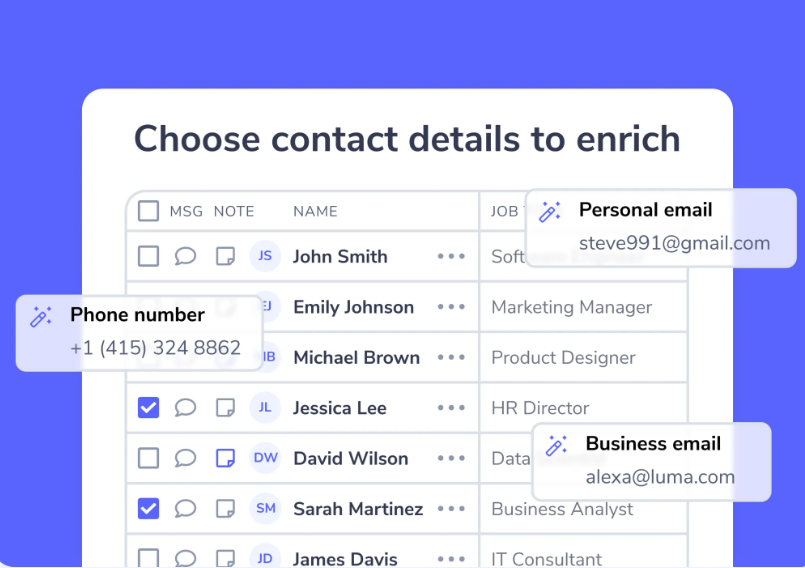
Contact data enrichment - Find private and business email addresses and phone numbers with pay-as-you-go credits.
Reviews
The most frequent positive comments mention the messaging system and the ability to sort connections into easy-to-manage groups. Some negative reviews mention various features that users would like to see added. However, even the reviews with negative comments typically highly recommend LeadDelta.
Here’s what Ranjit G. has to say about using LeadDelta for LinkedIn:
"What do you like best about LeadDelta?
Ok, first, I am a complete newbie to tools like this and a non-tech founder, so some of this is scary to me, but...
LeadDelta is a great tool for managing your LinkedIn connections and messages. I have been using it for a few days, and I am very impressed by its features and benefits.
One of the best things about LeadDelta is its customer support.
I had a minor issue with the installation (my fault, not theirs), and they helped me resolve it quickly and efficiently. They were very friendly, professional, and super fast!
Another thing I love about LeadDelta is its onboarding process.
They have a clear and engaging intro video that shows you how to use the tool and what it can do for you. They also have a lot of resources and tutorials to help you get the most out of it.
LeadDelta has helped me organize contacts, track conversations, and find new leads on LinkedIn. And it seems so easy to set up, too.
It is a powerful, easy-to-use tool that I highly recommend to anyone looking to grow their network and business.
What do you dislike about LeadDelta?
Nothing so far, and learning the scale of Lead Delta, which seems huge!
What problems is LeadDelta solving, and how is that benefiting you?
I have 16,000 connections, and ... well ... LinkedIn really isn't the best for managing your contacts.
I almost felt sick every time I needed to reach out to someone and could not find them.
LeadDelta is definitely going to help me engage and track conversations and follow-ups.”
Pricing
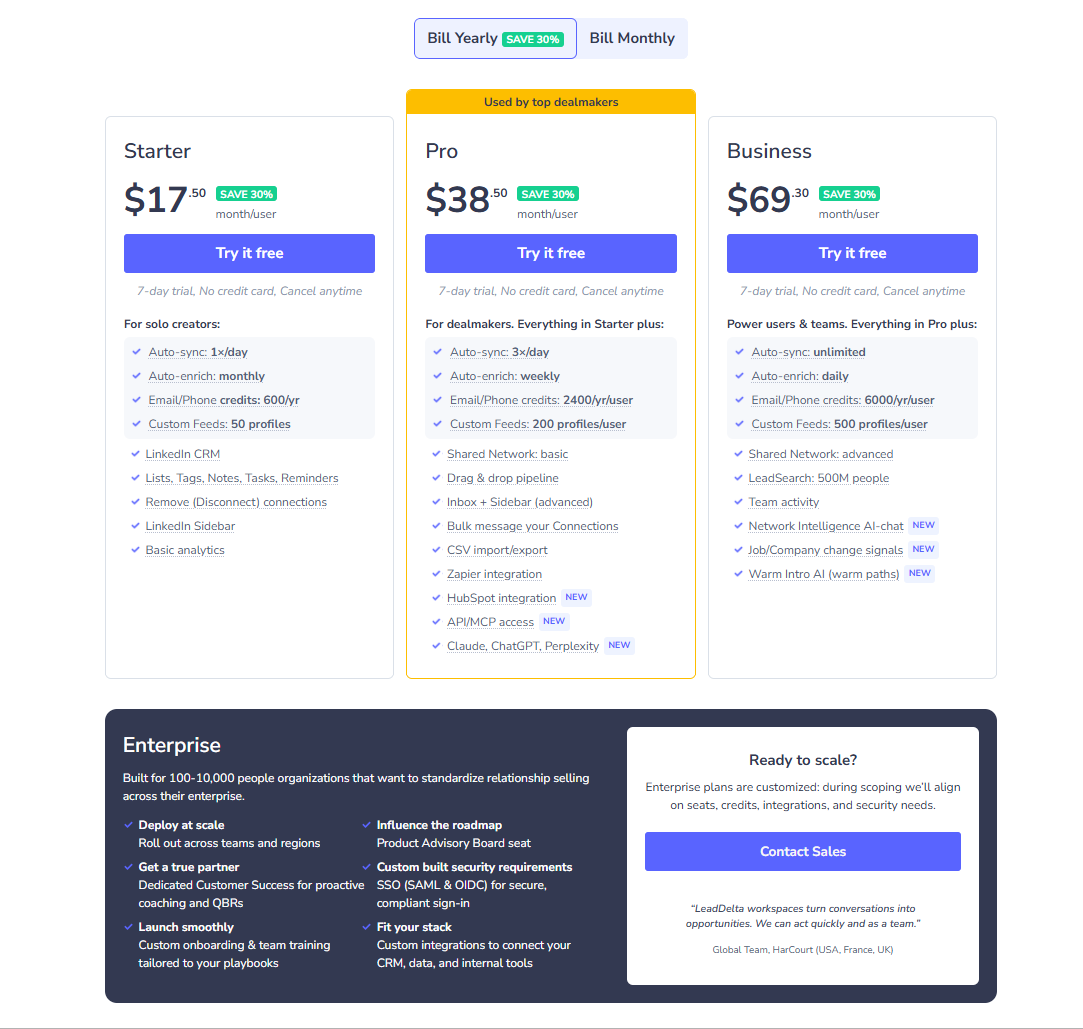
LeadDelta offers 4 plans. Each plan offers more features than the last, such as the LinkedIn sidebar, details about your last contact with a connection, team features, etc. (prices listed are on the annual plan):
- The Starter plan is $17.50/user/month and includes LeadDelta's basic connection management features.
- Pro is $38.50/user/month and adds features such as the inbox + sidebar and the last time you messaged a connection.
- Business is $69.30/user/month and includes team features.
-
Enterprise has custom pricing and includes large-business features such as extra users, a dedicated customer service team, and custom integrations.
6. Best for post design: Canva
LinkedIn says adding images to LinkedIn page posts results in a 2x-5x higher engagement rate.
That means you NEED to find a way to add high-quality images to your LinkedIn posts.
Canva is the go-to online graphic design app for millions of LinkedIn users due to its ease of use and high-quality tools.
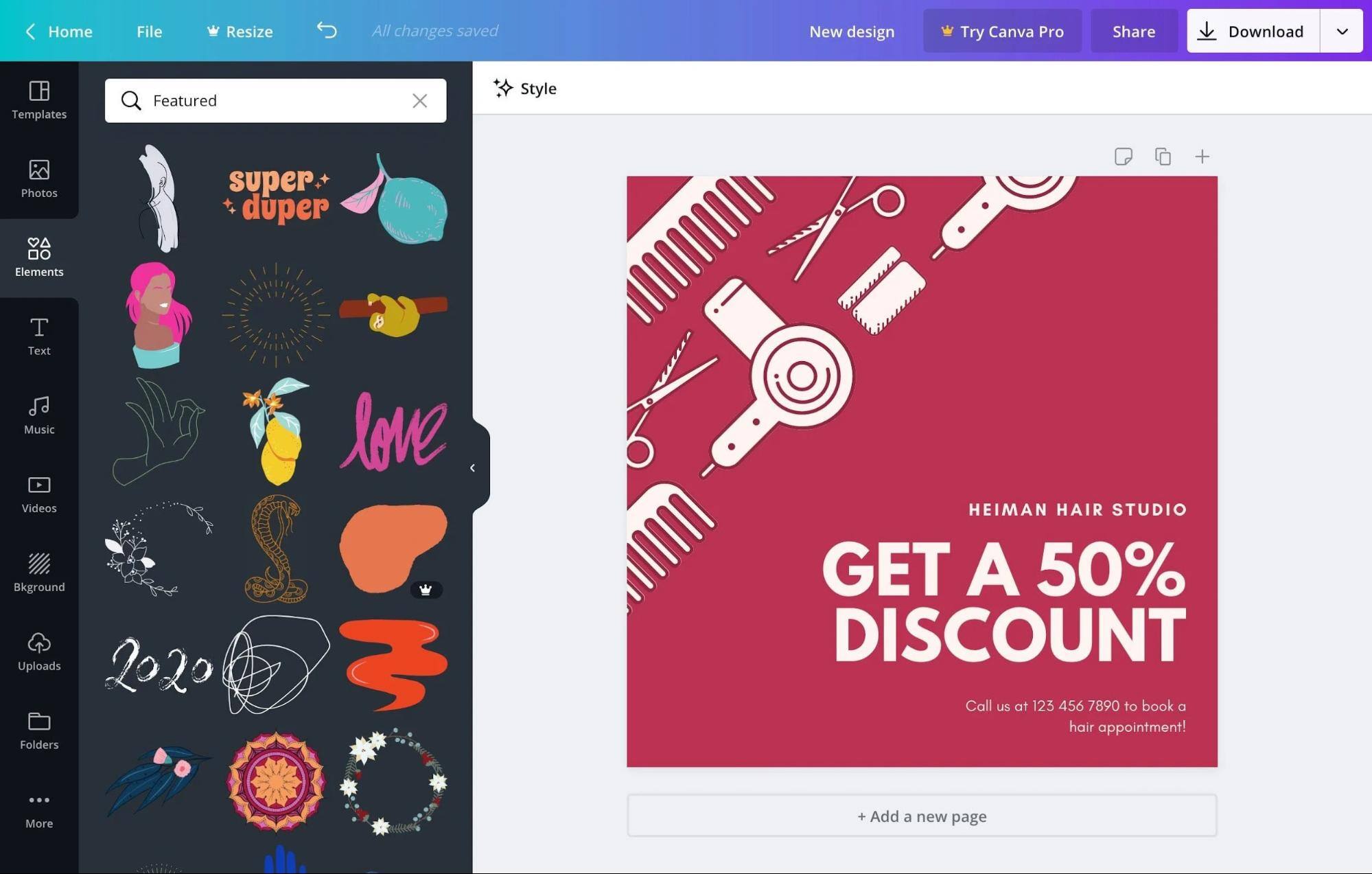
With Canva, you can quickly design custom graphics using a combination of templates and your own creativity.
Pros
- A great free plan with enough functionality to get you started
- Extremely easy to use — even for those with no design experience
- A range of features that allow you to create stunning images quickly
- Ready-made designs and templates
- Educational content for easy learning
- Free use of the pro version for non-profits and educational organizations.
-
You can use Canva for all your content needs — it's not just for LinkedIn.
Cons
- You still need an eye for design if you customize anything (even though Canva makes it as easy as possible).
- To access Canva’s best designs, you’ll need to be a Pro member.
-
There are no branding features on the free account.
Features
-
A drag-and-drop editor means even those with zero graphic design experience can create amazing images and graphics for their LinkedIn page.
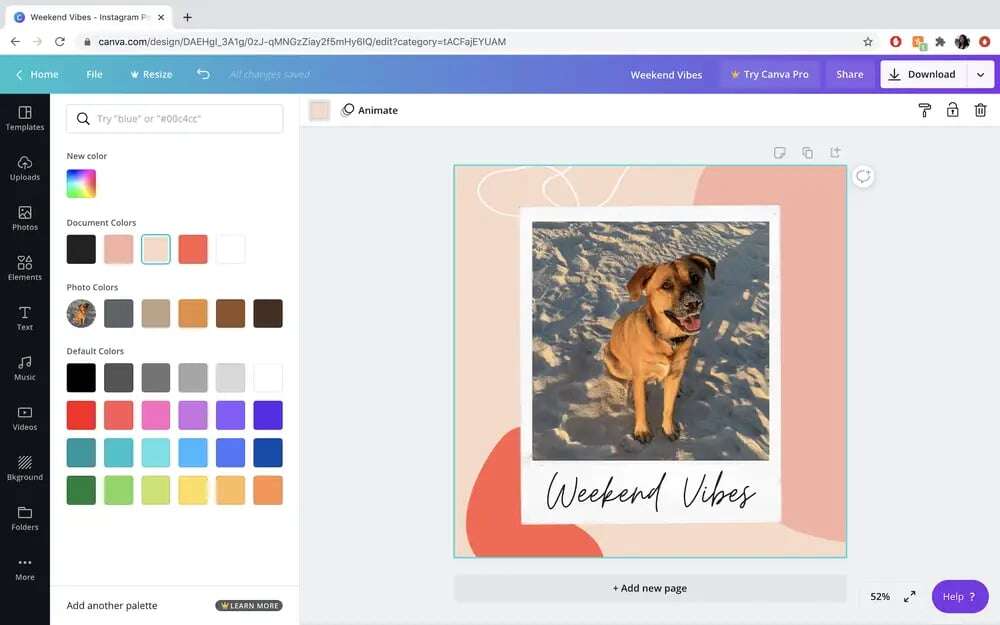
- Image editing tools for customizing your images.
- Stock photos and elements
- Brand customization lets you streamline image creation while ensuring everything stays on-brand.
- Team features allow multiple team members to work on the same images.
- Magic Studio is Canva’s AI-powered design tool that can generate copy and edit your photos in record time. With Magic Layers, turn any flat image into a fully editable, multi-layered design. It lets you select, move, resize, and edit text or individual elements within a static image.
-
Millions of templates (both free and paid) reduce the effort required to create and produce a high-quality image.
Reviews
Canva receives outstanding reviews, with many praising its ease of use, flexibility, and time-saving features.
The most common criticism is that Canva’s customization is somewhat limited compared to tools like Photoshop. Canva is incredibly easy to use, but it sacrifices some of the more advanced editing tools to accomplish it.
Here’s what Helder G. has to say about using Canva:
"What do you like best about Canva?
Canva’s preset templates make designing so easy. I get inspiration from the different templates, and all I have to do is add my logo, modify the text, and maybe change the colors to fit my brand. It has helped me create beautiful content very quickly, and it’s very easy to use and understand.
Also, I like all the resources included in my membership, from stock photos to cute graphic designs, which make every penny worth it.
What do you dislike about Canva?
To be honest, there’s nothing I dislike about Canva. It has helped me with so many projects that I’m very familiar with it. The only thing I’d say needs improvement is its AI/intelligence, because it isn’t as good at generating content as other AI chatbots.
What problems is Canva solving, and how is that benefiting you?
Canva helped me solve many communication and branding problems. When I started at this company, the designs lacked consistency, and all the flyers were outdated. Thanks to Canva, I harmonized the company’s brand and updated the flyers with artistic, beautiful, and professional designs. All with little effort thanks to Canva's performance and tools.”
Pricing
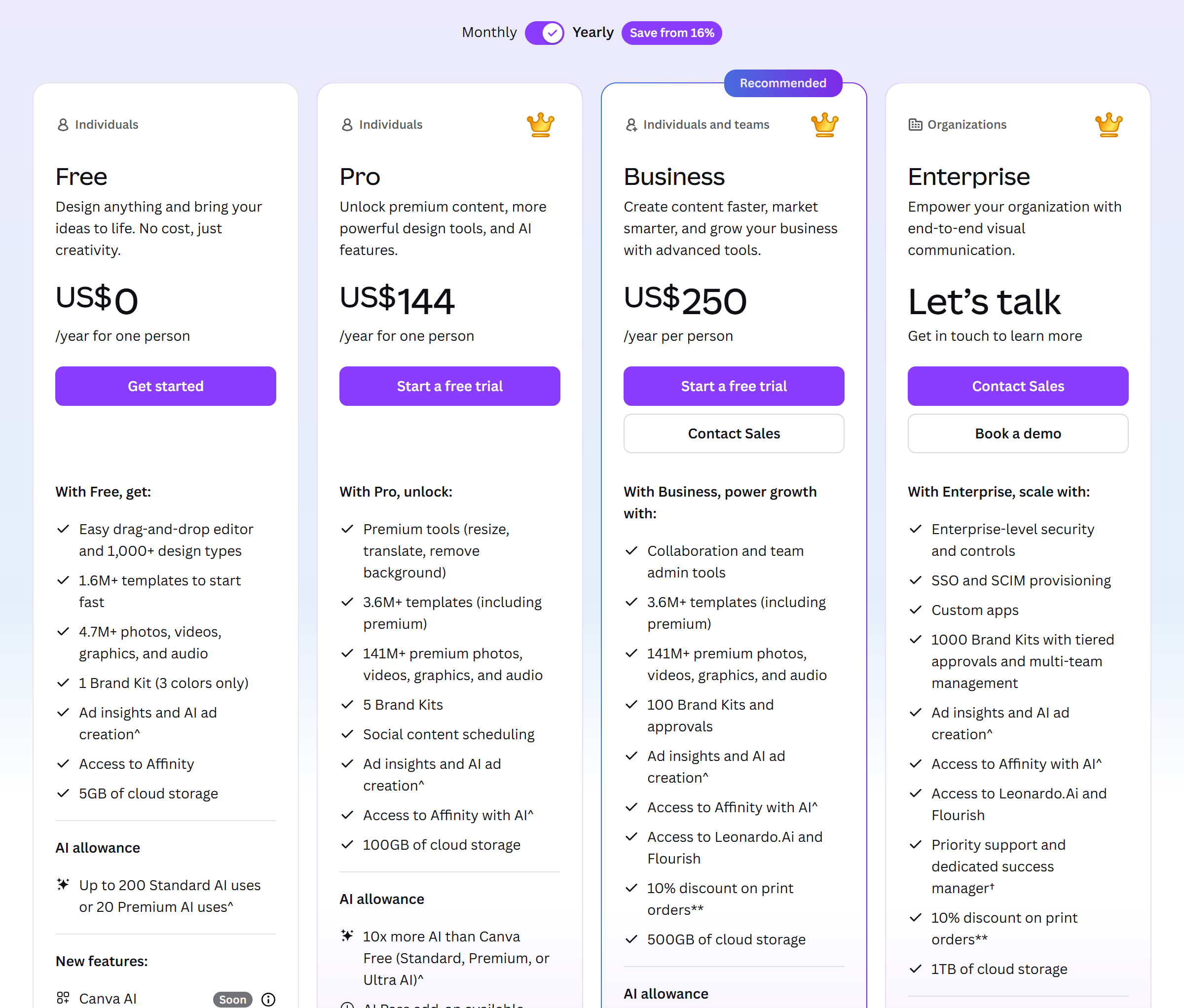
Canva offers 4 plans (they offer annual and monthly plans):
- The free plan offers access to more than 1 million professionally-designed templates!
- Pro is $12/mo (billed annually) and provides access to more templates, over 100 million photos, videos, and graphics, and other business-focused features.
- Business is ~$20.83/mo per person (billed annually) and adds collaboration and team admin tools, 100 Brand Kits with approvals, access to Leonardo.Ai and Flourish, and 500 GB of storage.
-
Enterprise is custom pricing and includes SSO, SCIM provisioning, 1,000 Brand Kits, and a dedicated success manager for larger organizations.
7. Best for audience research: buzzabout.ai
Understanding WHAT your audience is actually talking about is the foundation of great LinkedIn content.
buzzabout.ai analyzes billions of real conversations across Reddit, LinkedIn, TikTok, YouTube, Instagram, and X. Then, it shows you exactly what topics, pain points, and trends are resonating in your niche right now.
In other words, it takes the guesswork out of "what should I post about?"
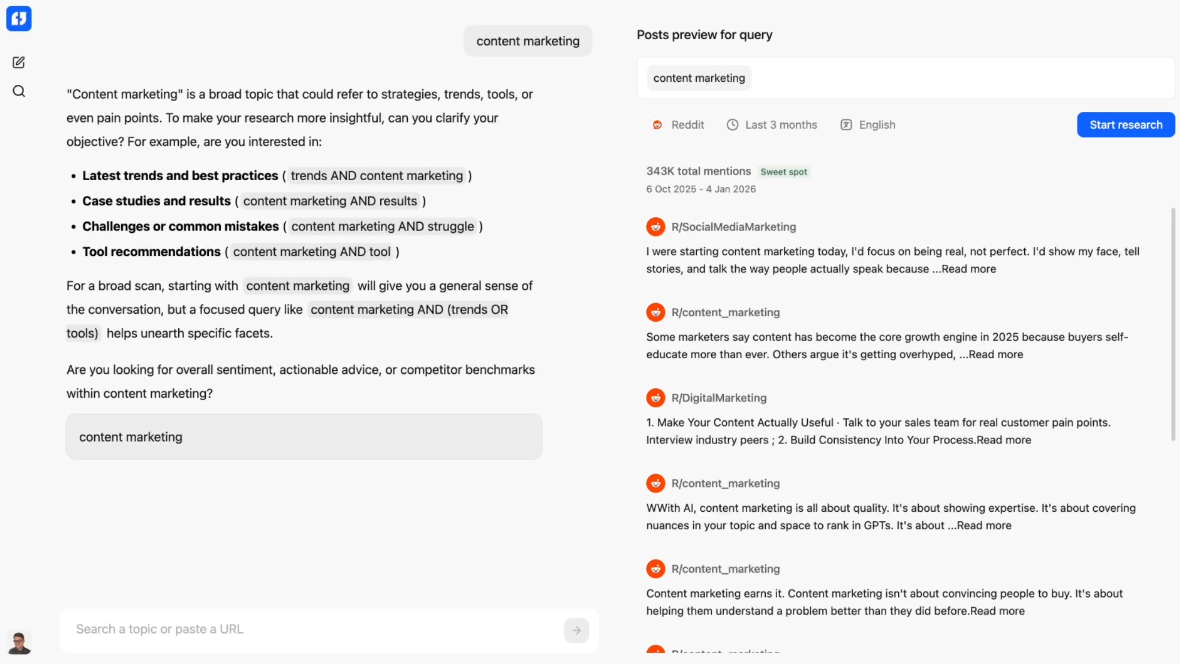
Instead of scrolling LinkedIn for an hour trying to find inspiration, you can search a topic in buzzabout and instantly see what people are saying about it.
Then use those insights to create LinkedIn posts that actually hit.
My favorite part? You can generate shareable links for the reports you generate to share with team members and clients.
Pros
- Uncover narratives, sentiments, and frustrations driving conversations in your niche
- Find top-performing posts in your industry to reverse engineer, engage with, or prospect from
- Slack alerts deliver monitoring updates directly to your team without needing to log in
- Great for market research
-
Most powerful way I’ve found to search LinkedIn
Cons
- A credit-based pricing model (Research Hours) can feel restrictive on lower-tier plans if you frequently run deep searches.
-
It’s a relatively newer platform, so the data library and feature set are still maturing.
Features
-
Trend analysis - Discover what topics and conversations are gaining momentum in your niche across all major social platforms, so you can create content that’s timely and relevant.
-
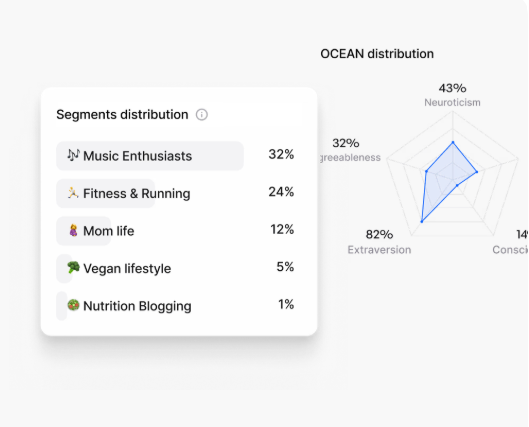
Synthetic audiences - Build AI-generated audience personas that show how real segments of your market think, talk, and make decisions. You can use synthetic audiences to develop LinkedIn content angles that actually make your audience feel seen.
- Market insights - Analyze popular posts and comment threads to surface pain points, unmet needs, and content opportunities that your competitors might be missing.
- Generate contextual replies - Create contextually relevant replies to social posts with custom prompts, keeping you top-of-mind in your ideal customer/prospect feeds.
- Narrative tracking - Track ongoing conversations around your brand, industry, or key topics, with Slack alerts when important mentions pop up.
-
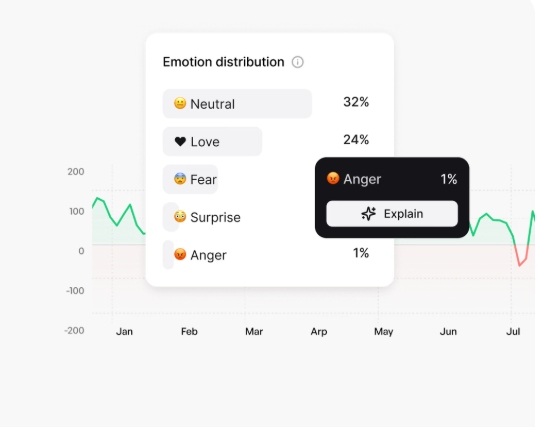
Sentiment depth analysis - Go beyond simple positive/negative sentiment to understand the “why” behind audience reactions.
Reviews
Despite being a relatively new tool, customers appreciate buzzabout.ai’s AI-powered conversation analysis.
Here’s what Umar L. said about using buzzabout.ai:
"What do you like best about buzzabout.ai?
The AI-powered conversation analysis is a game-changer. Unlike basic sentiment tools that only show positive/negative sentiment, buzzabout.ai extracts actual pain points, feature requests, and emotional nuances from social discussions. I love being able to monitor Reddit, TikTok, Instagram, LinkedIn, X, and YouTube all in one platform; it eliminates the need for multiple tools. The trending topics feature helps me build content calendars quickly, and the time savings are remarkable.
What do you dislike about buzzabout.ai?
Nothing really, everything works as expected.
What problems is buzzabout.ai solving, and how is that benefiting you?
buzzabout.ai eliminates the time-intensive process of manually reading hundreds of social media threads to understand what customers actually think and feel. It transforms hours of manual audience research into structured, actionable insights. I can now identify trending topics in my niche, understand competitor positioning, and discover genuine customer pain points, all without endless scrolling through comments and threads. This helps me create content and messaging that truly resonates with my target audience.”
Pricing
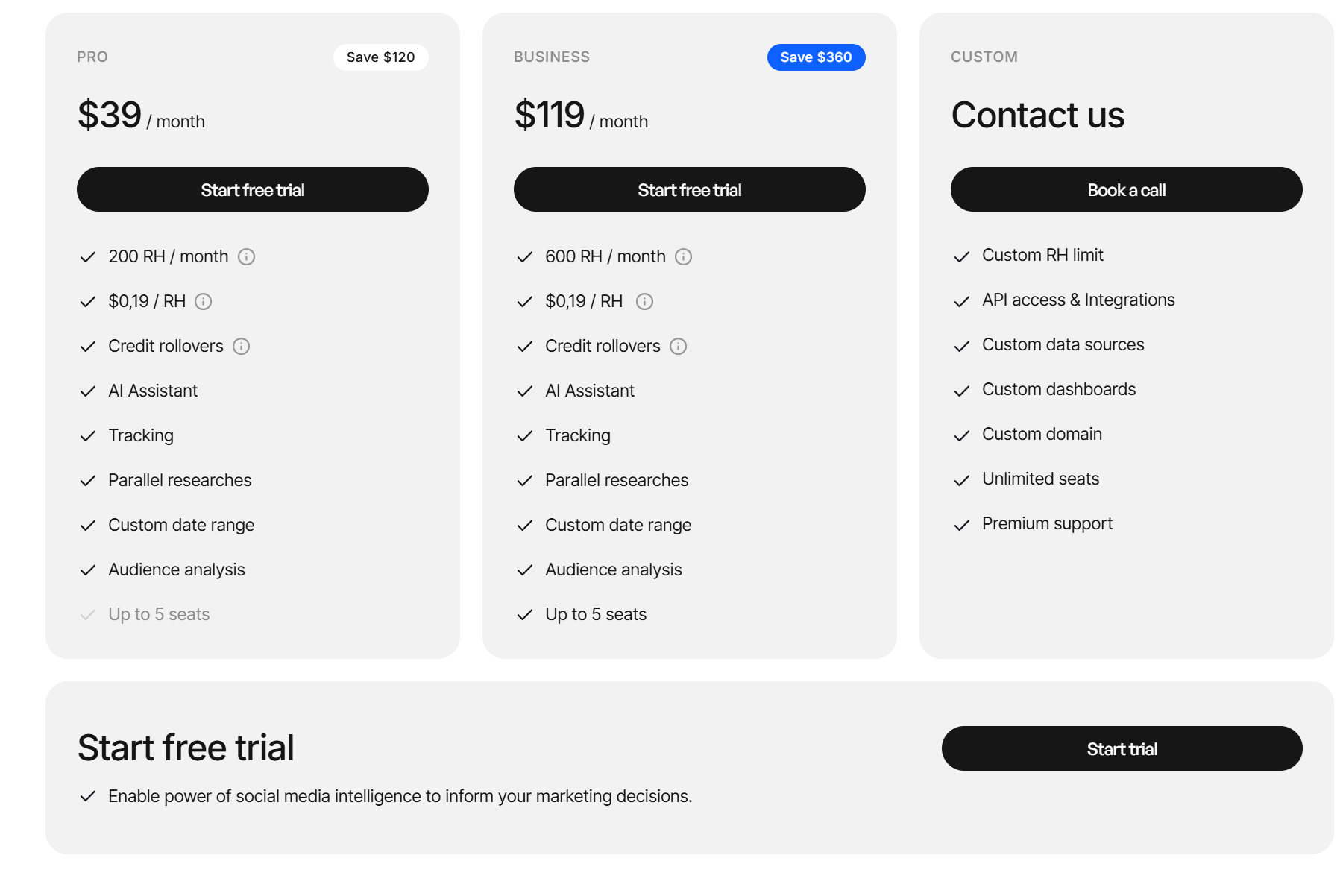
buzzabout provides 3 pricing tiers (listed prices are for annual plans):
- Pro tier is $39/mo and includes 200 Research Hours (usage credits).
- The business tier is $119/mo and includes 600 Research Hours (usage credits).
-
The Custom tier is for enterprises and includes a custom Research Hours limit, premium support, API access, integrations, and other advanced features.
buzzabout also offers one-time pricing to users who’d like to test it out, with 3 tiers:
-
Try it tier costs $19 and includes 50 research hours.
-
Use it tier costs $99 and includes 250 research hours.
-
Love it tier costs $249 and includes 1000 research hours.
8. Best for LinkedIn analytics: Databox
Databox is one of the most popular data visualization and analytics software on the market.
Databox connects to your LinkedIn account (along with 130+ other platforms) and pulls your performance data into a single dashboard. So you can see what's driving results without digging through LinkedIn's native analytics.
The real power is combining your LinkedIn data with other sources (Google Analytics, your CRM, ad platforms, etc.) in one view. That way, you're tracking how LinkedIn fits into your full marketing picture.
And if you hate building reports, Databox's AI analyst (Genie) lets you ask plain-language questions like "which LinkedIn posts drove the most traffic this month?" and get an answer in seconds.
Pros
- Easy to set up and use with drag-and-drop dashboard creation.
- Powerful analytics make LinkedIn even more effective for your business growth.
- Link multiple data sources to the same analytics dashboard.
- Great free plan
-
Easy reporting for working with clients.
Cons
- Very expensive if the free plan isn’t enough for you
-
Some of the better features, like white-label reporting, aren’t available unless you pay extra for add-ons.
Features
-
LinkedIn integration - Integrates with LinkedIn ads and LinkedIn company and personal pages to help you better understand your performance.
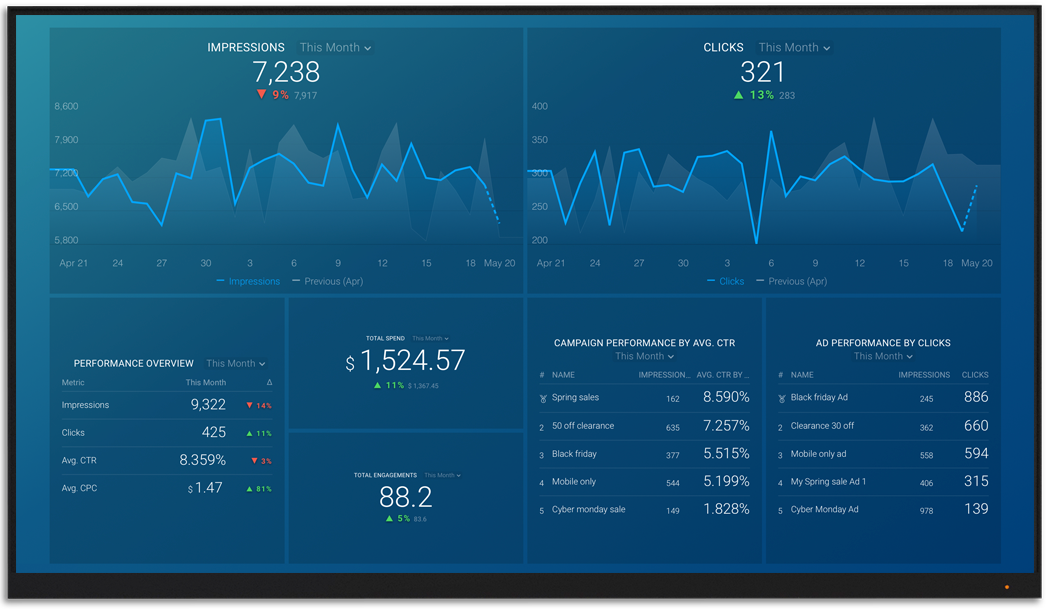
- Customizable data dashboards - Tailored reports to highlight key LinkedIn metrics and your most essential KPIs from all your platforms.
- Multi-platform integration - Pull data from LinkedIn, Facebook, and other platforms into a single dashboard, allowing you to understand your data more completely.
- Predefined metrics - Select from Databox’s predefined metrics to help you track what truly matters.
- Automated custom reporting - Customize and schedule LinkedIn performance reports for yourself or your clients.
-
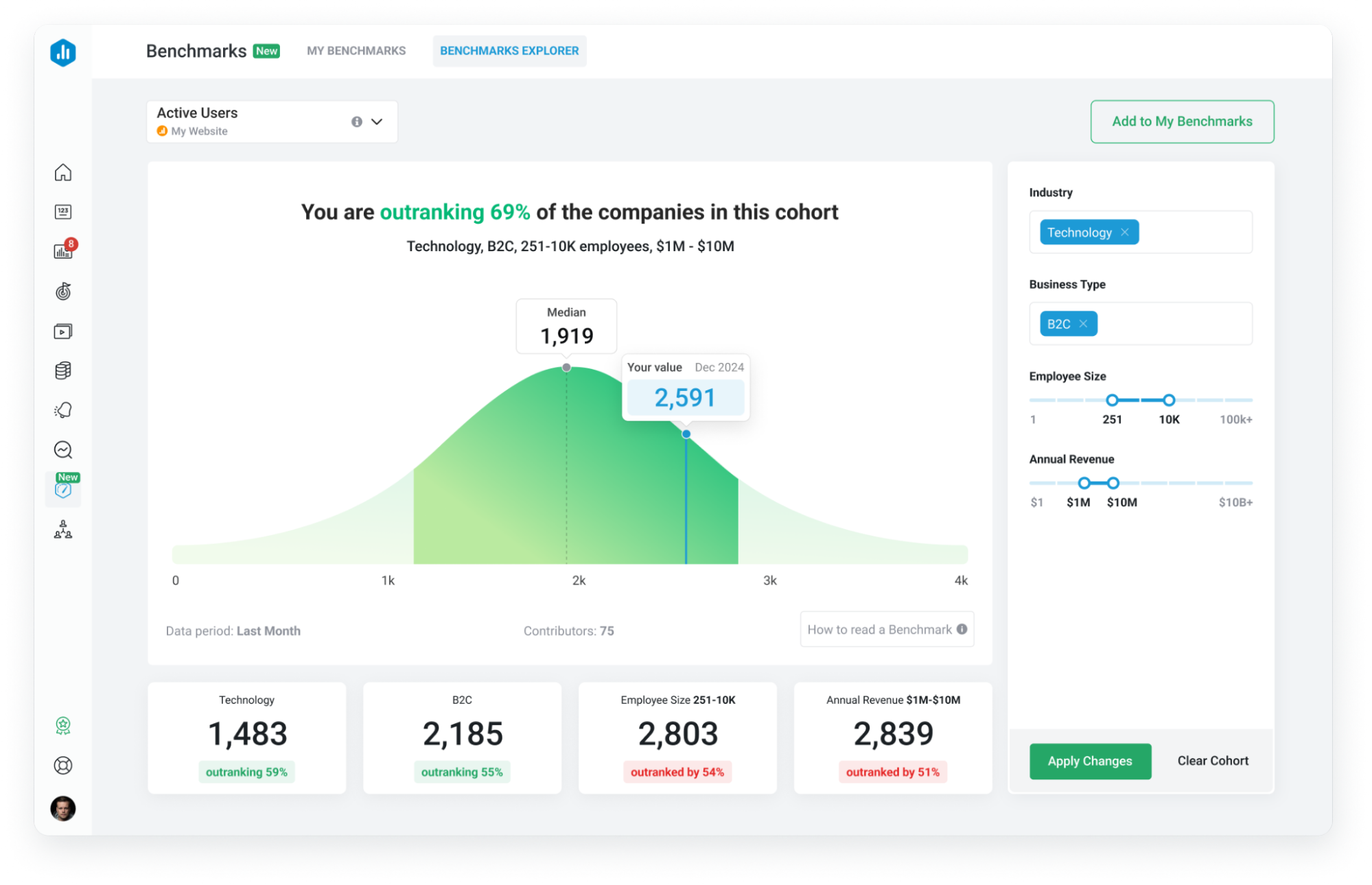
Industry benchmarking - Compare your performance against other companies in your sector.
- Conversion tracking - Measures how LinkedIn traffic contributes to lead generation and sales.
- Goals and alerts - Track progress toward engagement, follower, and lead-generation goals.
-
Databox MCP - Connects your AI tools (Claude, Cursor, or n8n) to your Databox data. You can then detect trends and analyze patterns on Databox’s data within your AI tools.
Reviews
Databox gets fantastic reviews. People consistently talk about the platform's intuitiveness and ease of use. Negative reviews often mention restrictions on the program's overall flexibility, such as missing metrics.
Here’s what Stephanie O. has to say about using Databox for his business:
"What do you like best about Databox?
I like that Databox can automatically send reports to clients, so I don't have to send them manually. It saves us hundreds of hours per month. I also appreciate the ability to modify templates and apply them across all clients, which makes innovation easy for us. The dashboard is great for monitoring all clients and alerts us when connections break, allowing us to manage multiple connection issues in one view and ensure we address all reporting issues simultaneously. I also found the initial setup to be easy.
What do you dislike about Databox?
I wish there were a way to automatically apply template changes to your current clients, which would save a ton of time. Some integrations are not currently available on certain platforms, such as BrightLocal, which we use a lot. More integrations, AI insights, and the ability to make changes a bit faster and easier across multiple accounts.
What problems is Databox solving, and how is that benefiting you?
I use Databox as a one-stop shop for metrics across platforms and automated reporting, saving hundreds of hours each month. It manages connection issues in one view, allowing us to innovate easily by applying template changes to all clients and monitoring them with dashboards.”
Pricing
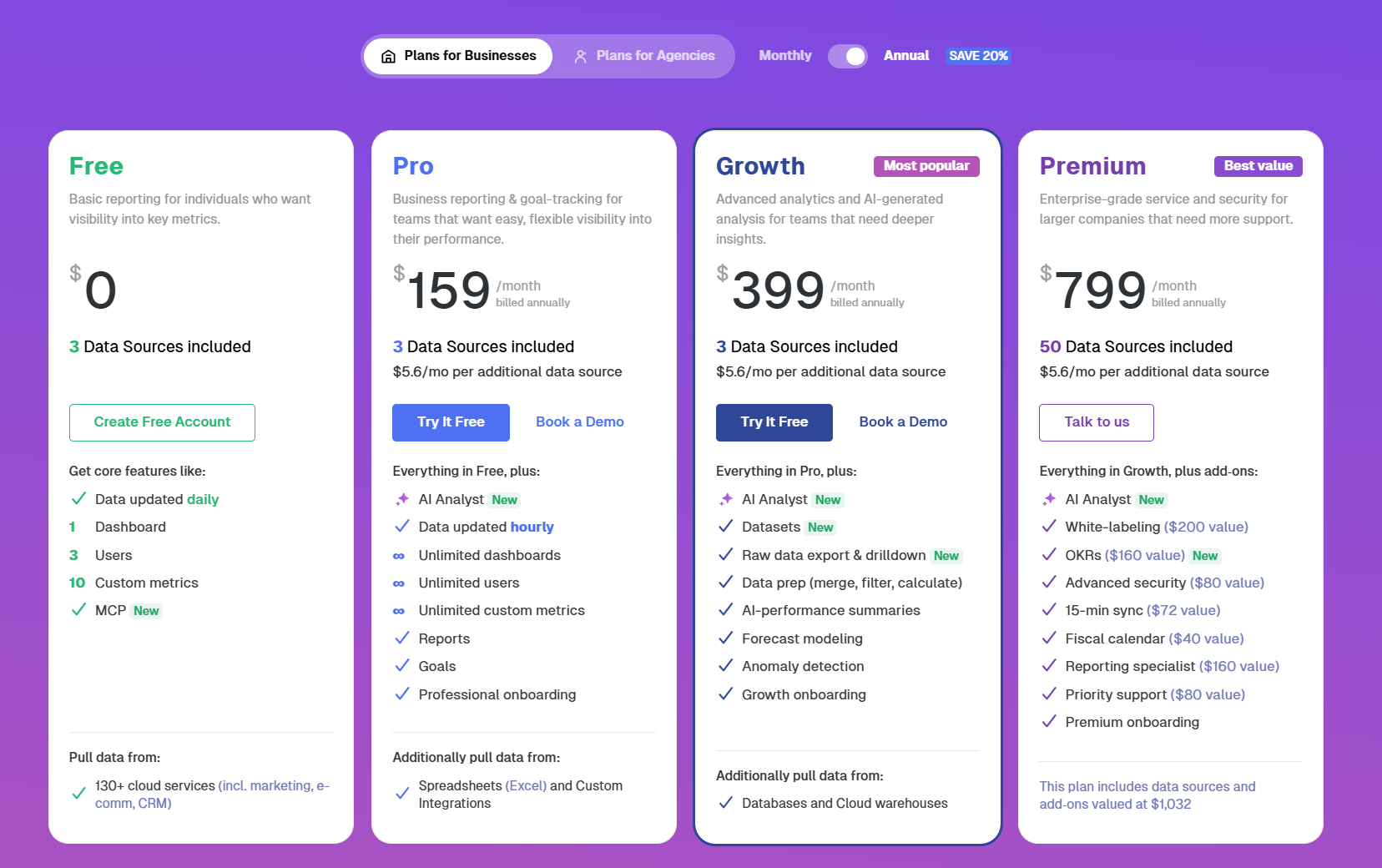
Databox offers 4 plans (all listed prices are annual):
-
FREE plan with 3 data sources, daily data updates, and 3 users included
- Pro plan is $159/month and includes 3 data sources, hourly data updates, unlimited users, more historical data, and other advanced tools, such as the AI analyst.
- Growth is $399/month and includes even more historical data, access to AI features such as AI-performance summaries, and other features designed for larger businesses.
-
The premium plan is $799/month and includes 50 data sources and the most advanced features Databox offers, such as enterprise-level security, priority support, white-labeling, and 15-minute sync for 5 data sources.
On all plans except the free plan, you can add additional data sources for $5.60/source/month.
9. Best free LinkedIn tool: LinkedIn Analytics
Have you ever wondered how your LinkedIn posts perform?
LinkedIn Analytics is the perfect free tool to get you started analyzing your posts’ performance and your audience.
For personal profiles, the Analytics & tools page shows you combined post analytics, audience demographics, profile views, and search appearances — all in one place.
For company pages, you get even more: content performance, follower demographics, visitor data, competitor benchmarking, and newsletter analytics.
That's a LOT of insight for $0.
Pros
- FREE!
- Accurate data that'll help you understand your content’s performance
- Get a better understanding of your audience
-
Easy to use
Cons
- This tool does only one thing: it helps you look at LinkedIn analytics. Don’t expect it to help you do anything else
-
It’s a free tool, so uses are limited
Features
-
Profile view insights - See who’s viewing your profile and how your impressions fluctuate over time.
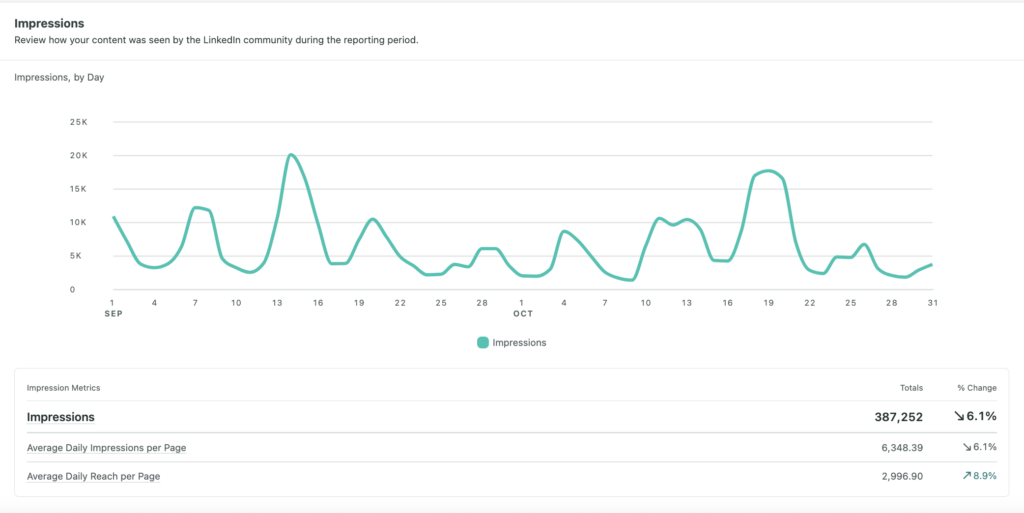
- Follower growth tracking - Analyze how your audience size changes over time.
- Demographic breakdown - Identify audience industries, locations, and job titles for your content.
- Competitor analysis - Compare your engagement with similar LinkedIn profiles.
-
Post performance metrics - Analyze views, reactions, saves, and sends to optimize content strategy.
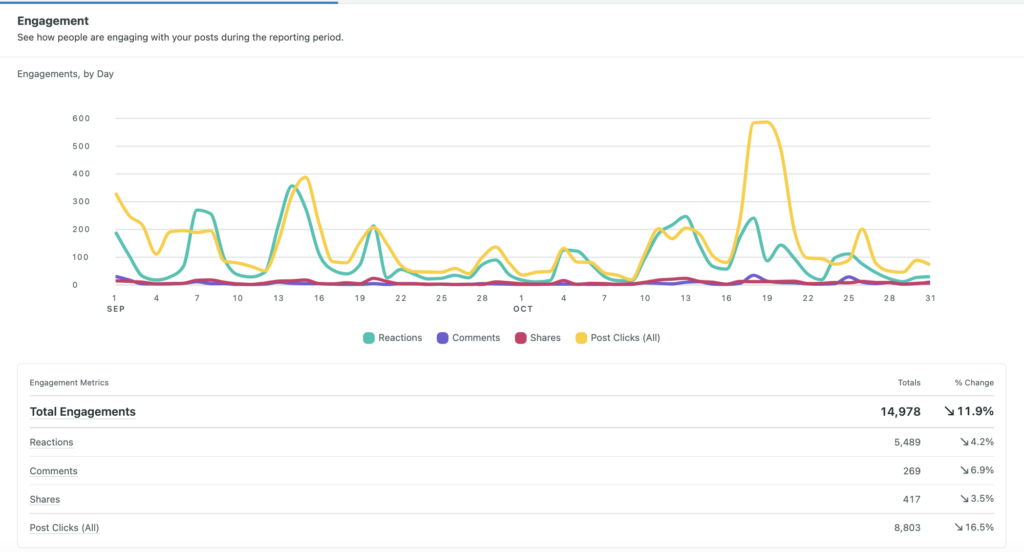
-
Newsletter analytics - Track views, subscribers, demographics, and trends.
Reviews
Since LinkedIn Analytics is a free, built-in part of using a LinkedIn company profile, it doesn’t have its own reviews.
Pricing
LinkedIn Analytics is FREE, but it'll only appear if you have a LinkedIn company profile. It won’t appear on a standard LinkedIn page.
10. Best for outreach: HeyReach
Sending LinkedIn connection requests and follow-ups one by one is a full-time job.
And if you're running outreach for multiple clients or team members? Forget it.
HeyReach makes that a thing of the past by automating your LinkedIn outreach.
Unlike traditional outreach tools that charge per user seat, HeyReach charges per LinkedIn sender account (meaning you can have multiple users managing one sender), making it dramatically more cost-effective as teams and agencies grow.
I should be clear that using automated messaging isn’t strictly allowed under LinkedIn’s prohibited software agreement, but a high-quality tool like HeyReach makes it possible by mimicking human behavior.
Pros
- Users consistently report saving 1-3 hours per day on outreach
- Rotates across multiple LinkedIn sender accounts to safely scale past daily sending limits
- Full control over message personalization, so nothing feels templated
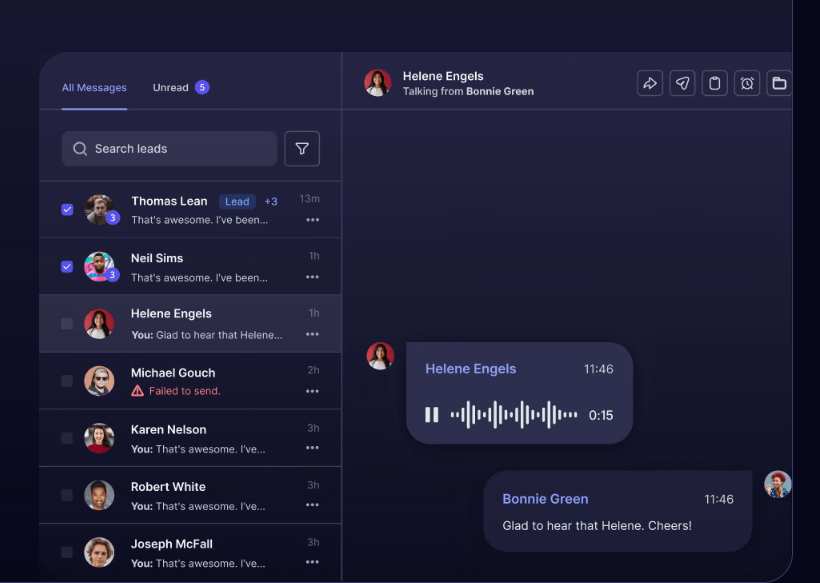
- Unified inbox lets you manage replies across every sender account in one place without logging in and out
-
Users highlight that customer support is fast and responsive
Cons
-
Automating LinkedIn messages is technically against LinkedIn’s terms of service, which means your account could get in trouble (though this is less likely with HeyReach).
Features
-
Unified inbox - Handle all LinkedIn messages in one centralized inbox, without logging in and out of accounts all the time. You can also reply on behalf of your colleagues.
- Import qualified leads - Import relevant LinkedIn contacts from LinkedIn Sales Navigator, HubSpot, Clay, RB2B, or any other tool to run outbound campaigns.
-
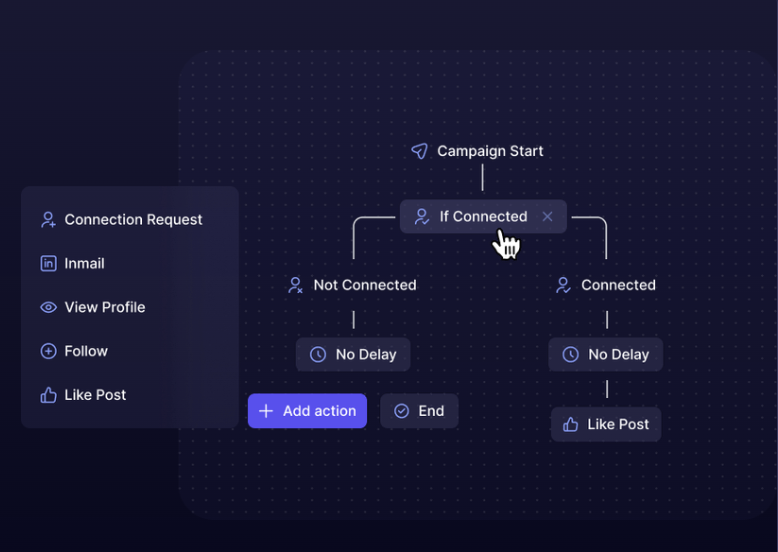
Combine LinkedIn steps - Automate actions such as profile views, messages, and connection requests. Use HeyReach’s “If connected” logic to place new and older connections into separate segments, making your outreach more precise.
- Multichannel outreach - Offers native integrations with Instantly and Smartlead, enabling you to reach prospects and leads via email as well.
- Campaign analytics - Track connection acceptance rates, message reply rates, A/B tests, and how different steps are performing across all accounts.
-
Auto-rotate LinkedIn senders - Connect unlimited accounts and automatically rotate sending among them to minimize the risk of restrictions.
Reviews
HeyReach gets very positive reviews, many of which highlight its ease of use, excellent customer support, and the time it saves by automating LinkedIn outreach with its intuitive automation features. Some negative reviews mention areas for improvement in HeyReach’s analytics, but the vast majority are positive.
Here’s Panos’s experience using HeyReach to automate LinkedIn outreach:
"What do you like best about HeyReach?
I find HeyReach incredibly valuable due to its very clean interface, which makes it one of the few LinkedIn outreach tools that truly capitalizes on InMail hacks. This unique capability allows me to scale my LinkedIn outreach by 7-10 times, a remarkable boost in efficiency. Additionally, I can generate more replies from the same number of prospects, thanks to its effective use of InMail. The initial setup was very easy, making the transition to HeyReach effortless. Its functionality for automating LinkedIn cadences and optimizing InMail utilization addresses key needs, making it an indispensable tool for LinkedIn outreach, particularly for those managing multiple clients. With such powerful features, I am extremely likely to recommend HeyReach to colleagues, rating it a 10 for individual LinkedIn outreach needs and a 15 for those running outreach for multiple clients.
What do you dislike about HeyReach?
I don't like that HeyReach doesn't automatically save progress. It requires me to launch the system each time I make an edit, which means I can easily lose up to two hours of work until I get used to this feature.
What problems is HeyReach solving, and how is that benefiting you?
HeyReach automates LinkedIn cadence and capitalizes on InMail, allowing me to generate more replies and scale outreach by up to 10x. It's ideal for extensive LinkedIn campaigns.”
Pricing
HeyReach offers monthly, quarterly, and annual pricing plans across 3 tiers (these are annual plans):
-
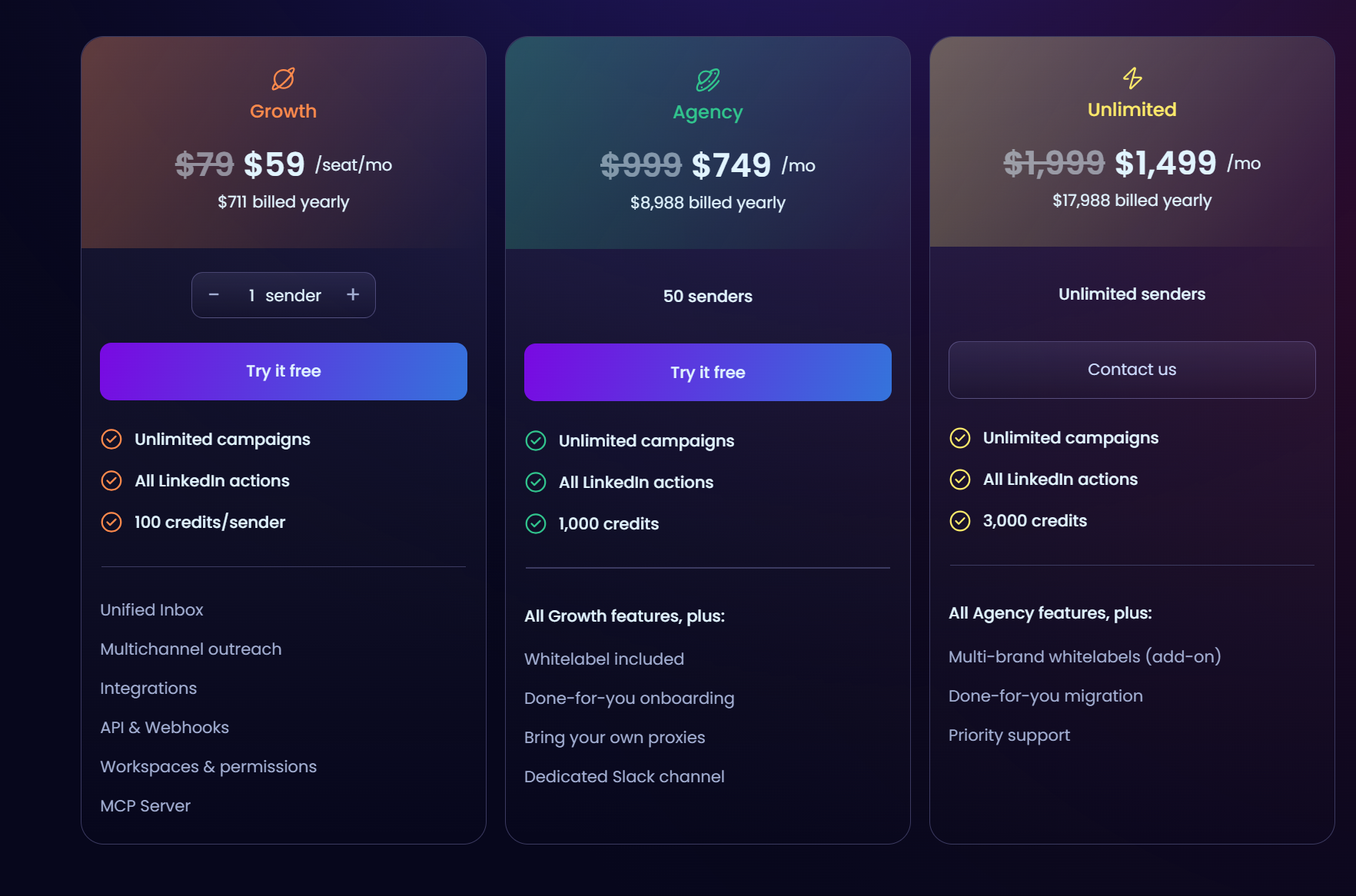
Growth tier costs $59/sender/mo and includes 100 credits/sender.
-
Agency tier costs $749/mo for 50 senders and includes 1,000 credits. You also get additional features such as white-labeling and done-for-you onboarding.
-
Unlimited tier costs $1,499/mo and includes 3,000 credits. You get priority support and done-for-you migration.
11. Best for data extraction and enrichment: PhantomBuster
You can't grow on LinkedIn if you're reaching the wrong people.
Most people connect randomly, message blindly, and wonder why nobody responds.
PhantomBuster is a no-code automation platform that extracts live data from LinkedIn, enriches it with real signals like job changes and profile activity, and helps you build lead lists based on who's actually worth reaching out to.
Think of it as the step BEFORE outreach.
Pros
-
Extracts lead data from LinkedIn, Sales Navigator, and 15+ other platforms, with no coding required
-
Workflows can run on autopilot
-
Huge library of pre-built automations ("Phantoms") for nearly every LinkedIn action you can think of
-
Clear safety indicators show how much automation you can run before risking account restrictions
Cons
-
The interface can feel clunky when managing multiple Phantoms at once
-
Account restriction risk remains if you exceed daily activity limits (not PhantomBuster's fault, but worth being mindful of)
-
Pricing is based on execution hours, which can be confusing
-
Steeper learning curve than most tools on this list. Complex multi-step workflows might take time to configure correctly.
-
Account restriction risk remains, especially if you exceed daily activity limits.
-
A pricing model based on “execution hours” can be confusing. Running out of hours mid-month is a common frustration.
Features
-
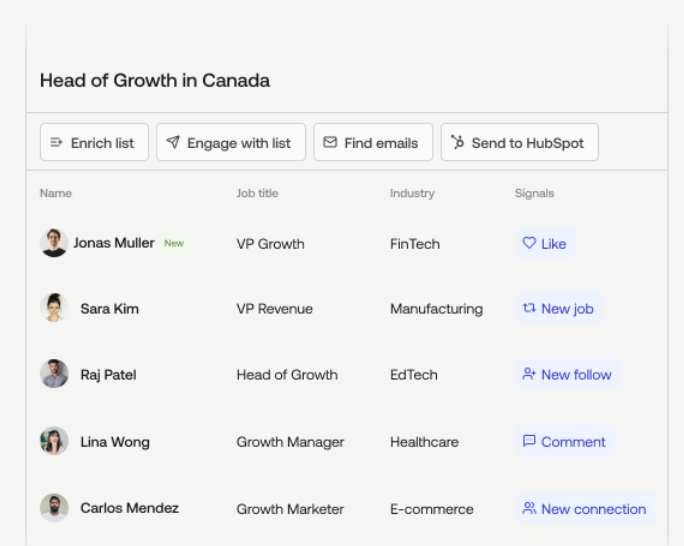
LinkedIn Search Export - Scrape and export results from any LinkedIn or Sales Navigator search into a spreadsheet, so you can build targeted lead lists at scale
-
Post Engagement Export - Collect a list of everyone who Liked or commented on any LinkedIn post to target engaged audiences from competitors or thought leaders in your niche.
-
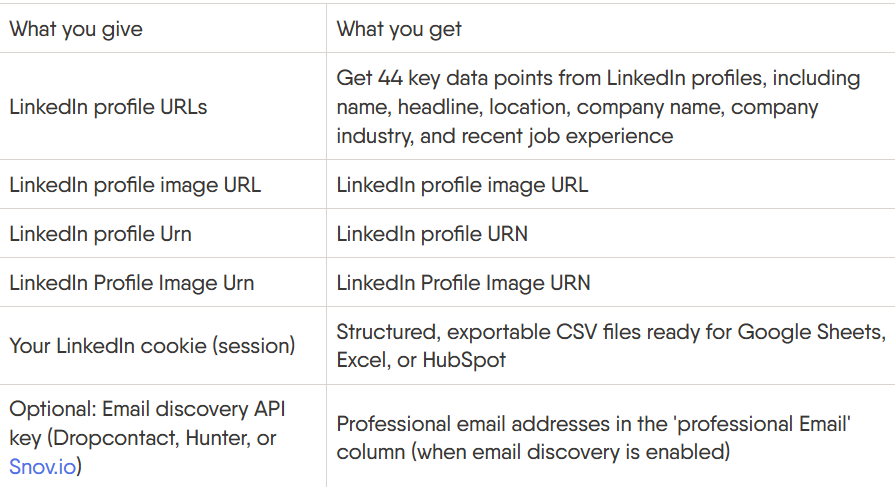
LinkedIn Profile Scraper - Pull detailed data from profiles, including job titles, company names, locations, skills, and publicly available contact info.
-
Email Finder & Enrichment - Enrich your scraped lead lists with email addresses using built-in AI credits.
-
Multi-step Workflows - Chain multiple Phantoms together into automated sequences. For example: extract a LinkedIn search, enrich the results with emails, then push them into your outreach tool automatically.
-
CRM and tool integrations - Native connections to HubSpot, Salesforce, Clay, ChatGPT, and Zapier/Make for end-to-end pipeline automation.
Reviews
PhantomBuster consistently receives praise for its ease of use and time-saving features, which make outreach and lead-generation tasks extremely easy. A common limitation users mention is the learning curve, but most posts are positive.
Here’s what Naud H. has to say about PhantomBuster:
“What do you like best about PhantomBuster?
What I like best about PhantomBuster is how it helps us expand our reach on LinkedIn. It’s very easy to use and completely low‑threshold — you don’t need any coding background or technical knowledge to get great results.
What do you dislike about PhantomBuster?
What I dislike about PhantomBuster is the limited amount of execution time included in the Grow plan. The 80 hours of monthly execution time are used up quite quickly when you run automations continuously across the 15 available slots. In our case, the bottleneck is not the number of slots but the available execution time: we would benefit from the higher execution allowance of a Scale-type plan, but we do not really need the 50 slots that come with it. As a result, it feels like you have to upgrade mainly to get more time, rather than because you actually need the extra capacity in terms of slots.
What problems is PhantomBuster solving, and how is that benefiting you?
PhantomBuster is helping us transform how we generate new business. As a consulting firm, we used to rely mainly on word-of-mouth to attract clients, which limited our reach and made lead generation quite unpredictable. By using PhantomBuster, we can significantly expand the visibility of our services on LinkedIn and systematically reach our ideal target audience. It allows us to identify and connect with key decision-makers inside organizations, even while we are fully engaged in advisory projects for other clients. This means we can keep our pipeline active and build new relationships in a structured, scalable way, without having to spend all day manually prospecting.”
Pricing
PhantomBuster offers 4 pricing plans with unlimited users (I’ve only mentioned annual plans below):
-
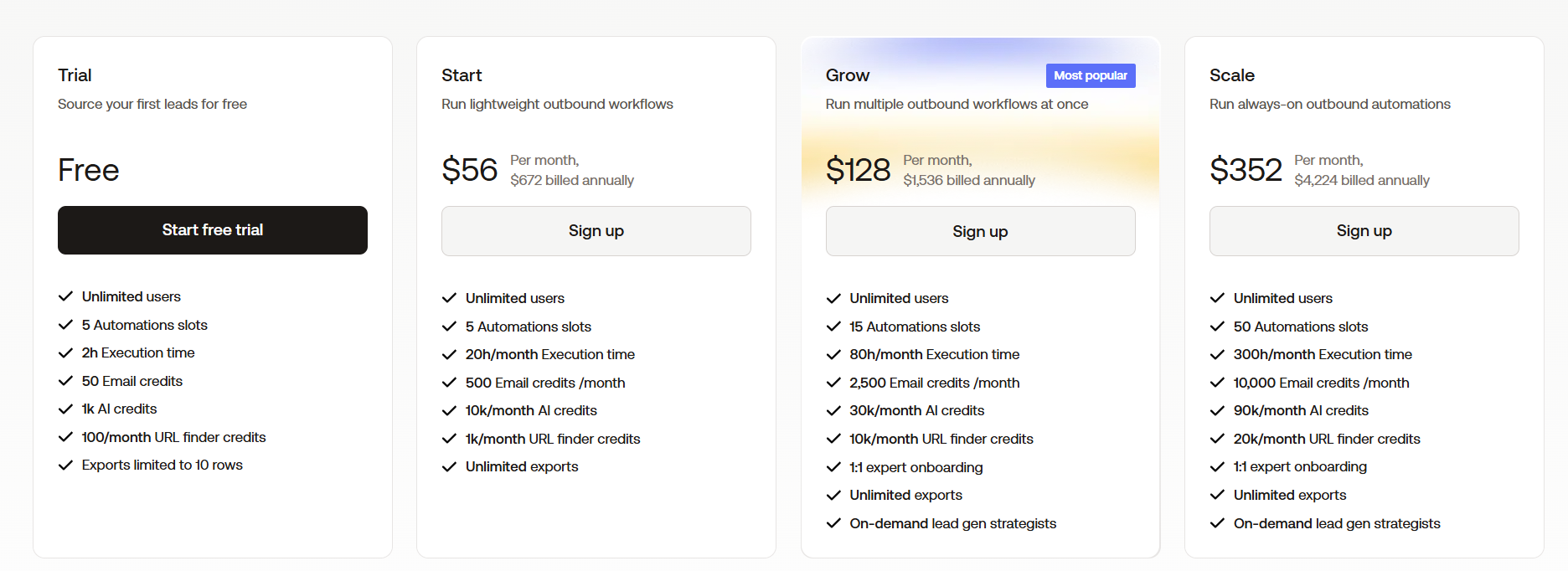
The trial plan is FREE for users and includes 5 automation slots, 2h of execution time, 50 email credits, and 1K AI credits.
-
Start plan costs $56/mo and includes 5 automation slots, 20hr/mo execution time, 500 email credits/mo, and 10K/mo AI credits.
-
Grow plan costs $128/mo and includes 15 automation slots, 80hr/mo execution time, 2.5K email credits/mo, and 30K/mo AI credits. You also get on-demand lead-gen strategists as an additional benefit in this plan.
-
Scale plan costs $352/mo and includes 50 automation slots, 300hr/mo execution time, 10K email credits/mo, and 90K/mo AI credits.
12. Best for social selling: LinkedIn Sales Navigator
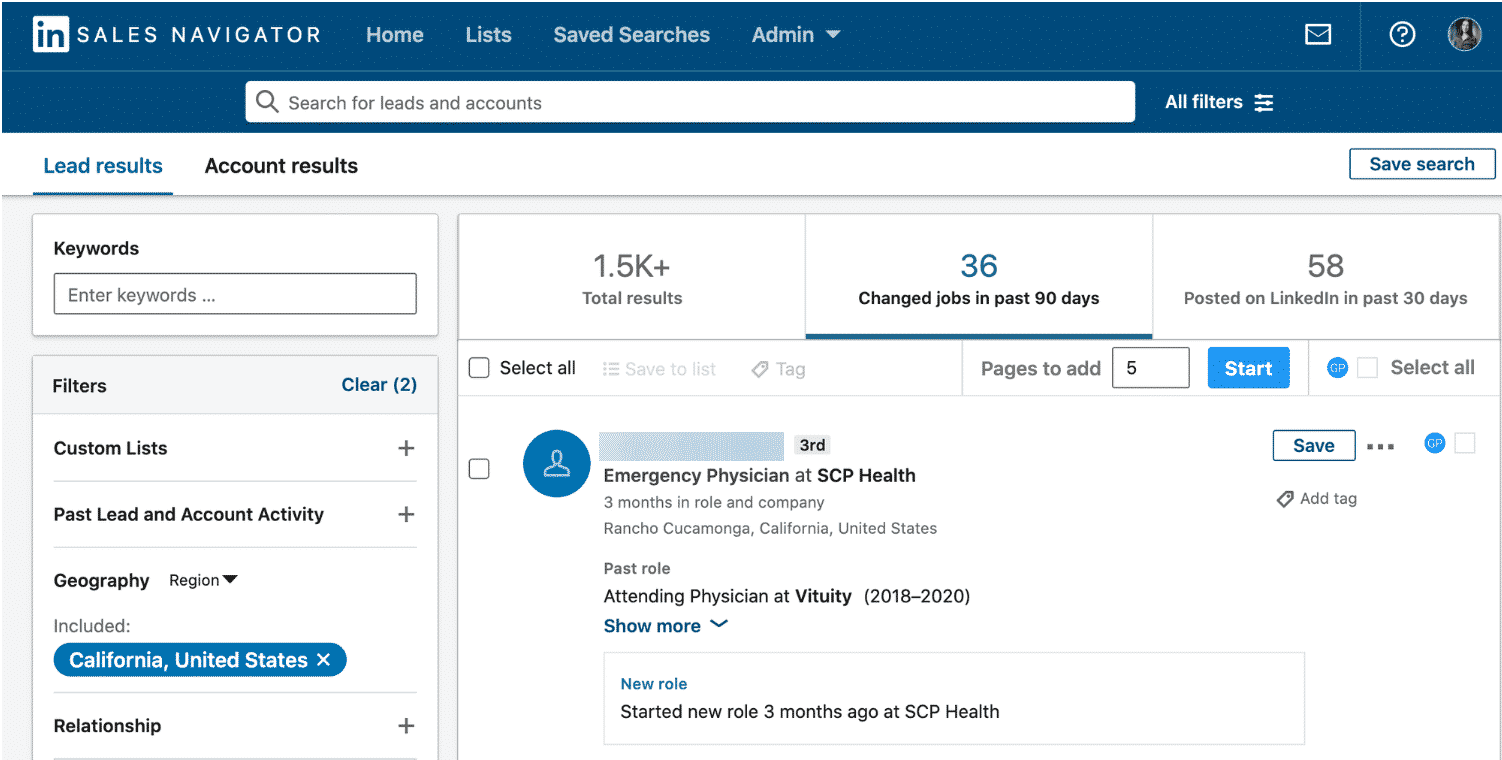
LinkedIn Sales Navigator is the ultimate tool for social selling on LinkedIn.
It’s LinkedIn's own premium tool built specifically to help B2B sellers find, research, and reach buyers.
Instead of scrolling and guessing, you can search with 50+ filters to pinpoint exactly the right people at exactly the right companies. When a prospect changes jobs, engages with your content, or hits a trigger you care about, you get alerted in real time. And when you're ready to reach out, you can message them directly (even if you're not connected).
Pros
- Find personalized lead recommendations.
- Integration with CRMs makes managing leads much easier.
- Simple to use and incredibly beneficial for selling on LinkedIn
-
I’ve found that I’m less likely to get flagged for using automation when I’m paying for a subscription.
Cons
- Expensive, so it’s only worth it if you’re making sales on LinkedIn.
-
Limited to a very specific purpose, so it won’t help your entire LinkedIn strategy.
Features
- Advanced lead search - Filter potential leads based on job title, company, industry, and 50+ other filters.
- Lead recommendations - Get personalized recommendations for new leads based on your current contacts and buyer interests.
- LeadIQ - Collect and summarize key information about your best leads.
- AccountIQ - Use generative AI to create account summaries that help you research and plan your strategy.
- InMail messaging - Reach out to LinkedIn users that may not already be in your lead list, helping you expand your sales net.
-
Alerts - Get alerts when key factors about your leads change — such as a job change — that might make them more receptive to communication.
- Integrations - Syncs with tools like HubSpot and Salesforce for streamlined lead management.
- Relationship mapping - Use organizational charts to track new leads.
-
Team collaboration features - Allow sales teams to share insights and coordinate efforts.
Reviews
LinkedIn Sales Navigator is the most popular tool for social selling on LinkedIn, so there are plenty of reviews. Most positive reviews mention the ease of finding new prospects and customers through search functions and analytics tools.
Complaints typically center on minor missing features or on the price being too high for some people to stomach.
Here’s what Brian N. has to say about using LinkedIn Sales Navigator:
"What do you like best about LinkedIn Sales Navigator?
I use LinkedIn Sales Navigator to find people for sales and headhunting purposes. It has many filters that help me figure out the best person to reach out to. I love that it is the biggest database where I can find and connect with anybody around the world. The filters are well-structured, convenient, and easy to use, allowing me to quickly narrow down my search and find the right person, even in very niche spaces. The integration with software such as Apollo and other CRM/contact-finder tools creates an interesting ecosystem. Plus, the initial setup was very easy.
What do you dislike about LinkedIn Sales Navigator?
There are still small bugs sometimes. The algorithm for the keyword search bar changes over time. For example, sometimes the Boolean search string works, sometimes it doesn't.
What problems is LinkedIn Sales Navigator solving, and how is that benefiting you?
I use LinkedIn Sales Navigator to find sales prospects and for headhunting. It offers many filters, which help me quickly narrow down and identify the best person to reach out to, even in niche areas.”
Pricing
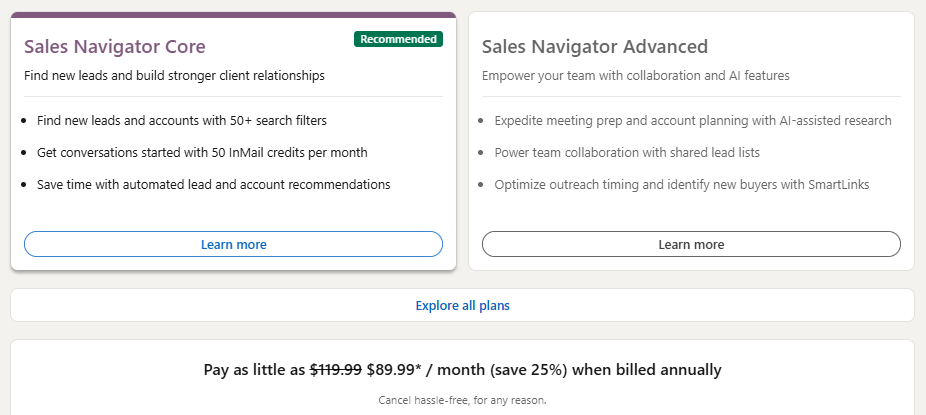
LinkedIn Sales Navigator has 3 plan options (prices shown are for the annual plan):
- The Core plan is $89.99/month and includes lead discovery tools, Relationship Explorer, and 50 InMails.
- The Advanced plan is $149.99/month and includes AccountIQ, team features, SmartLinks, and other advanced features.
-
The Advanced Plus plan offers custom pricing for teams that use an integrated CRM.
Frequently asked questions
What is the best LinkedIn automation tool?
It depends on what you’re trying to automate!
For automating content discovery and scheduling, I recommend Post Planner.
For automating outreach, I recommend HeyReach.
For automating your writing process, I recommend Claude.
What tools does LinkedIn have?
The basic version of LinkedIn has very few tools, but you can get access to LinkedIn Analytics for free with a LinkedIn company page.
If you’re willing to pay for third-party tools, the options are almost endless! Start with the tools mentioned above and see what works for your business.
Will using LinkedIn automation get my account banned?
For LinkedIn automation tools like HeyReach and PhantomBuster, make sure they include IP rotation, randomized delays, and a cloud-based infrastructure to keep your account safe. Also, verify the vendor’s privacy policy and compliance with GDPR/CCA. For all the other LinkedIn automation tools on my list, you can rest assured that LinkedIn won’t ban you for using them.
What are the common mistakes I should avoid when using LinkedIn automation tools?
Over-automating outreach - Sending too many connection requests or messages in a short period of time is a red flag for LinkedIn’s algorithm. Even with tools like HeyReach, make sure you keep your activity within realistic daily limits.
Using unedited AI content - Whether you’re using Claude, ChatGPT, or Post Planner’s AI Writer, never post AI-generated content without editing it first. AI can be a great starting point, but your audience can tell when something lacks a human touch.
Neglecting analytics - Many people set up their automation and forget about it. There’s a reason tools like Databox and LinkedIn Analytics exist. Regularly review your performance data to understand what’s working and where to adjust your strategy.
Using too many tools at once - It’s tempting to sign up for every tool on the list, but that leads to scattered workflows and wasted money. Start with 1-2 tools that address your biggest challenges, master them, and go from there.
When should I not use LinkedIn automation tools?
Engaging with people on LinkedIn shouldn’t be automated. This includes Likes and comments, because people can usually tell when you’ve used an engagement automation tool.
Use LinkedIn automation tools to handle more administrative tasks, such as content scheduling, prospecting and lead tracking, and video editing.
Ready to grow your LinkedIn?
Having the right LinkedIn tool can help you better manage your contacts, improve engagement on your posts, and make more sales.
If you’ve been on the hunt for a good LinkedIn tool that checks all these boxes, start with this list of 12. You won't be disappointed!
What other LinkedIn tools have you used to improve engagement? Let us know in the comments below — I'd love to hear about them!








No Comments