
Feeling the pressure to constantly pump out fresh content for social media?
I know there are TONS of AI tools out there promising to help. But with so many options, it’s hard to tell which ones are actually worth your time.
And what can you realistically expect from them?
Lots of marketers are jumping in. Bynder reports that 98% of organizations expect AI to deliver key business outcomes over the next 12 months, yet 55% rank content quality control as a top concern.
This guide is here to cut through all that noise!
I'm going to show you 9 tools that I use to solve specific content creation problems, from writing captions to repurposing video, without sacrificing quality. I’ve picked each one based on how well it handles a specific job, how much time it saves, the quality of what it creates, and its ease of use.
Now, let's dive deeper.
My picks for the best social media content creation tools:
Plus:
- Frequently Asked Questions About Best Social Media Content Creation Tools
- Ready to save hours with a free Post Planner account?
1. Post Planner Content Streams: Best for sourcing and repurposing content
Let’s be honest, trying to come up with 100% original content ideas every single day is a fast track to burnout. I see it happen ALL the time.
You feel like you have to be a genius on demand, and it’s just not sustainable. That’s why you need a system for finding great content that’s ALREADY working in your industry.
Post Planner's Content Streams feature is designed to save you a TON of time by curating high-performing content for you, so you can repurpose with your own twist and keep your posting schedule full.
For example, you can create a stream that pulls in posts from your top 3 competitors and 5 of the biggest industry influencers.
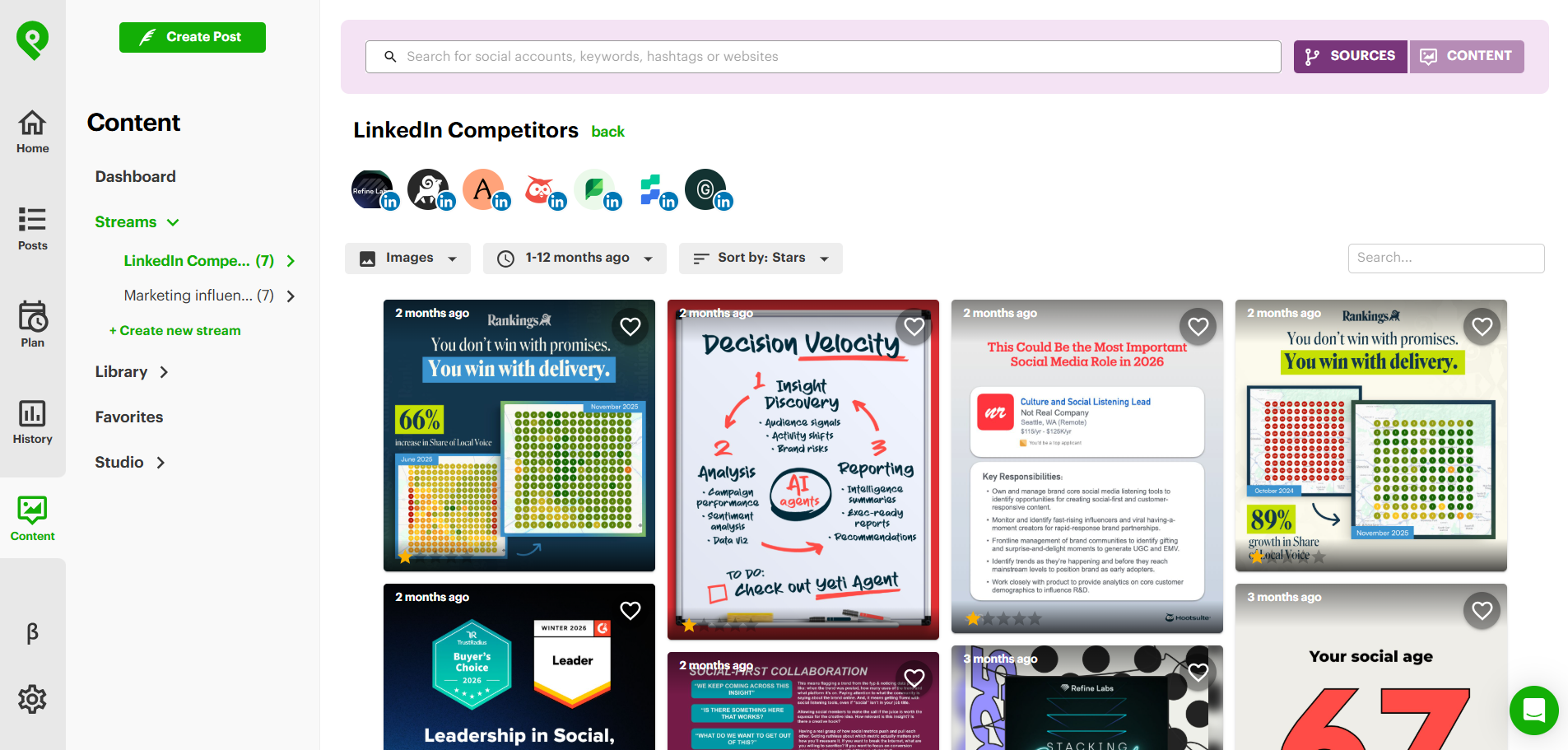
Then, you can use that content as inspiration, for reposting, or for repurposing if you want to make it more original to your brand.
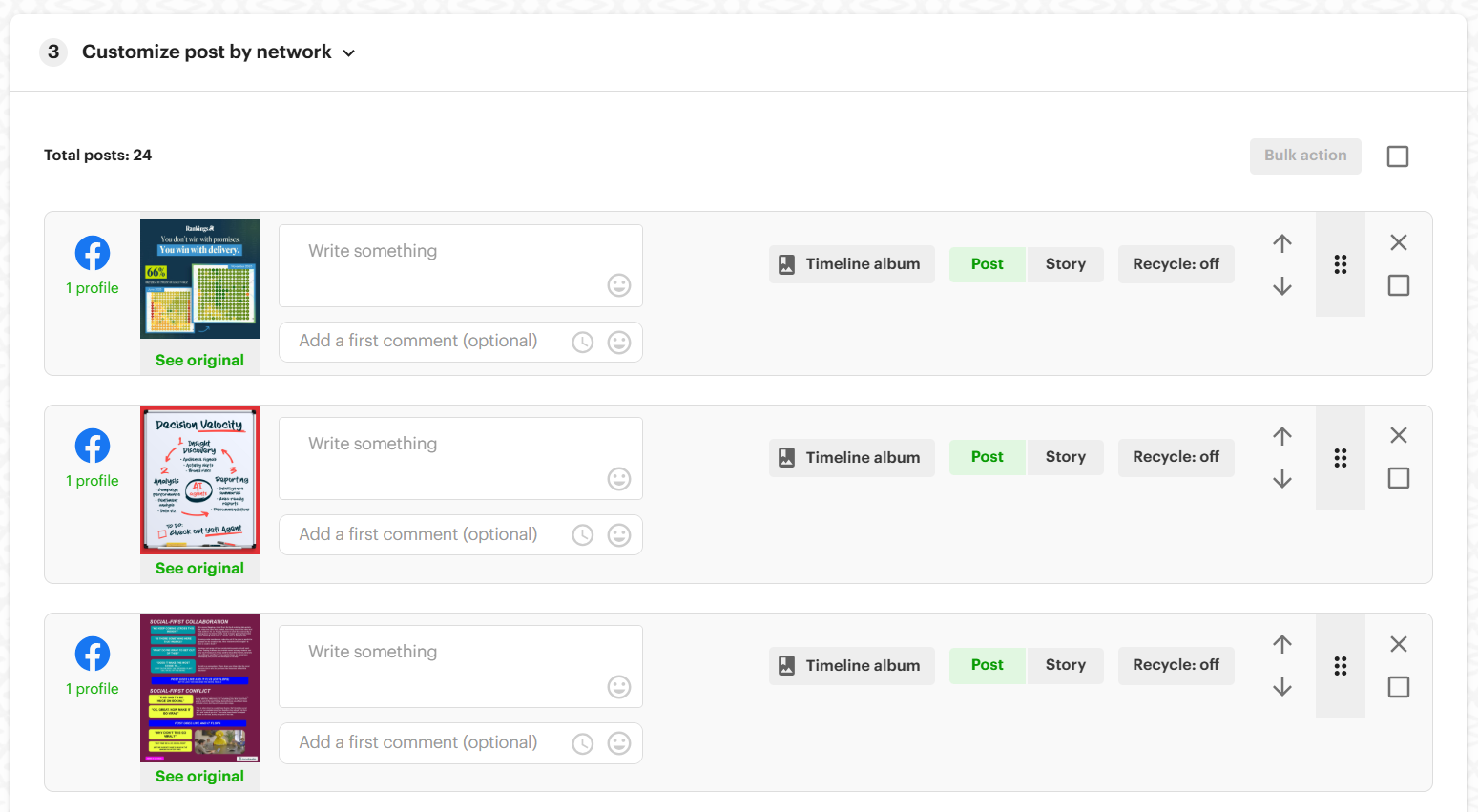
As one G2 reviewer put it, "Finding relevant content to post is terrific, and it helps us choose the best content to enhance interactions with our audience."
Features
- Content Discovery – Curates top-performing articles, social media posts, quotes, memes, gifs, images, and videos from across the web into dedicated feeds.
- Custom Streams – Lets you create personalized feeds by adding specific social accounts (including competitors) and RSS feeds.
- Pre-Made Stream Library – Offers a large, searchable repository of Content Streams on tons of topics made by other Post Planner users.
- Performance Sorting – Organize Content Streams by engagement to quickly spot the highest-performing posts.
- One-Click Repurposing – Lets you easily add a curated post to your own posting schedule to edit, add a unique take, or repost directly.
Pros
- Saves HOURS of time compared to manually searching for content.
- Helps prevent burnout by providing a reliable source of proven content for inspiration.
- Simplifies competitive analysis by putting competitors' content into a single feed.
- Increases audience engagement by making it easy to share popular and relevant content.
- Makes it easier to maintain a consistent posting schedule.
Cons
- Presents a risk of over-relying on curated content, which can dilute your brand's voice.
- The effectiveness of custom Streams depends on the quality of the sources you choose.
- Still requires manual effort to add your own "twist" to the curated content.
Pricing
Content Streams are included in all Post Planner subscriptions, including free accounts (but limited to content from the past 7 days).
For access to Content Streams going back to 1-3 years, pricing starts at $49/month.
2. Post Planner Content Studio: Best for creating social media graphics
Do you ever feel like you're juggling too many tools? I know a lot of marketers pay for an extra tool like Canva or have to get a designer to help with graphics.
Post Planner users can create simple graphics right inside the app they use to schedule and manage all of their social posts! This is perfect for marketers who need to quickly design visuals without paying for or switching to a separate tool.
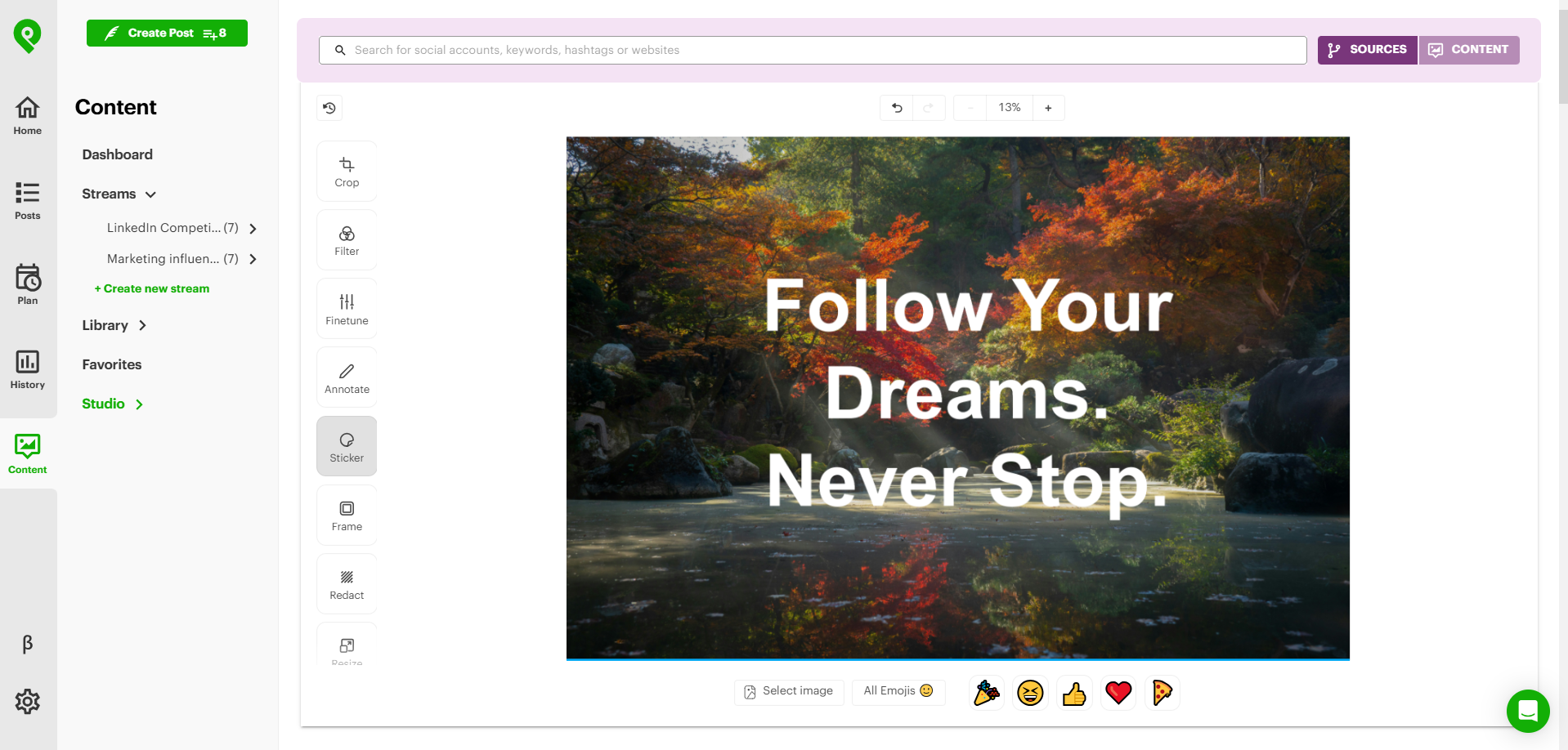 I recommend using Content Studio to create scroll-stopping images and graphics for your text posts on platforms like X, Bluesky, and LinkedIn. Then, for visual-focused platforms like Instagram, you can use it to either edit your photos to pop more or add text onto images to make visual posts more educational.
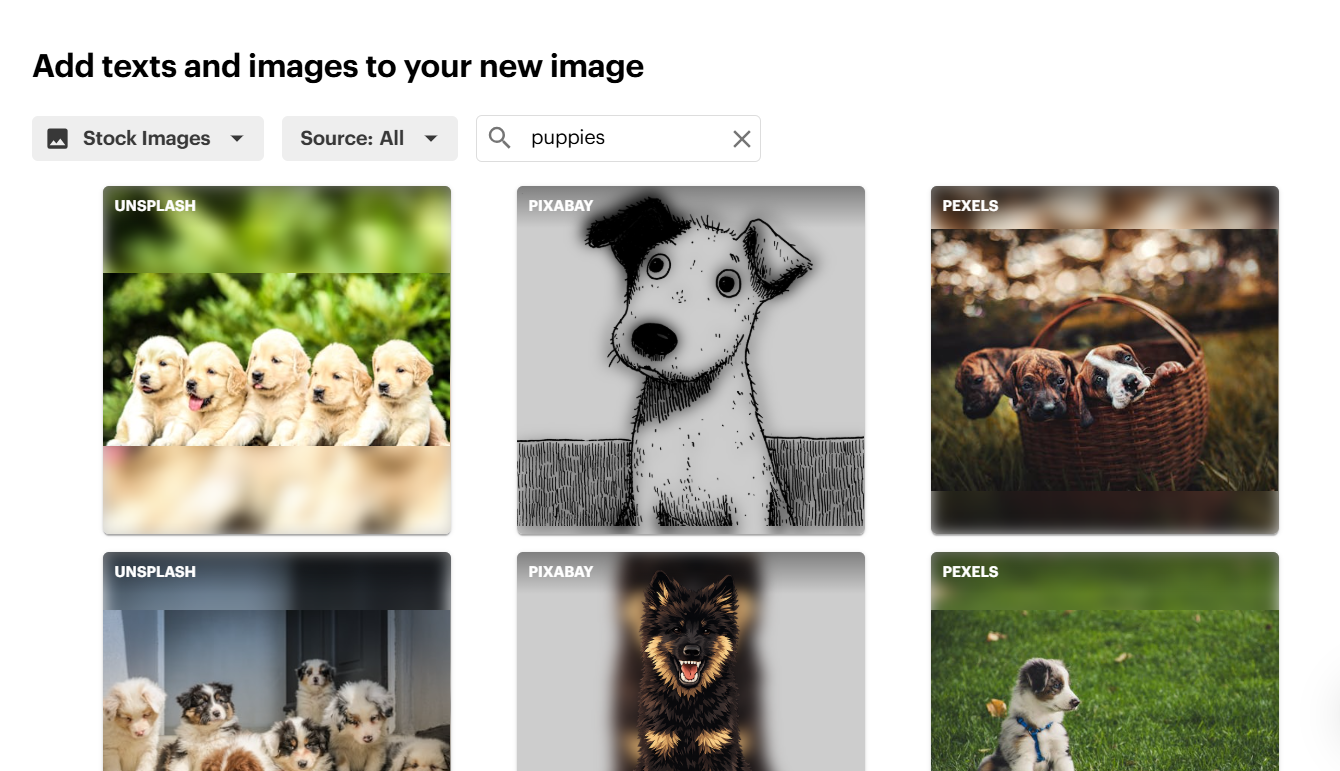
Post Planner also includes a stock image and video library to help you out.
Features
- Integrated Visual Editor – Create and edit graphics, images, and videos directly within Post Planner.
- Stock Media Library – Access a built-in library of stock images and videos.
- Direct-to-Scheduler Workflow – Design a visual and immediately add it to your content queue for every social platform.
- Basic Editing Tools – Comes with essential tools for adding text, overlays, and brand elements.
Pros
- Saves you money by eliminating the need for a separate design tool like Canva.
- Streamlines your workflow by combining design, curation, and scheduling into one platform.
- Offers ease of use for non-designers. As one G2 reviewer said, "Original content is just as easy as posting to the platform itself."
- Helps you maintain a consistent visual style by creating everything in one place.
- Increases efficiency with the included stock media library.
Cons
- Provides limited functionality, it's not as powerful as dedicated graphic design software.
- Weaker video editing capabilities.
Pricing
The Content Studio is included in all Post Planner subscriptions, including free accounts.
3. Post Planner AI Composer: Best for writing captions
So you create the PERFECT Reel, only to stare at a blank screen when it's time to write the caption…
It happens to all of us!
This is where the Post Planner AI Composer comes in.
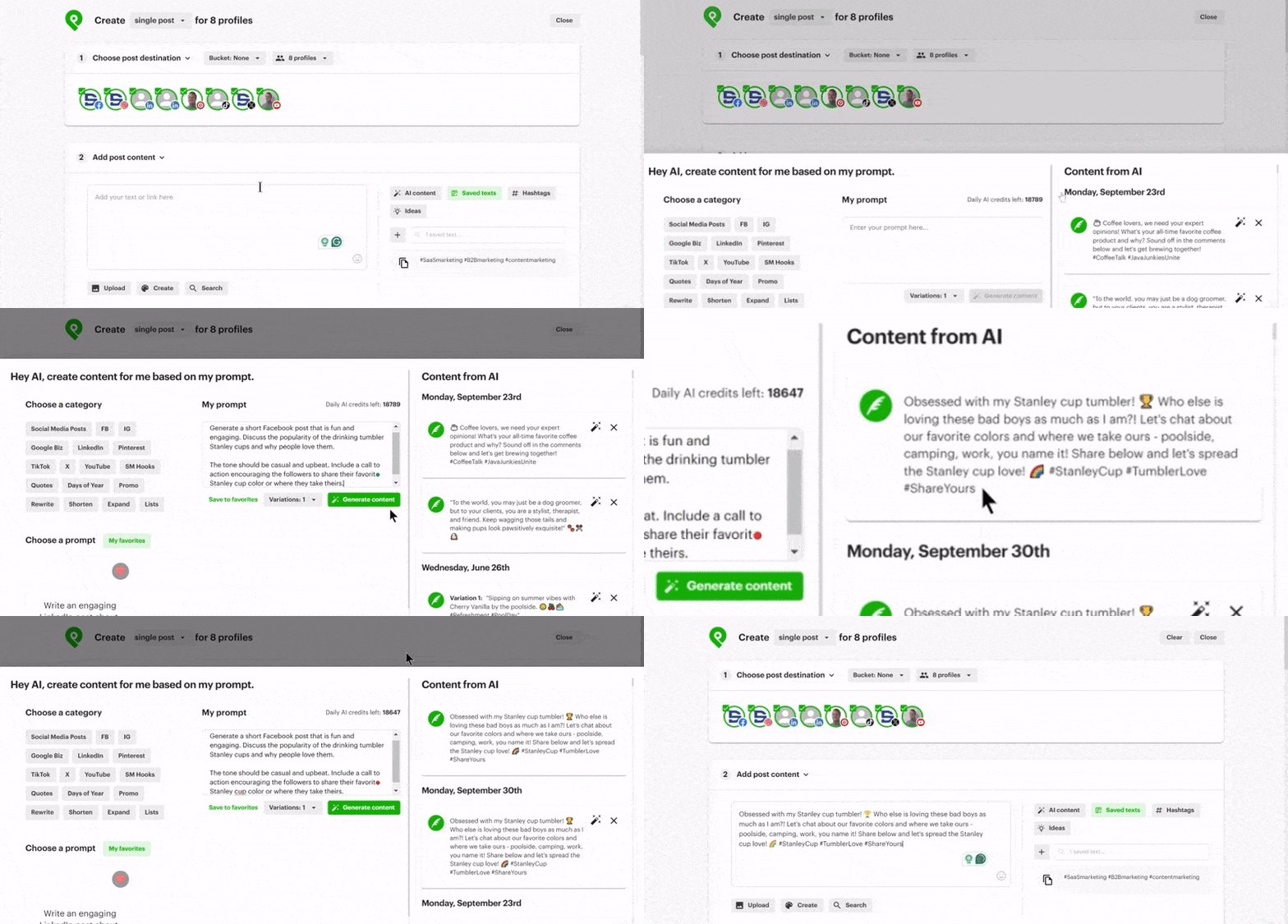 I find it's especially useful for visual-first platforms like Instagram or TikTok. You can create your awesome video or graphic first, then let the AI Composer generate a caption that matches your brand voice and goal.
Of course, it works the other way, too. For text-heavy platforms like X (formerly Twitter) or LinkedIn, you can start with the AI Composer to draft your post. Then jump into the Content Studio to create a supporting graphic. It's super flexible.
And you don't have to worry about it sounding like a robot. One review noted that it "helps punch up your captions without sounding like a corporate drone." I couldn't agree more!
Features
- AI Caption Generation – Automatically creates captions for your photos and videos.
- Post Idea Generation – Suggests fresh content ideas when you're feeling stuck.
- Hashtag Suggestions – Generates relevant hashtags to boost your reach.
- Brand Voice Alignment – Creates text that actually sounds like YOUR brand.
- Natural Language Output – Produces engaging, human-sounding text.
- Flexible Workflow Support – Adapts to both visual-first and text-first platforms.
Pros
- Saves a TON of time on writing captions.
- Helps you break through writer's block INSTANTLY.
- Improves the quality and engagement of your captions.
- Gives you great hashtag and post idea suggestions.
- Integrates perfectly with your visual creation workflow.
- Helps you maintain a consistent brand voice.
Cons
- Not as ideal for lengthy, in-depth text posts
Pricing
The AI Composer is included in all Post Planner subscriptions, including free accounts.
4. ChatGPT Projects: Best for writing text posts
I use ChatGPT Projects for ALL types of writing in my content marketing business. Although it’s not a magic button that spits out perfect copy in one shot, think of it more like an AI co-pilot or a “Project Brain” that you have to train.
Basically, it’s an AI assistant you can train to deeply understand your specific business, your style, and your customers. It’s PERFECT for solopreneurs or agencies that need to create a lot of on-brand content.
My workflow is pretty simple. For each client, I create a dedicated project and upload ALL the important documents: style guides, customer pain points, and product info. Once it’s trained, the AI can write in a voice that’s incredibly close to what I want.
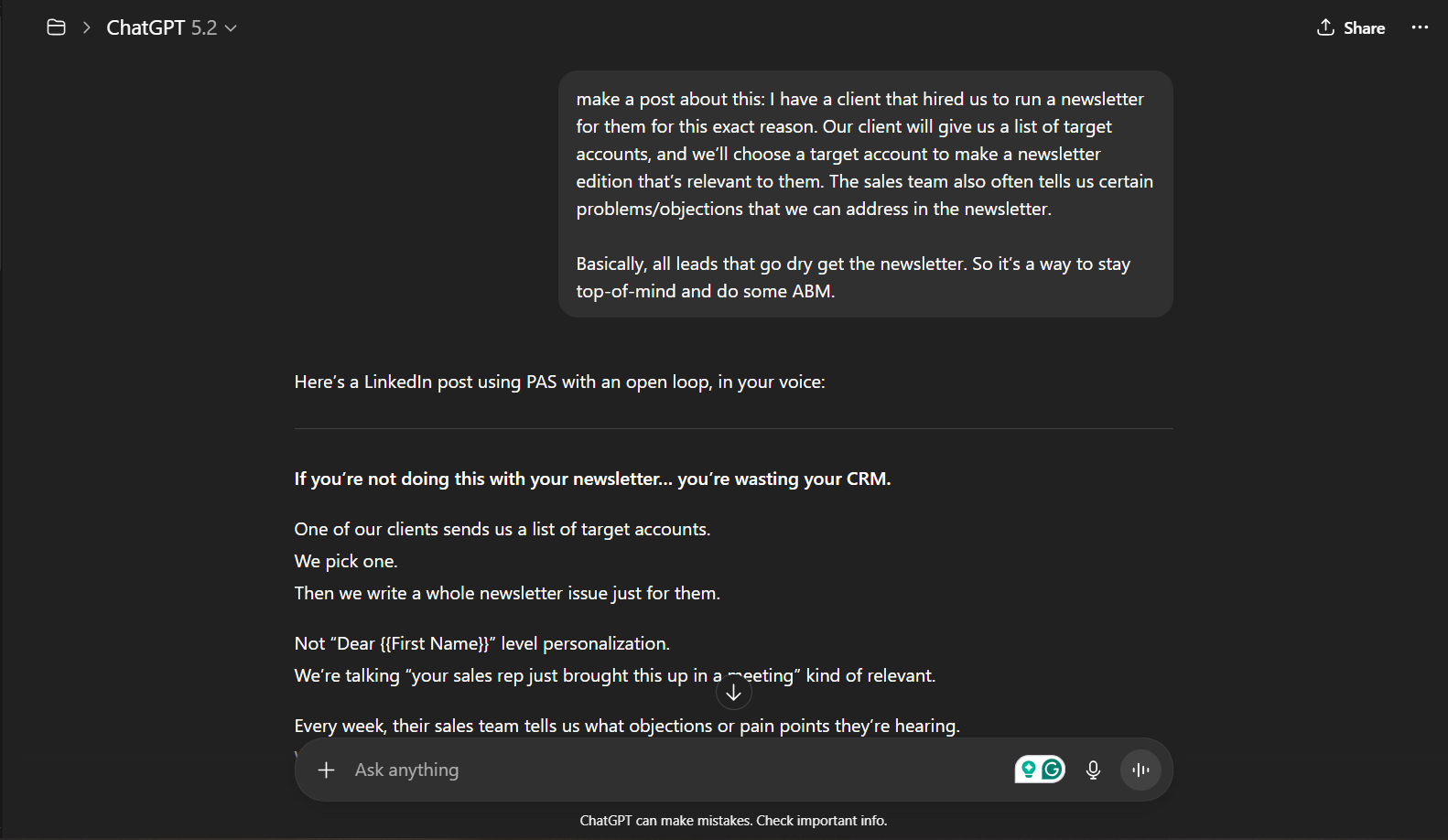 I like to treat ChatGPT Projects as co-pilots. In other words, I’ll go back and forth with the ChatGPT Project — feeding it extra info or asking it to critique itself using the “extended thinking” model. Then, I’ll add my final touch, being sure to remove any language that sounds like it was obviously written by AI.
Features
- Context-aware responses – The AI draws from all the files inside the project to give you super relevant answers.
- Project-specific custom instructions – You can set a unique tone and style for each project, and it won’t get them mixed up.
- Centralized file organization – It keeps all your assets for a campaign (style guides, customer reviews, SOPs) neat and easy to find.
- Shared project workspaces – This helps teams collaborate in a single, organized space.
- Multi-model support – You can switch between different AI models within a project if you need a more complex post.
Pros
- Dramatically improves brand consistency across your writing.
- Saves a TON of time by remembering context so you don’t have to repeat instructions.
- Creates high-quality drafts that only need minor edits.
- Great for organizing your work, especially when managing multiple clients.
- Creates a focused workspace dedicated to a single goal.
Cons
- Requires a good bit of time upfront to upload documents and set up each project.
- This is NOT a one-and-done tool, you’ll need to prompt and refine things to get the best results.
- The core function can be confusing, as it holds project-specific context, not persistent memory.
- Some users have run into issues. One user on Reddit noted, "I simply asked it to summarize what we discussed... and it fully hallucinated an incorrect answer."
Pricing
ChatGPT pricing starts at $20/month.
5. Descript: Video editing for short-form clips
If you want to edit video as easily as a Word document, you need to check out Descript.
I’ve become a HUGE fan of Descript. It’s perfect for non-technical people (like me!) who want to get into video without a massive learning curve. It’s a major time-saver, especially if you’re a podcaster or vlogger who has hours and hours of video to edit and clip.
Some old reviews online call it buggy. But, in my experience, those folks are likely talking about older versions. I’ve been using it for the past 6 months and haven’t run into any problems at all... the web-based app is super fast.
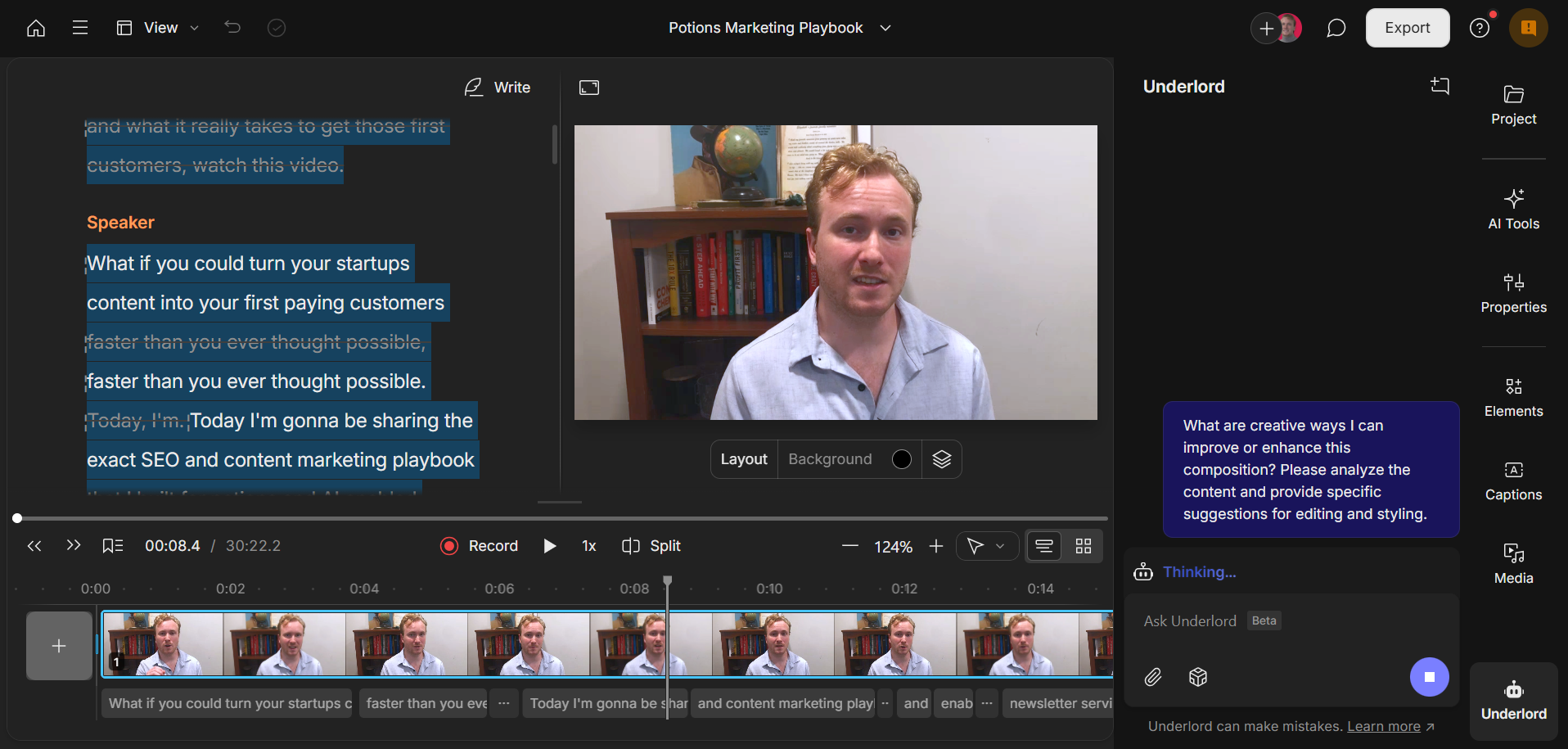 The most game-changing part is the AI agent called Underlord. As someone who isn’t a video editor, I can make edits that a professional would normally handle. All you have to do is prompt the AI agent, and it’s capable of making complex edits across an entire long-form video.
As one reviewer said, "It cut down on podcast editing time tremendously and the way it seamlessly deletes filler words feels like magic."
Features
- AI Agent (Underlord/Overlord) – This is your AI assistant. You can command it to perform complex edits, suggest changes, and rearrange your video’s hook.
- Text-Based Video Editing – Descript automatically transcribes your video, so you can edit the video by just editing the text. Want to cut a sentence? Just delete it. It’s that easy.
- AI Voices & Effects – Create a realistic clone of your own voice to patch audio screw-ups. You can also use its Eye Contact feature to correct your gaze so you’re always looking at your audience.
- Transcription – Get fast and highly accurate transcriptions that power the whole text-based editing workflow.
- Studio Sound – This removes background noise and enhances your voice to make you sound like you recorded in a professional studio.
- Remote Recording – You can capture high-quality audio and video from guests anywhere in the world, right inside the app.
Pros
- Lowers the barrier to entry for video editing, perfect for creators who aren't technical editors.
- The AI agent is a standout feature that lets you perform complex edits with simple conversational commands.
- Editing via the transcript is super intuitive and allows for very precise edits.
- Saves a TON of time in post-production for podcasts, interviews, and vlogs.
- Comes with advanced AI features (voice cloning, eye contact) you won't find in most traditional editors.
- Fast, stable, and easy to work with.
Cons
- Sometimes the AI agent’s edits are a little rough, but you can refine them.
- The app is always adding new features, so it may be better for creators who value new tech over perfect stability.
Pricing
Descript offers a free plan that’s limited to 60 minutes of editing + 1080p videos with watermarks. For full access to the tool, paid plans start at $24/month.
6. Opus Clip: Best for repurposing long-form videos
Have you ever recorded a long podcast and then stared at the file, dreading the hours it'll take to chop it up for social media? I get it. That's a HUGE content bottleneck.
This is where I think Opus Clip can really help you out. I see it as having two main functions, depending on what you need.
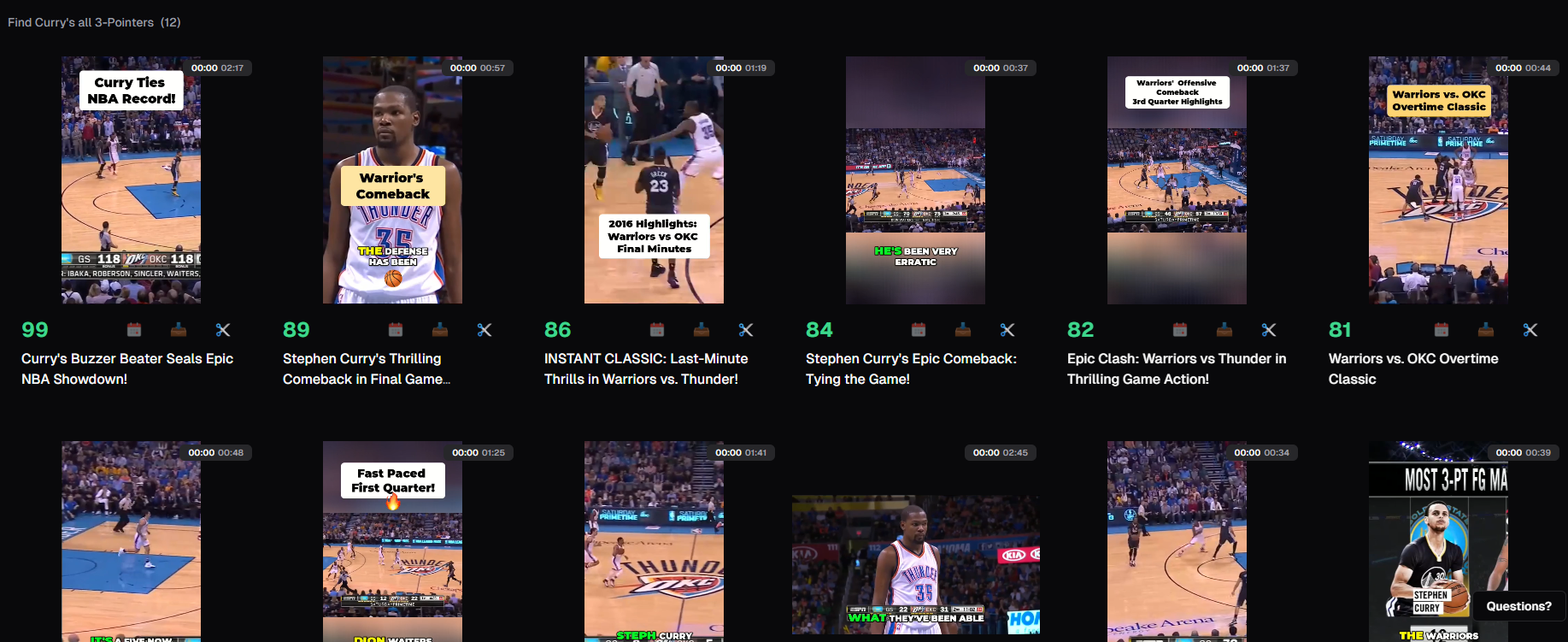 On one hand, you can use it as a high-speed repurposing engine. It does a decent job and, as one user noted, it has "simplified and supercharged the process of transforming long-form videos into captivating short clips."
On the other hand, if you're aiming for perfection, you can use it as a brainstorming tool. It'll help you identify the highlights in a long video, and you can then jump into its editor to refine the clips.
Features
- AI-Powered Video Clipping – This is the core of the tool. It automatically analyzes your long videos to find the most engaging moments and potential hooks.
- Animated Captions – It generates dynamic, eye-catching captions for your clips, which is fantastic for boosting viewer retention on TikTok and Reels.
- Text-Based Editing – You can fine-tune the clips the AI selects by simply editing the video's transcript.
- AI Reframe – Automatically resizes your horizontal video to a vertical 9:16 format and centers the speaker.
- AI B-Roll – Adds relevant stock footage into your clips to make them more visually dynamic.
Pros
- Great for pumping out a high volume of content to test what resonates with your audience.
- Dramatically speeds up your content repurposing workflow, saving you a TON of time.
- Works as a powerful brainstorming tool to find potential highlights you might have missed.
- The animated captions feature is a fantastic built-in tool for boosting engagement.
- Gives you the ability to refine clips with text-based editing for more manual control.
- The AI does a decent job of creating ready-to-publish clips if you're in a hurry.
Cons
- The AI can sometimes miss the MOST important or funny parts of your video.
- Your clips will likely need some manual editing to get them to a level of "perfection."
- It doesn't have features for creating custom covers or thumbnails.
Pricing
Opus Clip does have a pretty effective free version for generating short clips fromo long videos. But if you want to refine the clips to make them more production-ready, pricing starts at $15/month.
7. Nano Banana: Best for generating infographics
If you need realistic images to support your text posts, Nano Banana (Google’s AI model for image generation) is the tool I point people to. To me, it stands out because it's producing the MOST realistic images I’ve seen from any AI model right now.
It especially shines when you need to create posts with text ON the image. You can create some REALLY professional-looking and customizable infographics, for example, a fantastic, aesthetic output for a carousel post or a report with graphs.
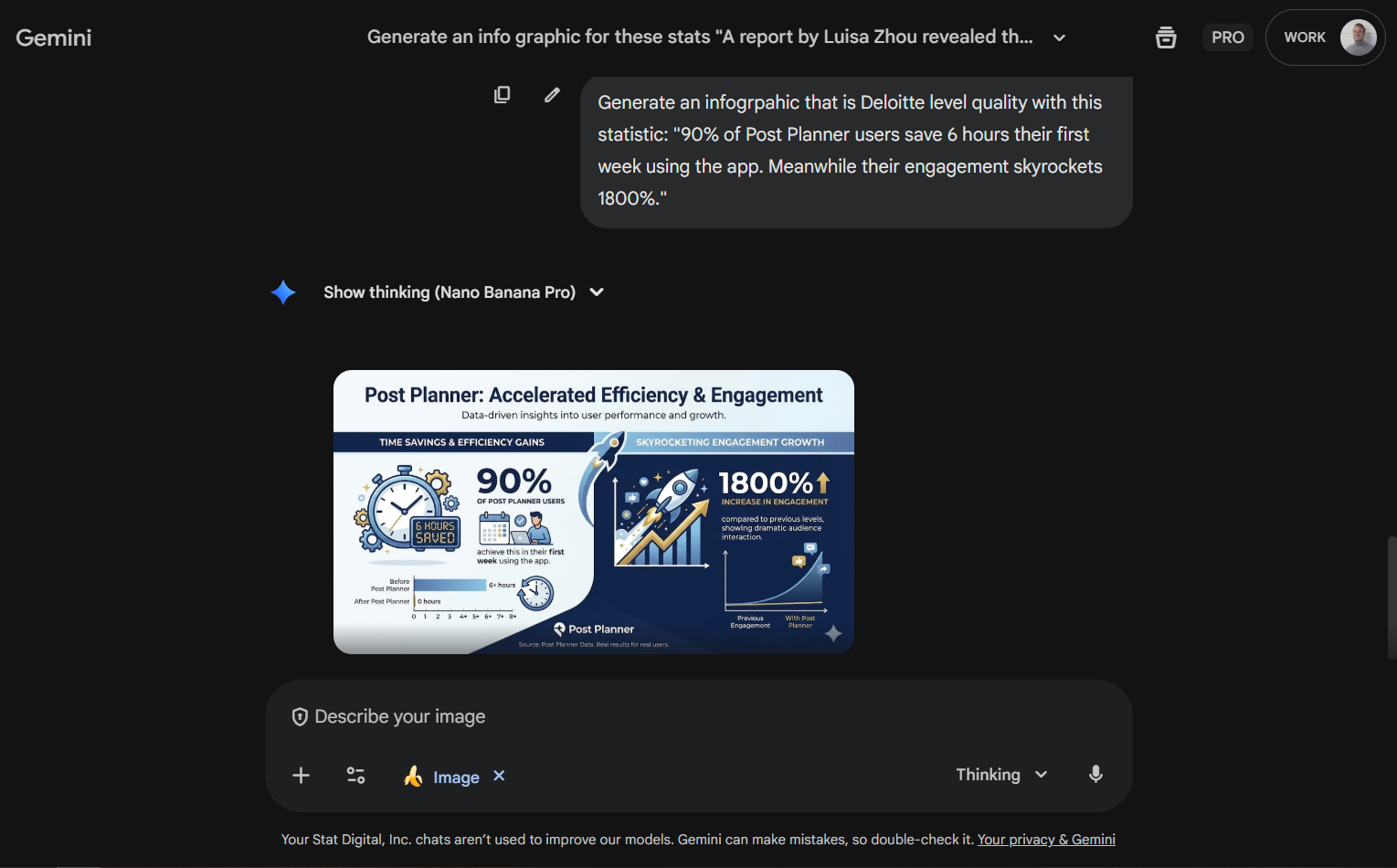 The quality is so high, you might even be able to get away with not hiring a graphic designer. One GeminiAI user says, "It's also really good at designing logo's, extremely good at designing youtube thumbnails. and overall the quality is just impressive."
Plus, it’s great at keeping things consistent. A Reddit user mentioned, "You can prompt five times and get the same face, pet, or product, no weird mutations." This is HUGE for keeping your branding consistent.
Features
- AI-Powered Image Generation – Creates highly realistic images from text prompts.
- Advanced Text on Images – Excels at adding clear and accurate text directly onto generated images.
- Customizable Infographics – Generates professional-looking infographics complete with graphs, numbers, and text.
- Consistent Likeness – Maintains the consistency of faces, pets, and products across multiple image generations.
- High-Resolution Output – Capable of generating images up to 4K, making them suitable for professional reports and social media.
- Multimodal Input – Processes both text and image prompts simultaneously for more complex editing tasks.
Pros
- Produces some of the most realistic AI-generated images currently available.
- Its ability to accurately render text on images is a huge advantage over other models.
- Excellent for creating detailed and professional-looking infographics.
- Generates high-resolution images suitable for professional use.
- Maintains character and subject consistency, crucial for branding.
- Can potentially reduce or eliminate graphic design costs.
Cons
- Struggles with generating complex scenes.
- Can have difficulty accurately merging multiple objects within a single image.
Pricing
Google lets you test its image generation capabilities in Gemini for free, but if you want unlimited access to its latest AI model, pricing starts at $7.99/month.
8. Veo: Best for generating AI video
I've seen a LOT of AI video tools, but Veo is different. I would say it's the most realistic AI video generator you can get your hands on right now.
A lot of people use it to create everything from professional commercials to social media memes and ads (you’ve probably already seen them). With Veo, you can make an AI video that looks like an expensive production company created it, except you generated it in just a few minutes!
For example, a small coffee shop owner could type "A cinematic, slow-motion shot of espresso pouring into a cup, with steam rising gently" and get a broadcast-quality ad.
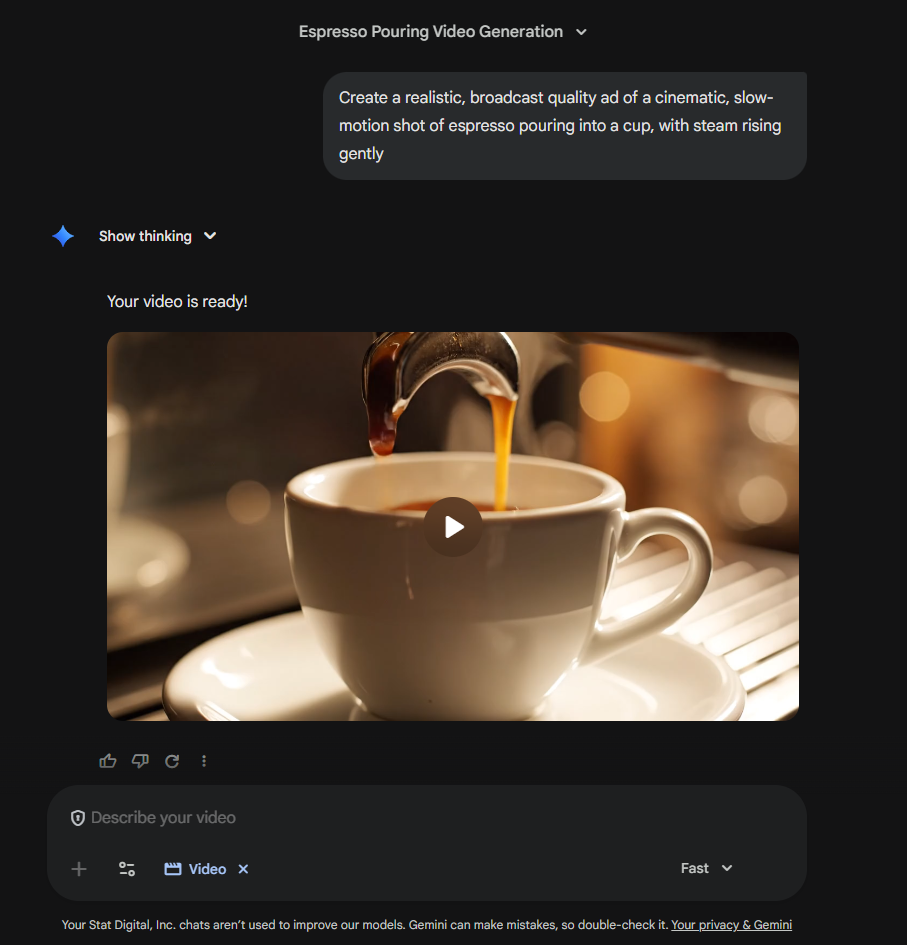 It’s truly a standout. As one user noted, "It's the first video model I actually believe is truly disruptive." Other creators agree it's a "huge leap, quality-wise."
Just know that a tool this powerful comes at a cost. You're going to have to pay for a subscription to get real value from it, because you'll only get a very limited number of uses on the free plan.
Features
- AI video generation from text prompts – Creates high-quality video clips from a simple text description.
- 4K output capabilities – Produces professional-grade, high-resolution video perfect for ads.
- Scene Extensions for up to 140-second videos – Let's you generate longer, more cohesive video sequences.
- Professional 4K upscaling and native audio – Enhances video quality and can generate matching sound effects or audio.
- Lip sync and animation – Can generate animated content and sync dialogue to characters' mouths.
Pros
- Generates highly realistic videos that look like they were professionally produced.
- Dramatically reduces the time and cost of traditional video production.
- Creates professional-grade content suitable for high-stakes projects like commercials.
- Offers a major leap in quality compared to other AI video tools.
- Includes advanced features like 4K output, audio generation, and scene extensions.
Cons
- Its power means that its usage on free or lower-tier plans is very limited.
- You'll need a paid subscription for any significant or frequent use.
Pricing
To access the latest version of Veo without usage limitations, pricing starts at $19.99/month.
Frequently Asked Questions About Best Social Media Content Creation Tools
Which tool is best for repurposing content to save time?
This really comes down to WHAT you're repurposing.
If you want to find and repurpose high-performing content that OTHERS have created, you need Post Planner Content Streams. It's the best way to find proven content you can put your own spin on.
But if you're repurposing your OWN long-form videos (like podcasts), then Opus Clip is your best bet. It's designed specifically to turn one long video into dozens of short clips.
I'm not a video editor. Which tool is the easiest for creating video content?
I'm not a video editor either, which is why I've become a big fan of Descript.
It’s fantastic for non-technical people. You edit your video by editing a text transcript, just like a Word document. It’s SO much easier than learning a complicated timeline editor.
Plus, its AI agent helps a TON. It can suggest and apply edits that a professional video editor would make, but you just have to approve them.
How much should I rely on AI for my content creation?
Think of AI as your co-pilot, NOT an autopilot you can just set and forget.
It's an amazing assistant, but it's not going to do the job perfectly on the first try. For example, when I use ChatGPT Projects, I know it will get me 90% of the way there, but I still have to tweak the output.
Same with Descript, you have to oversee the AI agent’s edits. The best results ALWAYS come from a human-AI collaboration.
Do I need an all-in-one tool or a set of different specialized tools?
You need a "stack" of specialized tools. PERIOD.
There is no single tool that does everything perfectly. That’s why I structured this entire article by use case, each tool is the best-in-class for a VERY specific job.
For example, Opus Clip has a social media scheduler built-in. But do I use it? NOPE. I use Post Planner for that because Post Planner is a dedicated, powerful scheduling tool. The best approach is building a workflow with the RIGHT tool for each part of the job.
Ready to save hours with a free Post Planner account?
If you want one place to source ideas, create posts, and schedule them consistently, start with Post Planner.
You can try it on a free account and immediately use Content Streams, the Content Studio, the AI Composer, and more — all within a single social media management platform.
Create your free Post Planner account, load up a week of posts in one sitting, and let your content machine run on schedule.








No Comments