Want to automate Facebook posts and save 6+ hours EVERY week?
This guide will show you how to automate your Facebook posting schedule.
AND how you can automate your Facebook content creation and curation.
I wrote this guide as a quick tutorial on how you can maximize engagement WHILE automating your posts.
Quick answer: How do you automate Facebook posts for free?
- Use Meta Business Suite's Planner to schedule posts up to about 29 days ahead, one at a time, for free.
- Use Post Planner's free plan to go further: set a Posting Plan once, sort content into Buckets, and let it publish on schedule.
- Schedule in bulk by uploading images, an RSS feed, a spreadsheet, other feeds, or images from the Chrome extension.
- Turn on Recycle for your best posts, so they come back around automatically.
Feel free to skip to the section that you're most interested in:
- How to automate Facebook posts with Meta Business Suite
- How to automate Facebook posts with Post Planner
- How to schedule Facebook posts in bulk
- How to schedule recurring Facebook posts
- How to create a Facebook post automation strategy
- Best tips for Facebook scheduling with Post Planner
- Frequently asked questions about automating Facebook posts
- Ready to automate your Facebook posts?
(Ready to start automating your Facebook posts? Create a FREE Post Planner account.)
How to automate Facebook posts with Meta Business Suite
If you want to:
- Create content schedules that run more than a month ahead
- Recycle your best posts automatically
- Create and schedule your posts in bulk
- Automate the process of finding GOOD content to post
- Access more advanced features, like access to a library of post ideas proven to get engagement
- Schedule the same posts for other social media (like LinkedIn, X, TikTok, Pinterest, YouTube, Google Business, etc.)
Then, you should skip to our Post Planner section.
However, if you're only trying to automate Facebook or Instagram posts, using Facebook's Meta Business Suite will do just fine.
Note: In practice, Meta Business Suite's planner only lets you schedule about 29 days ahead (Meta's own docs say 75, but that isn't what the planner shows most Page owners).
Here's how to get started...
How to schedule posts with Meta Business Suite
1) Log in to Facebook
2) Click on the profile that you want to schedule posts for.
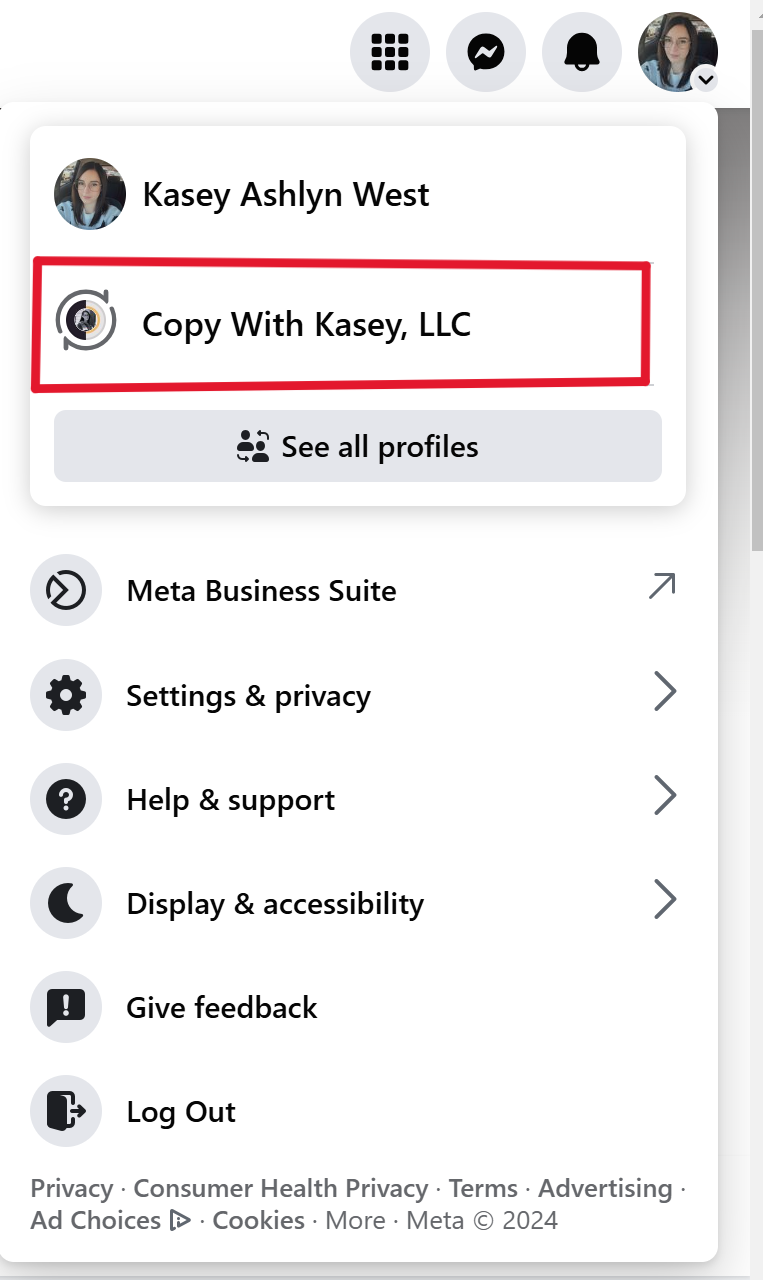
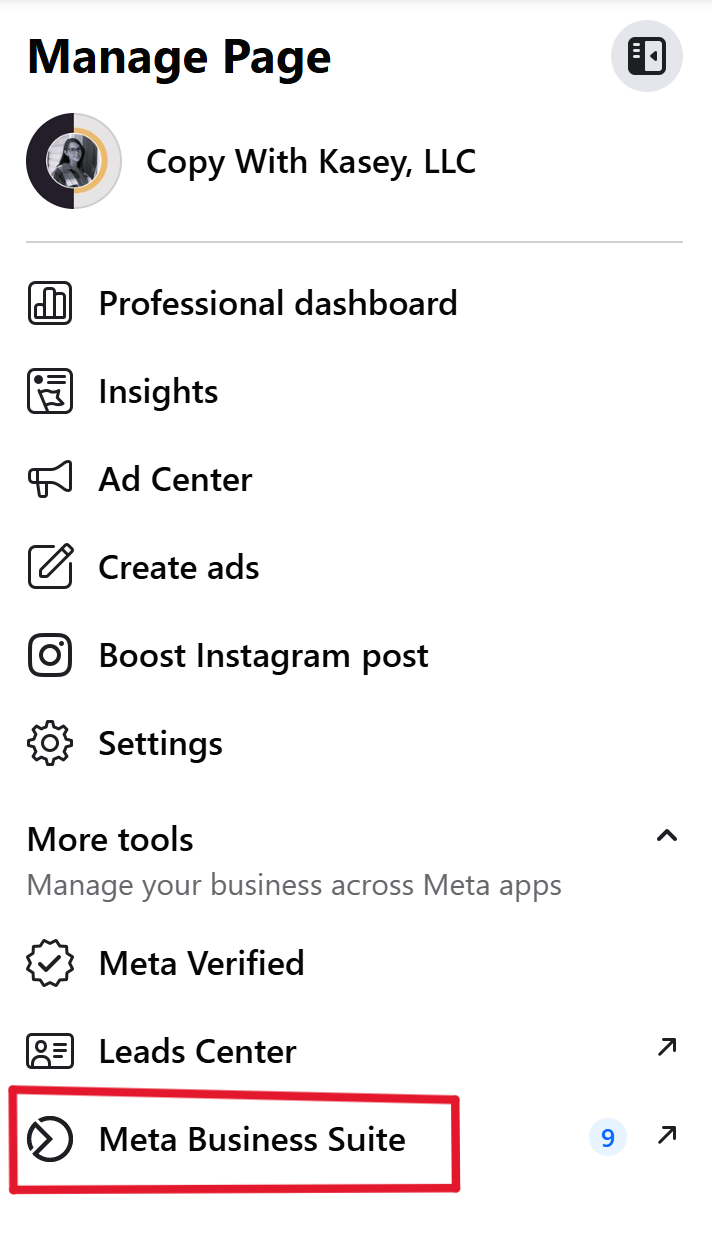
3) Then, on the left-hand toolbar, click Meta Business Suite.
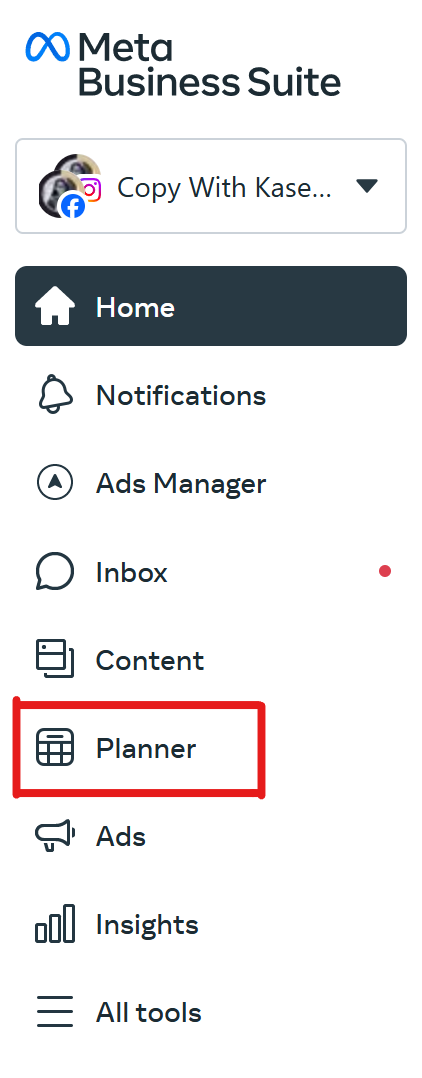
4) Click "Planner."
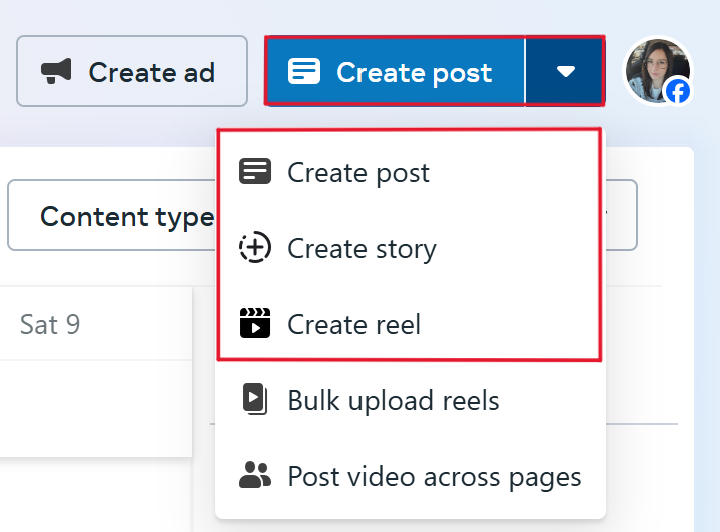
5) Click "Create post," "Create story," or "Create reel."
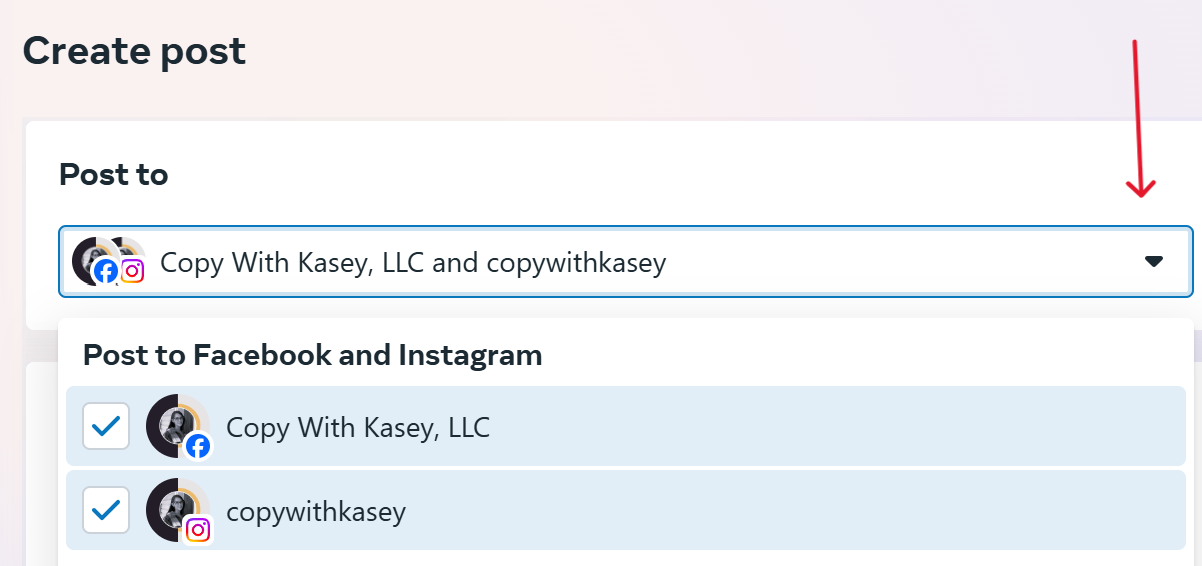
6) Select the account you want to post to.
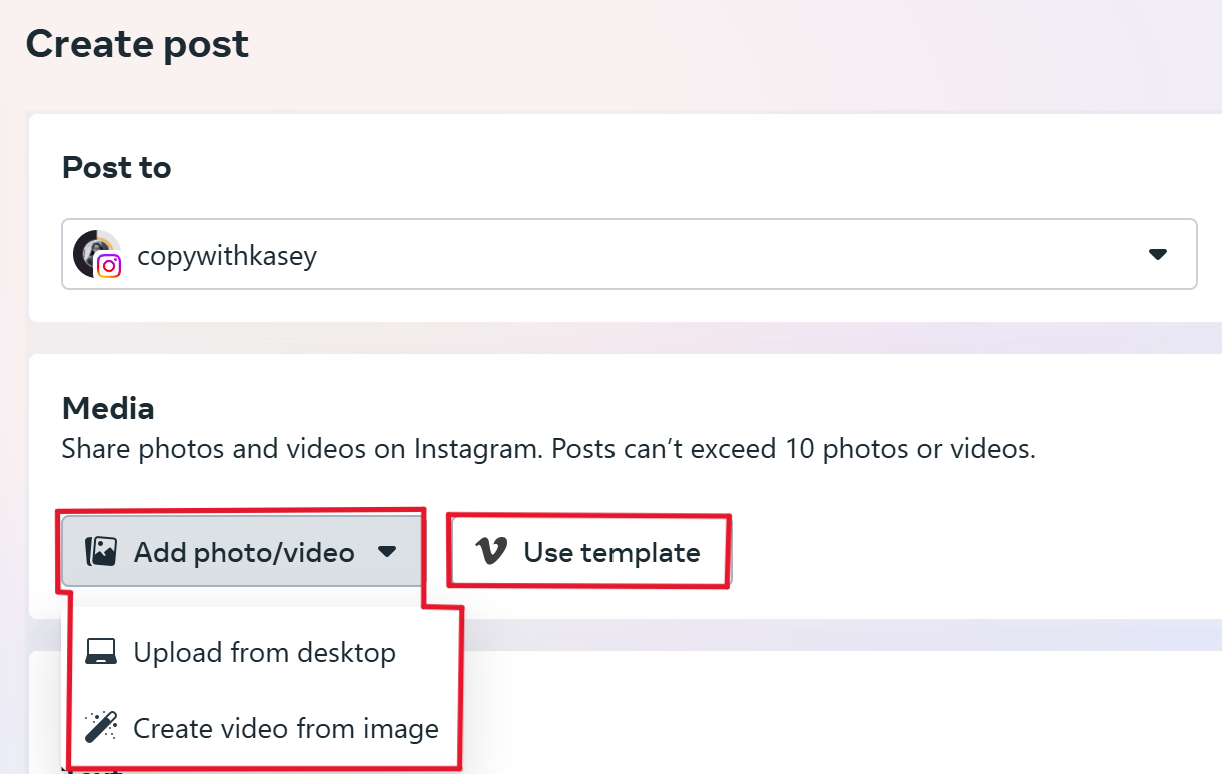
7) Add your media.
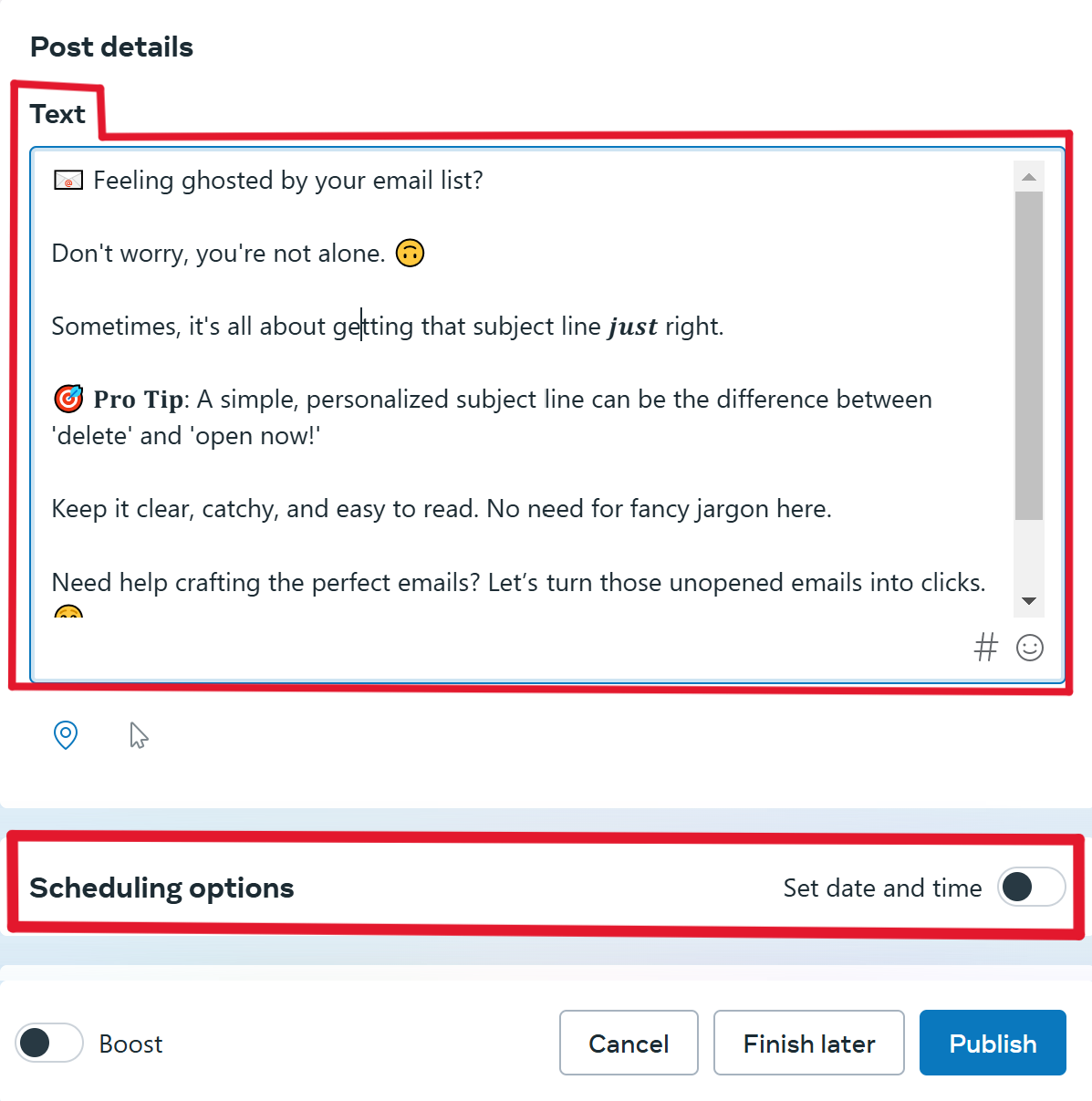
8) Add your text. Then scroll down to the “Scheduling options” and turn on “Set date and time.”
9) Select the date and time you want your post to go live and hit “Schedule.”
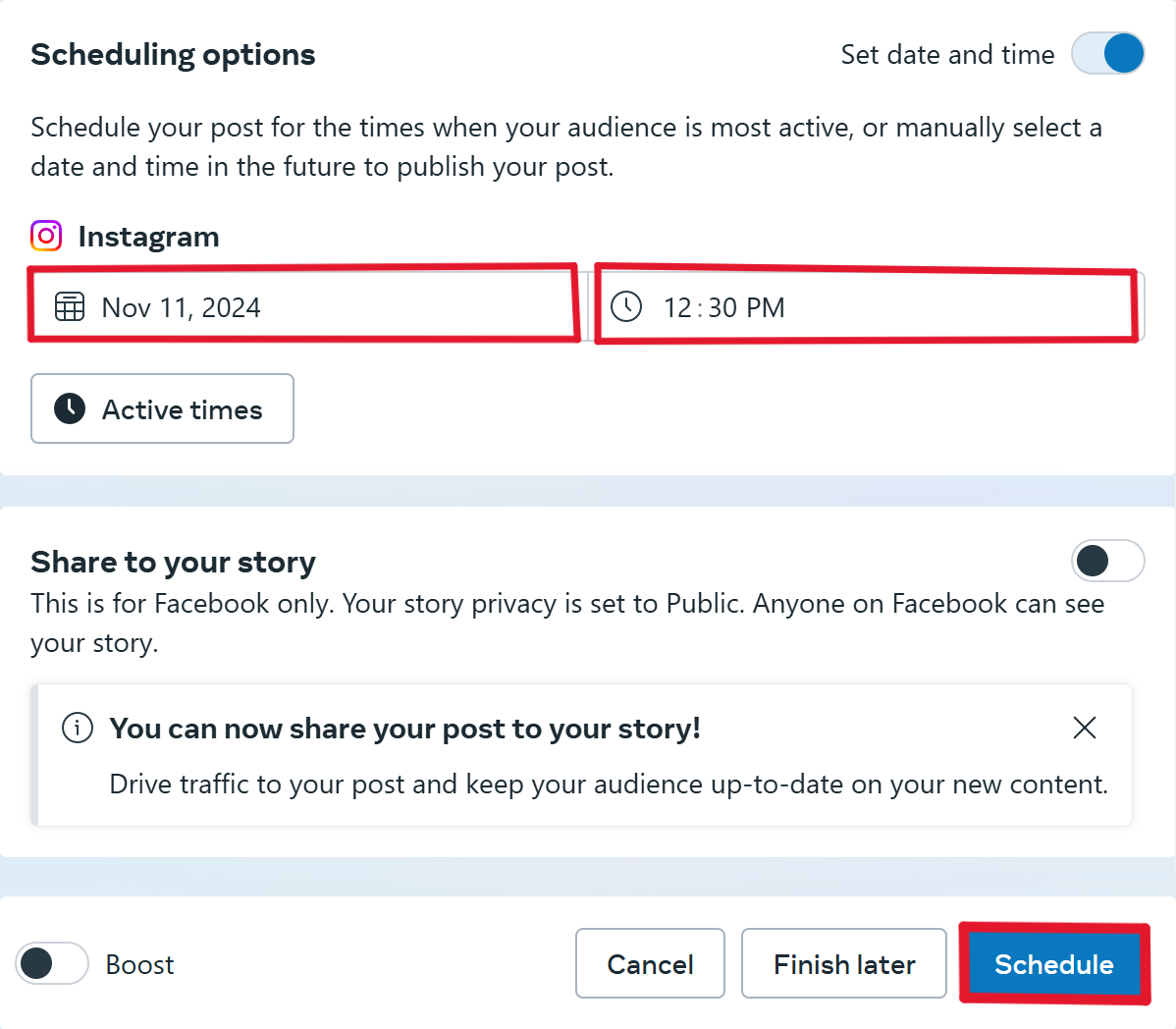
10) Repeat until your entire content plan is scheduled to be automatically posted.
Limitations of Meta Business Suite
Not being able to schedule content more than about 29 days ahead or schedule content in bulk is just the tip of the iceberg. Meta Business Suite also falls short in these areas:
- No recurring/evergreen posts on Pages. Recycling a high-performing post is only possible if you're a group admin using Admin Assist. On a business Page, once a post is out, it's out. If you want to reuse it, you're rewriting it from scratch.
- No content categorization. There's no equivalent of Buckets, so there’s no way to make sure your memes, promos, and educational posts get spread out instead of clumping together.
Meta Business Suite is also prone to “sudden” changes. For instance, they folded Facebook's old on-Page "Publishing Tools" into Business Suite, shifting scheduling into a separate hub entirely.
A lot of people who've used Facebook scheduling for years have hit a moment where their scheduled posts seemingly vanished, simply because Meta moved it to a new part of the interface without any prior warning.
That's the tradeoff with any native platform tool: Meta redesigns it on Meta's timeline, not yours. Menus get reorganized, workflows change, and whatever tutorial you learned last year may not match what you see today.
A third-party tool like Post Planner isn't immune to updates either, but its whole business is keeping your scheduling workflow stable and predictable, because that consistency matters.
How to automate Facebook posts with Post Planner
First, sign up for a free Post Planner account.
That'll allow you to follow along with each of these automation features, which will save you HOURS every week.
Here's how to automate your Facebook posts in under 15 minutes:
Set up your posting plan
Your 1st step is to set up a Posting Plan.
Your Posting Plan tells Post Planner what days and times you want to post.
It also allows you to choose what types of content to allow in each posting slot.
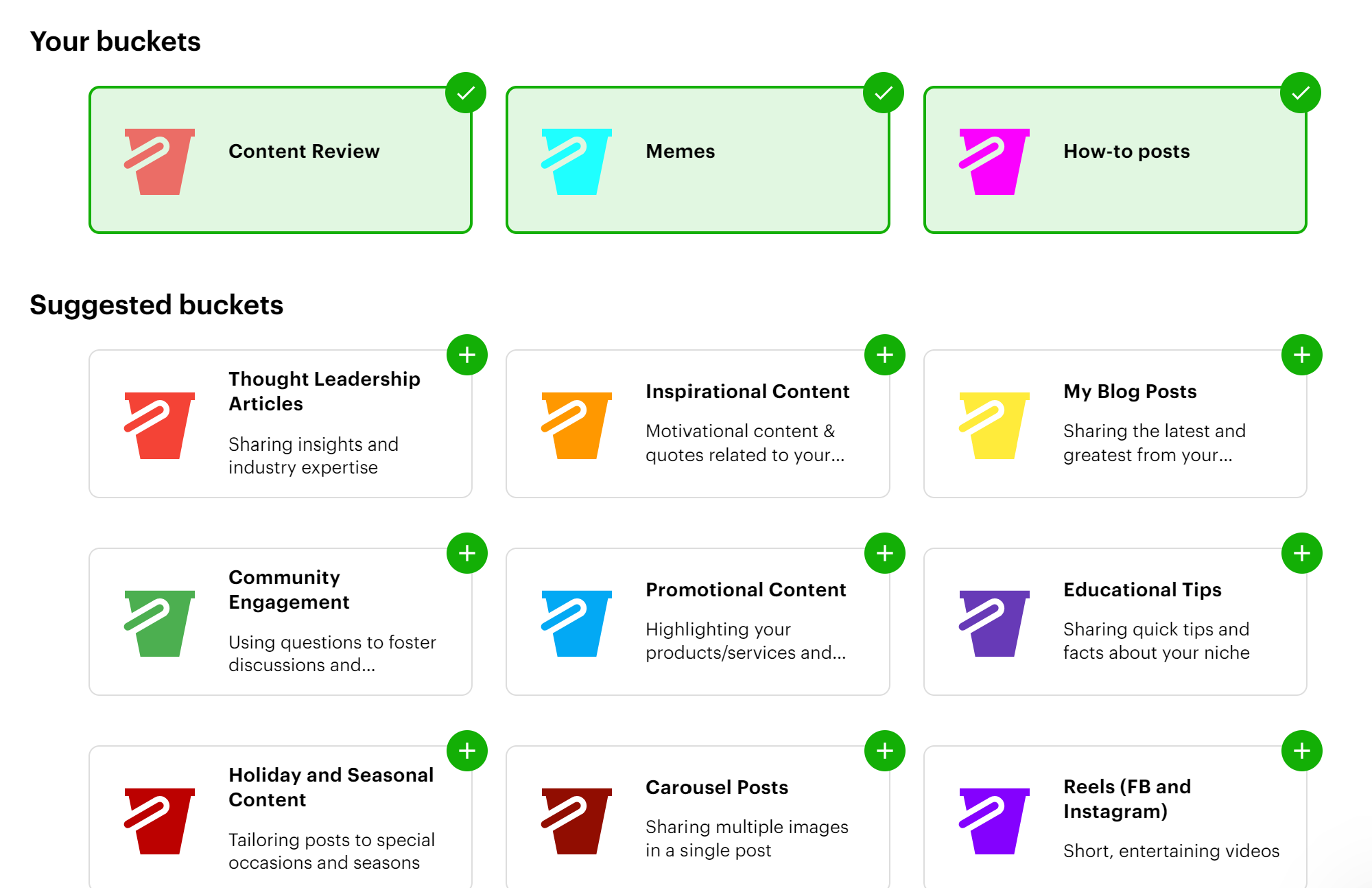
You can also further customize your Posting Plan by creating "Buckets" of content. Buckets allow you to categorize your posts so you can make sure the right type of post is posted on the day you want.
For example, you could create one Bucket for memes and another for educational posts.
Then set your posting plan to publish memes on Fridays and educational posts on Monday through Thursday.
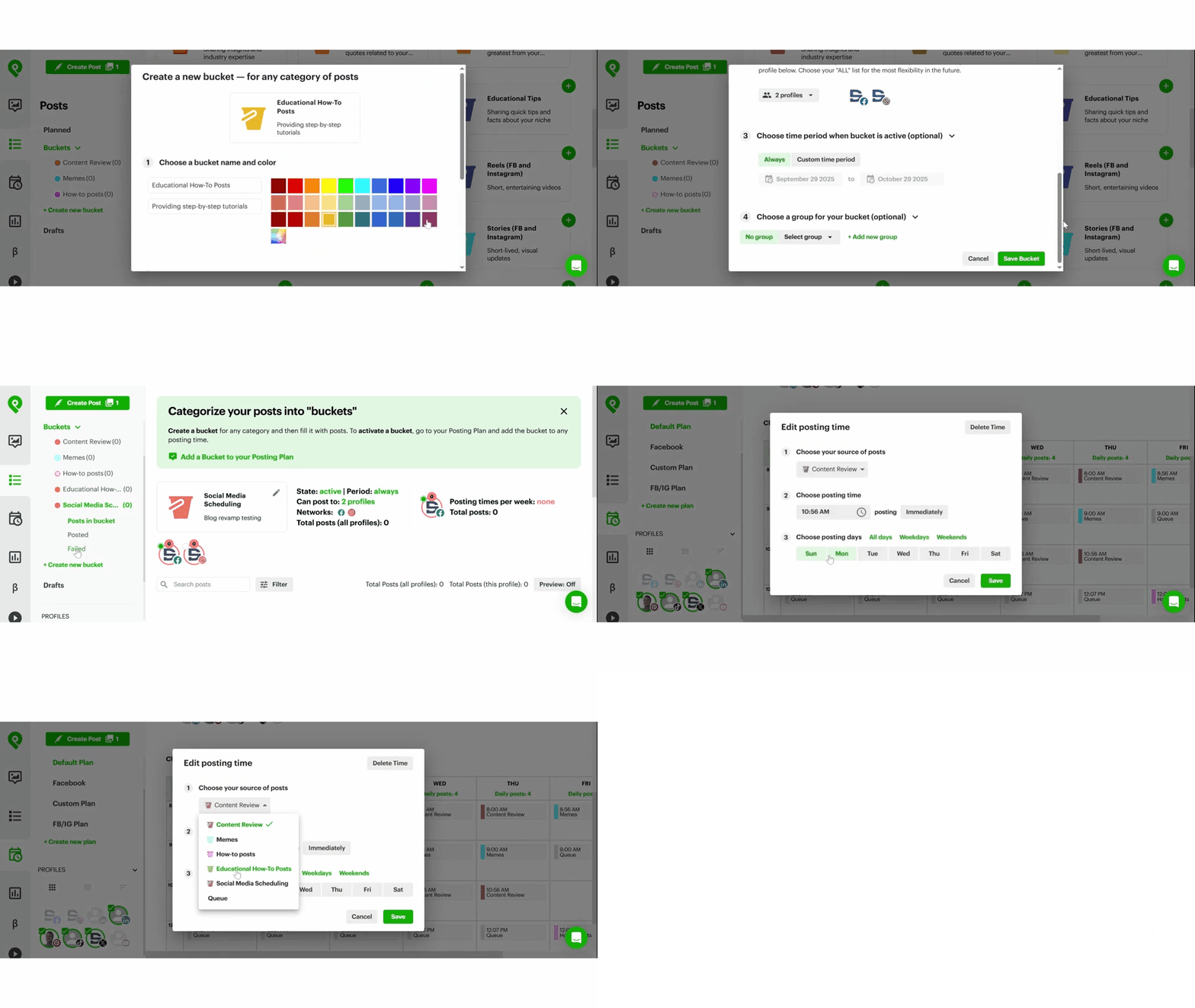
As you add content, this schedule will automatically tell Post Planner where to organize your content.
Add content to your calendar
After selecting your posting times, you’re ready to fill your posting schedule with content.
Post Planner will automatically post any content you add to your schedule at the appropriate time — no action necessary!
To find content:
- Navigate to the “Content” tab on Post Planner.
- Search for a keyword that’s relevant to your niche.
- Tick the content you want, then click “Create posts” and fill in the post details (captions, hashtags, etc.).
- Each post can include a quote, article, GIF, or other media item. You can also select multiple items to create multiple posts at the same time.
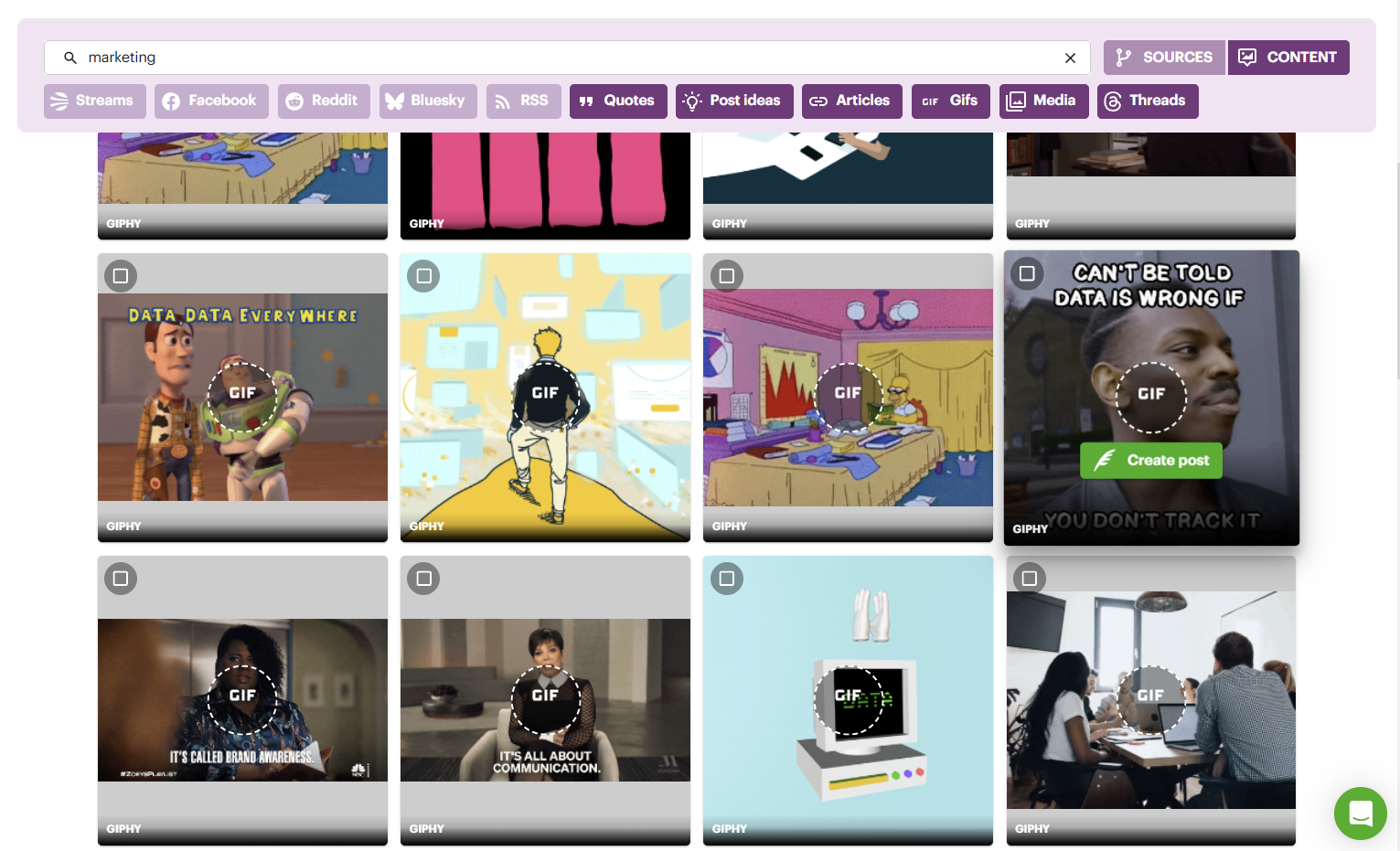
Repeat these steps until your posting calendar is full!
The content will automatically post on time, so you don’t have to worry about consistency.

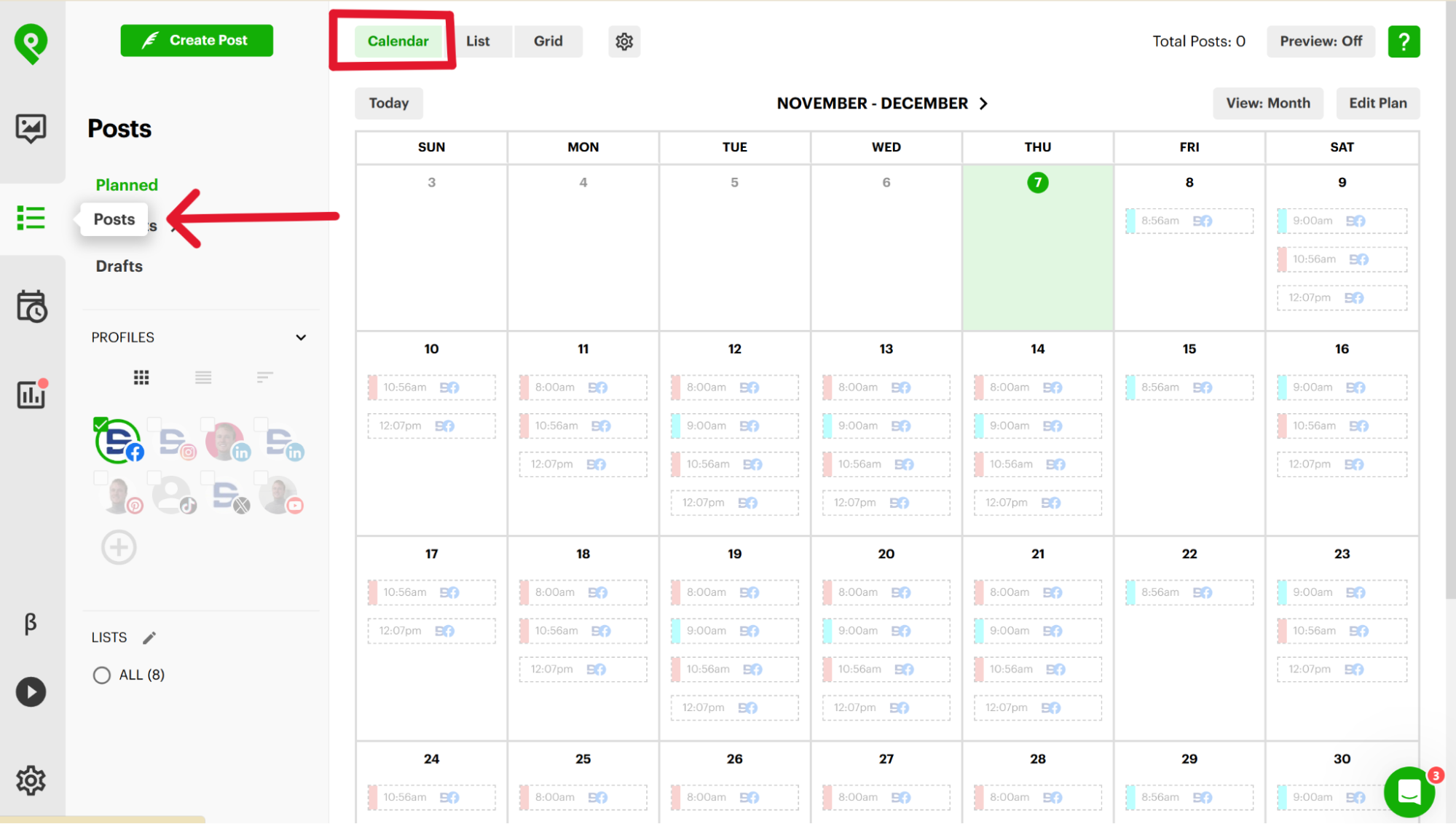
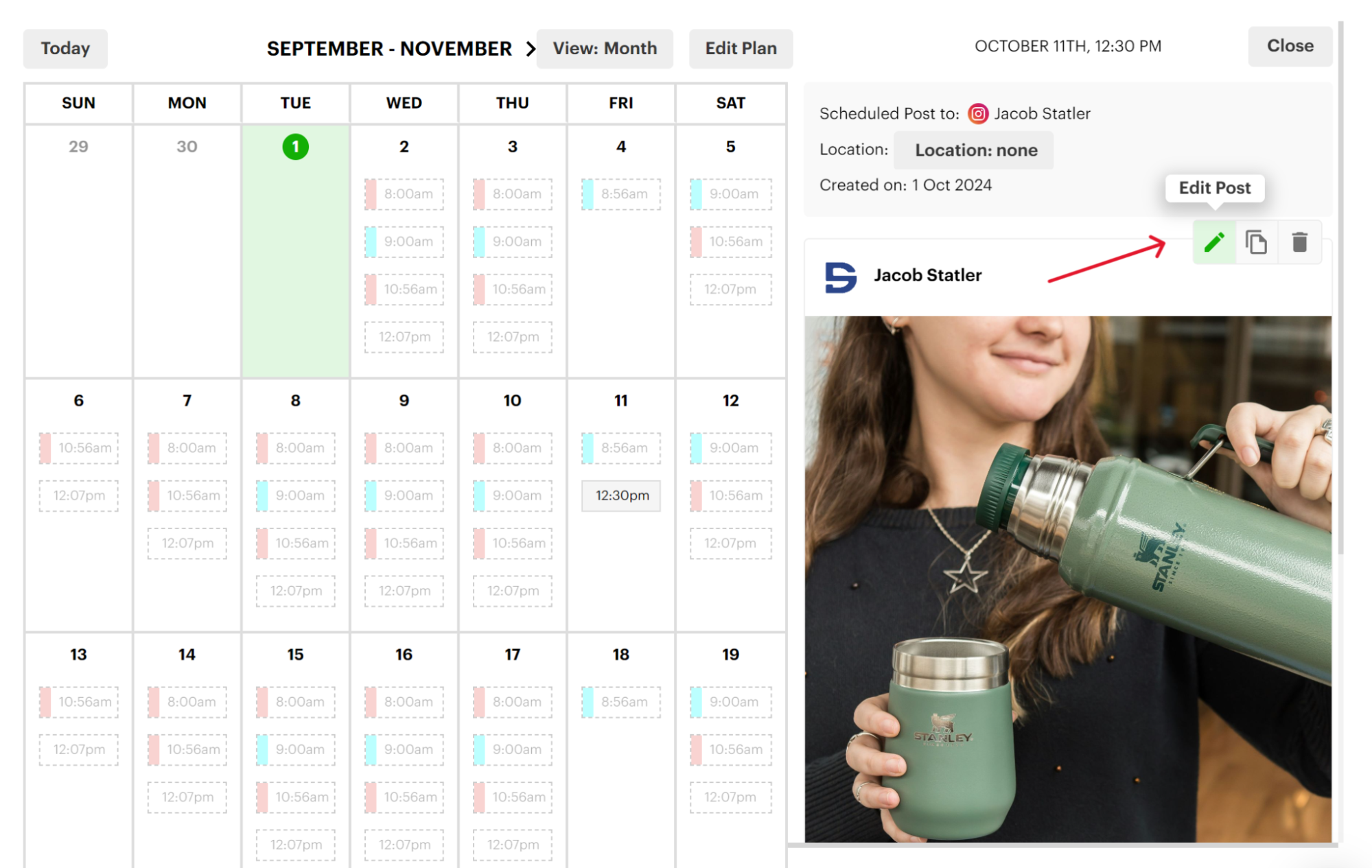
To view your entire posting schedule at a glance, select “Posts” on the left-side toolbar, “Planned,” and “Calendar." The calendar view shows the time, day, and type of content for each scheduled post in the month.
Create unique visual content
Visual content is hugely beneficial for your content strategy.
- It’s more interesting than text.
- It adds variety to your feed.
- It catches the viewer’s eye and draws them in.
Post Planner not only makes it easy to create custom visuals for your Facebook plan but also offers an AI tool to help you brainstorm and craft original content ideas without needing a professional graphic designer.
Simply click on the "Content" tab and select “Create with AI” or “Design new images” with the design studio.
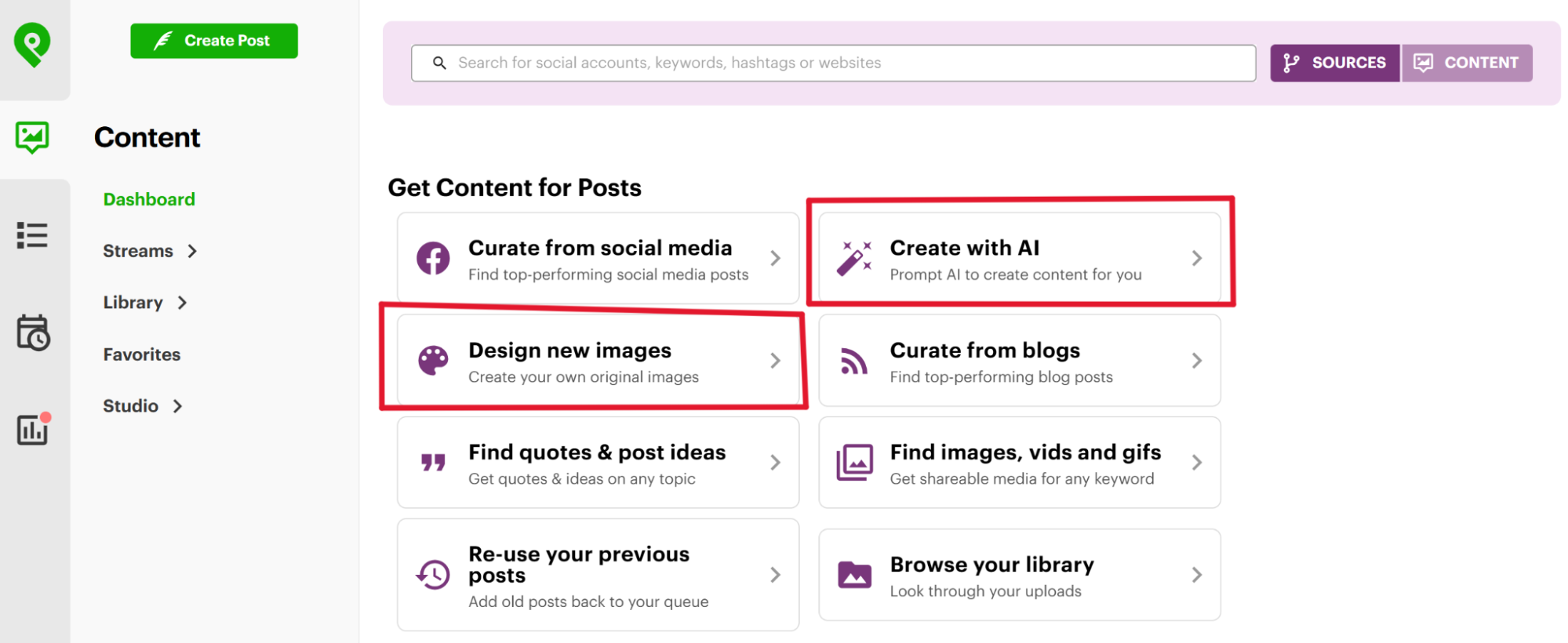
Post Planner’s AI tool is here to bring your post to life or help spark ideas with JUST a few clicks.
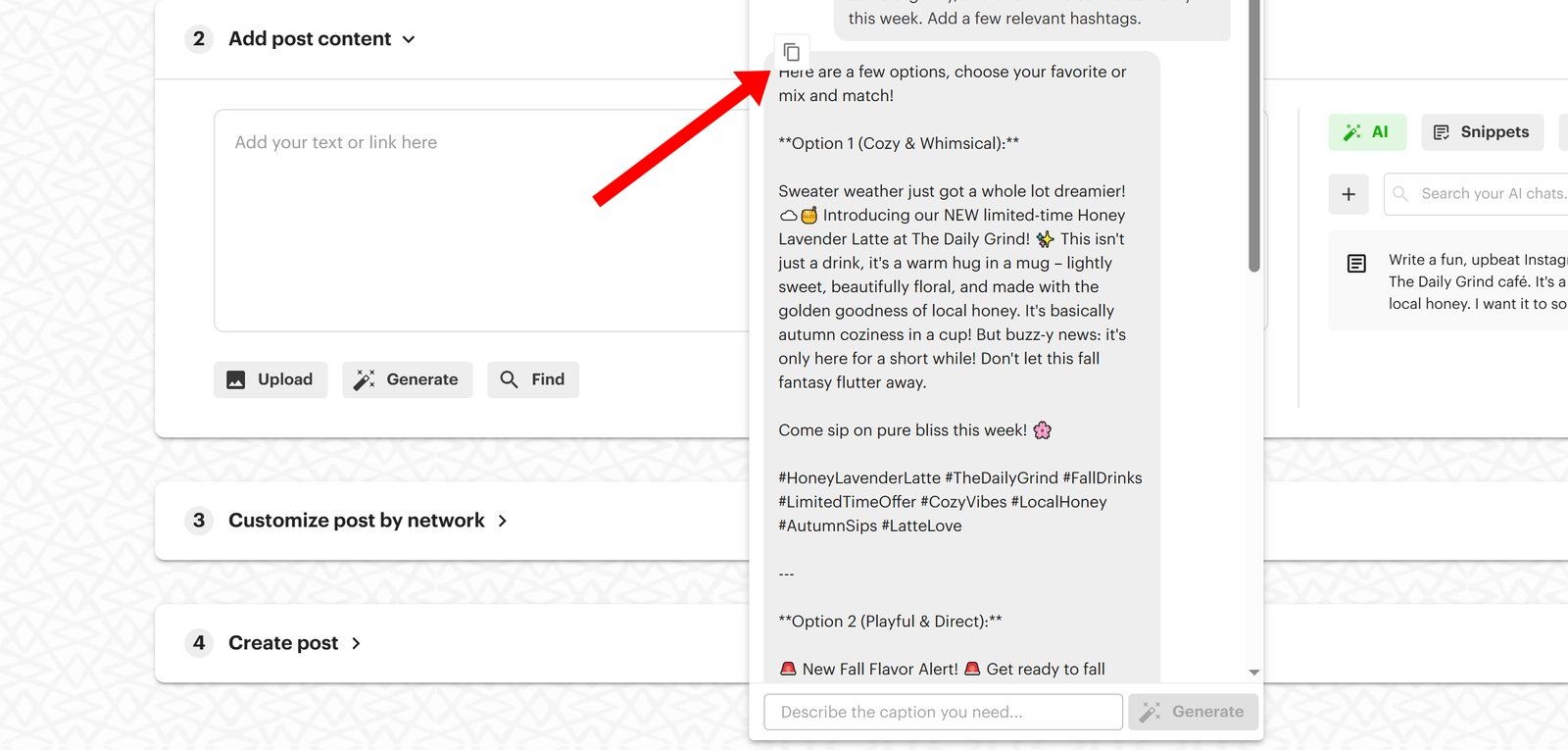
Need an image to go with the caption? Click the "Generate" wand in the composer and describe what you want (the subject, setting, lighting, and style). Post Planner creates an original image you can drop straight into the post, and you can tweak it in the design studio afterwards.
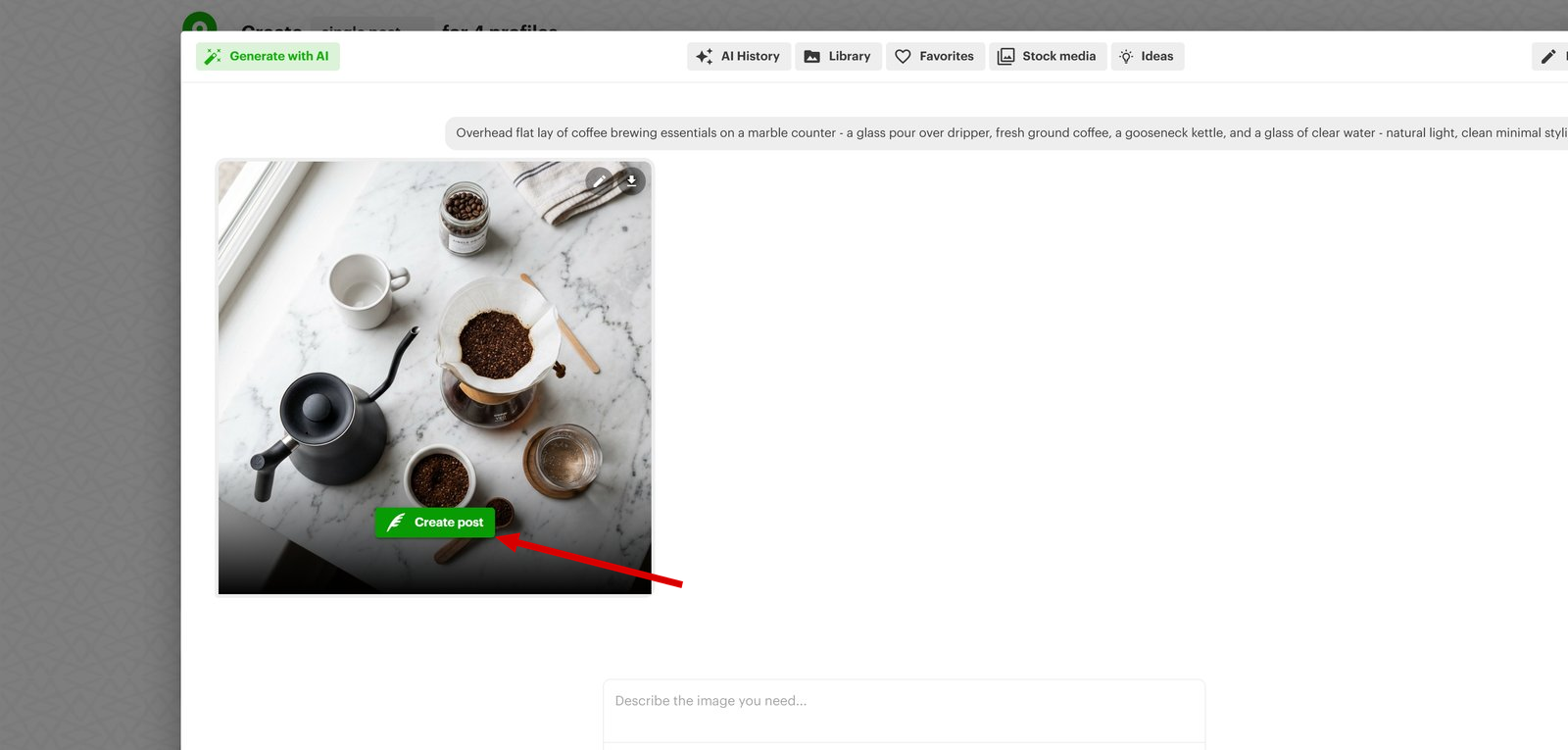
The design studio is your creative space to whip up eye-catching content for your posts.

When you’re done creating your visual content, save it to your library for future use or add it to the composer to use on your current post.
How to schedule Facebook posts in bulk
Tired of creating and scheduling each individual Facebook post?
Post Planner's bulk create and schedule features are what you need!
There are 2 types of posts you can schedule in bulk with Post Planner:
- New content
- Curated content
Let's start by showing you how to schedule “new content” posts:
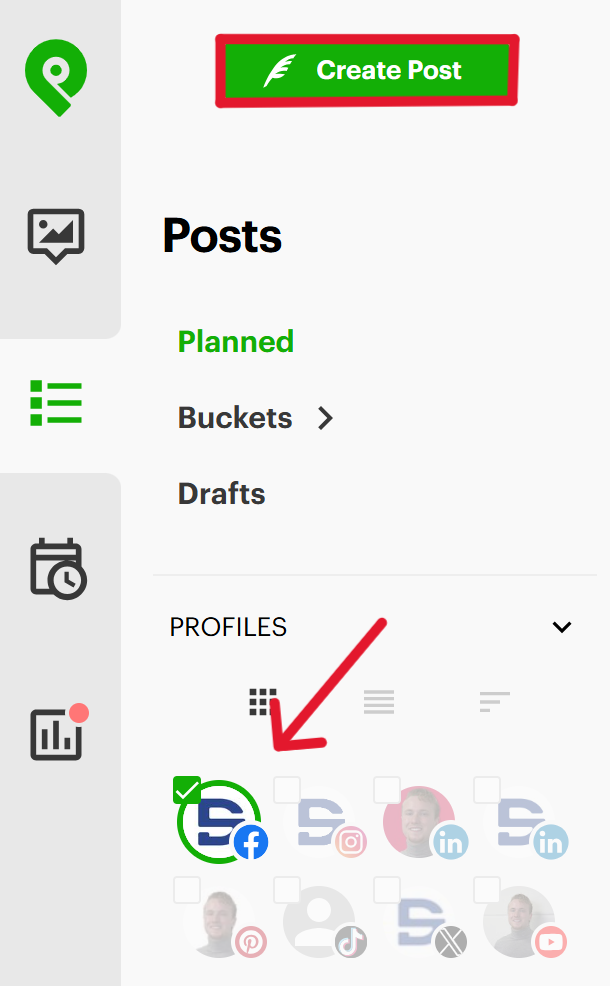
1) Click on "Create Post" (make sure your Facebook account is selected.)
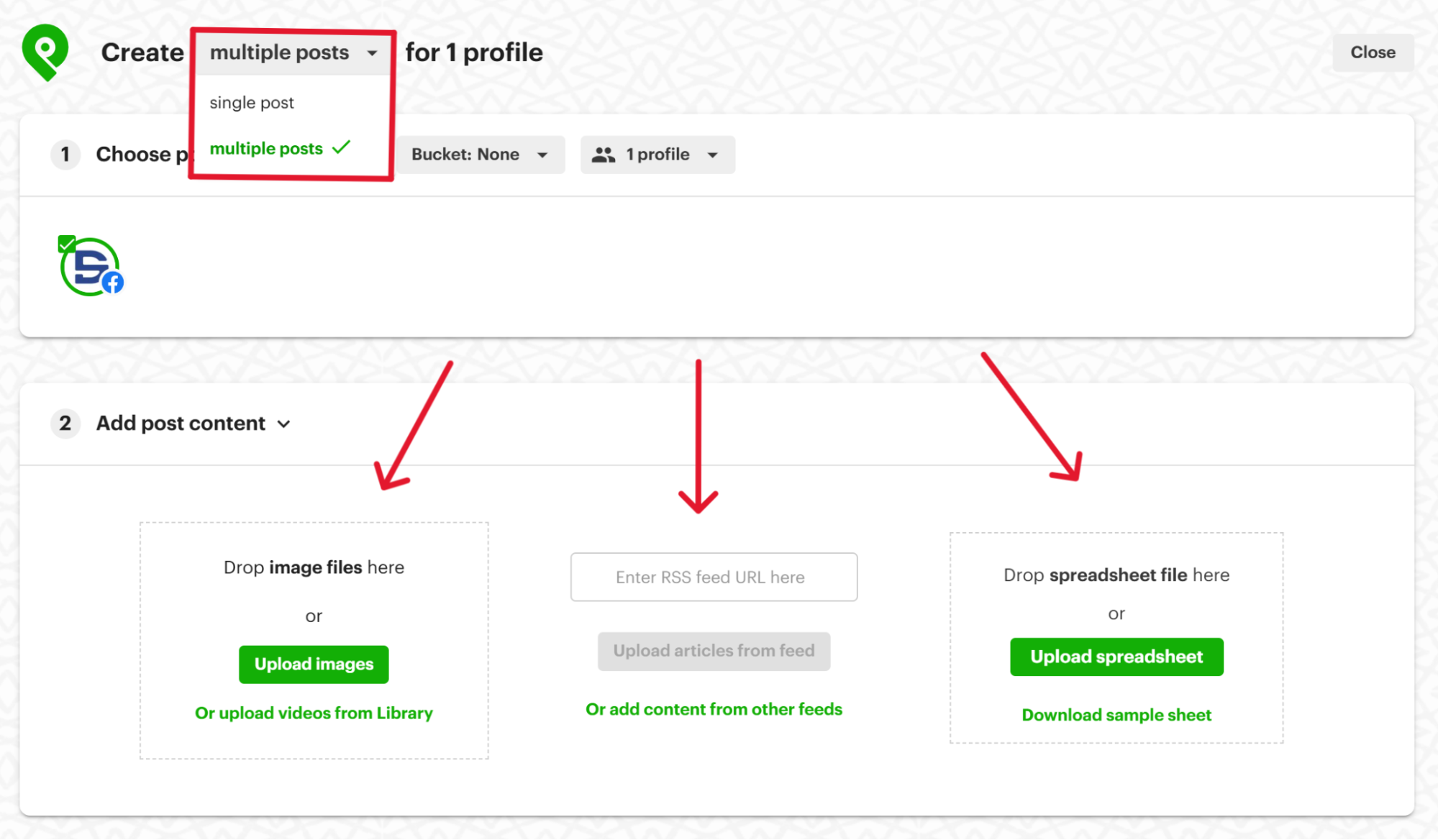
2) Click where it says "single post” to open up a dropbox menu and select "multiple posts". Here, you’ll have 5 options to upload your posts in bulk:
- Upload images - for when you're trying to schedule posts with images.
- RSS feed URL - for when you're trying to schedule a bunch of articles. You could also add content from other feeds.
- Upload spreadsheet - for uploading a bunch of posts from a spreadsheet.
- Other feeds - To share proven posts from your industry, you can add content from other feeds as well.
- Chrome extension - You can add images from the web directly to your composer through the Post Planner for Social Media extension for Chrome. It works on Google Images, article images, YouTube thumbnails, X images, and MUCH more.
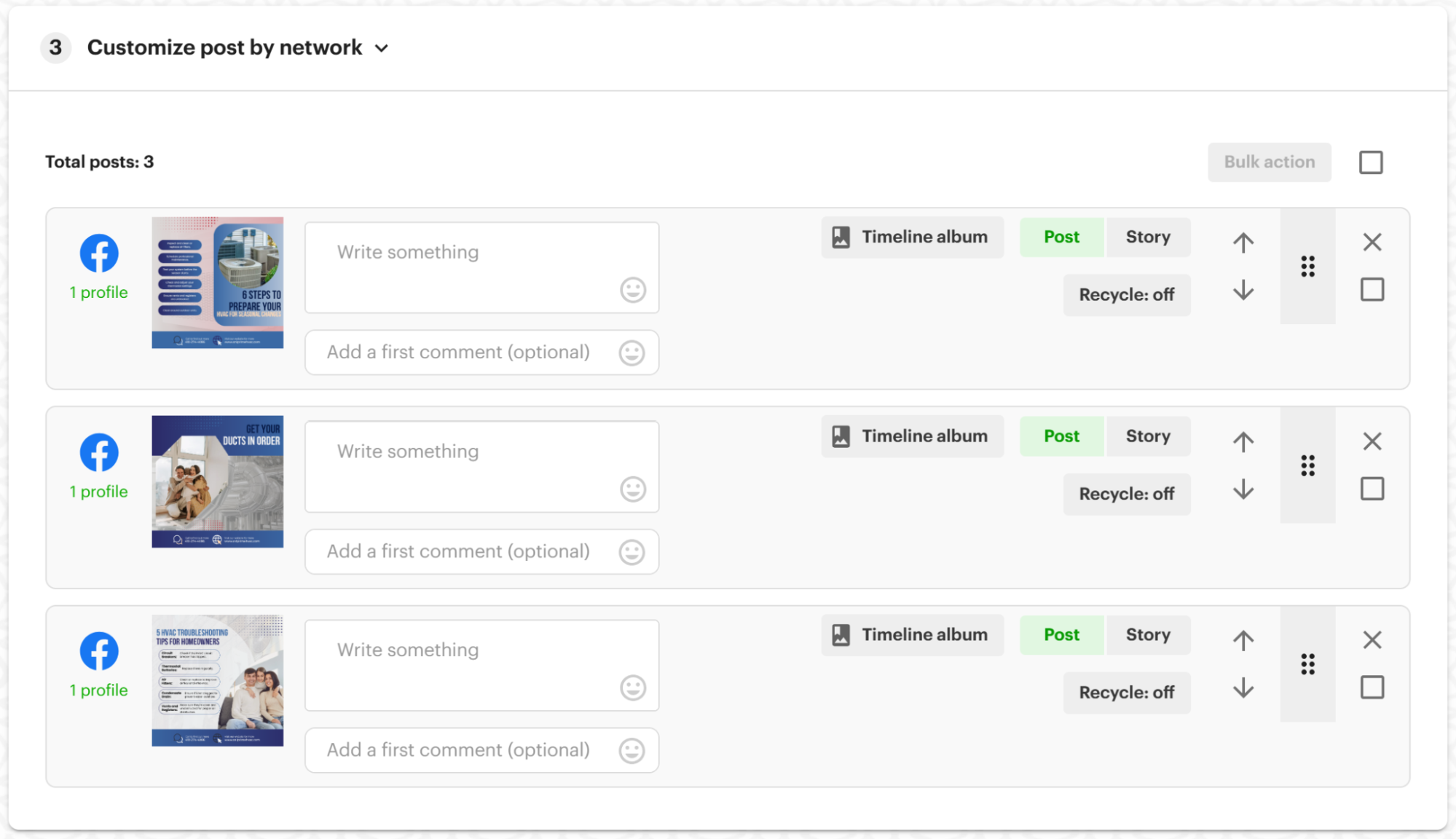
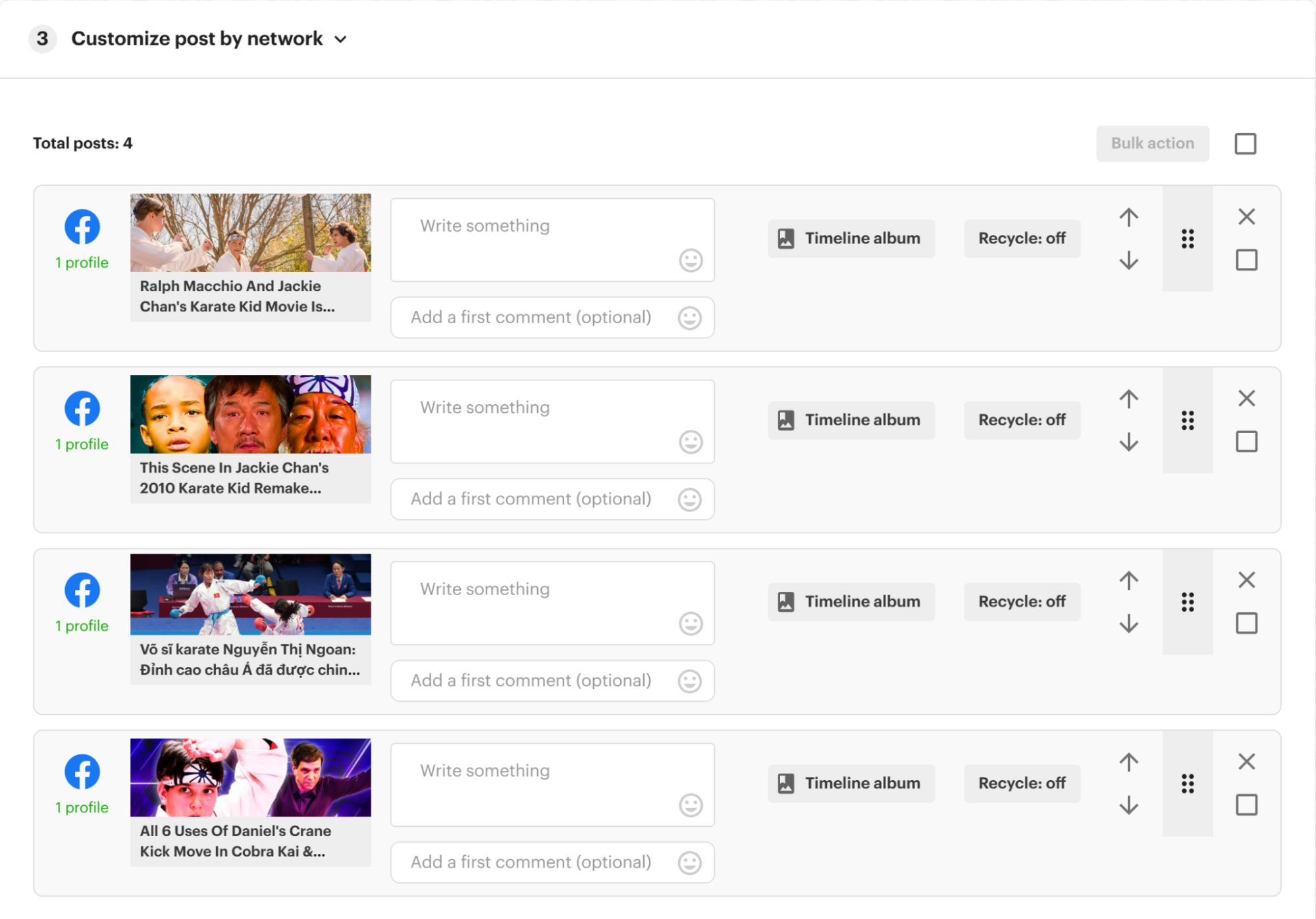
3) Customize each post and determine the order you want them to be posted in your queue.
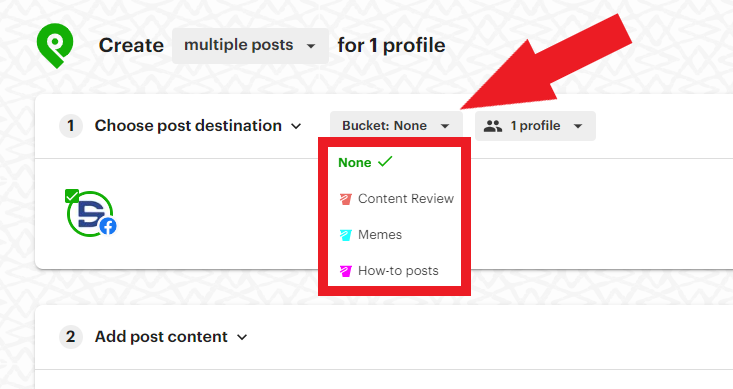
4) Optional: Select the Bucket you want your posts to be categorized by.
5) Add your posts to your queue or save them to your Bucket.
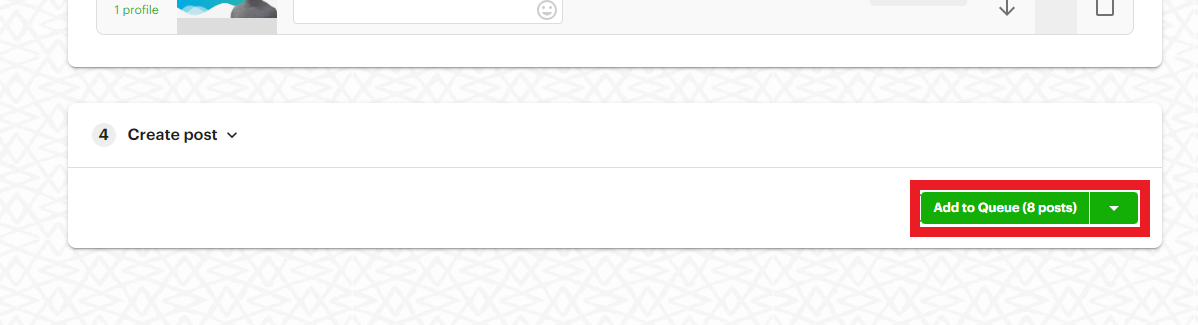
But what if you want to combine Post Planner's powerful content curation features with bulk scheduling?
Here's how you can post a BUNCH of content that's proven to engage your audience at scale:
1) Go to the "Content" tab.
2) Use these filters to search for different types of content:
- Curate from social media - Find the top-performing content across social media.
- Curate from blogs - Upload posts from your favorite blogs to share.
- Find images, vids, and gifs - Search through a vast library of free visual content.
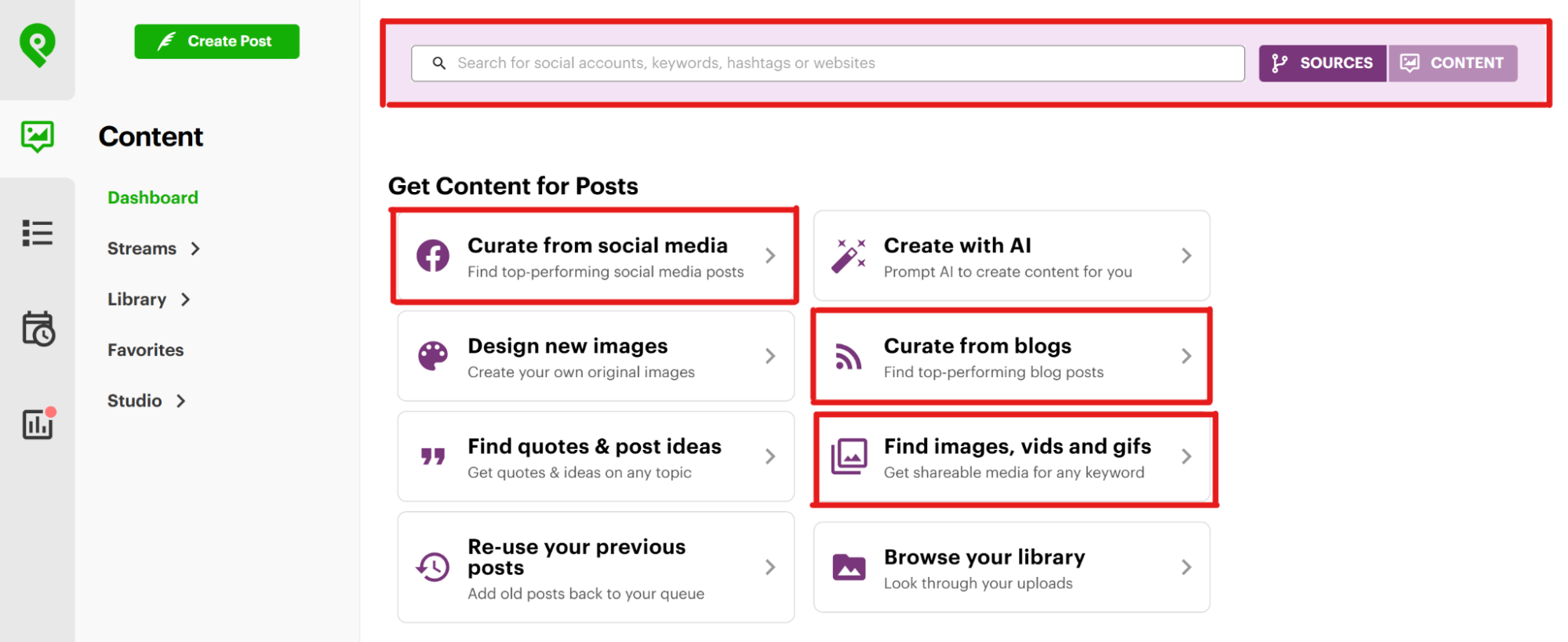
3) Select ALL the content you want to post and click "Create [#] posts."

4) Customize your posts with captions, order them, and add them to your queue or Bucket!
Once your posts are scheduled, Post Planner’s calendar makes it SUPER simple to adjust or edit your plan — just drag posts to new dates or edit details directly from the calendar to keep your schedule flexible and on point.
If you’d like to fine-tune multiple posts at once, you can tick the checkbox on the posts you want to change (or select all), then click "Bulk action" and choose what to apply to every selected post.
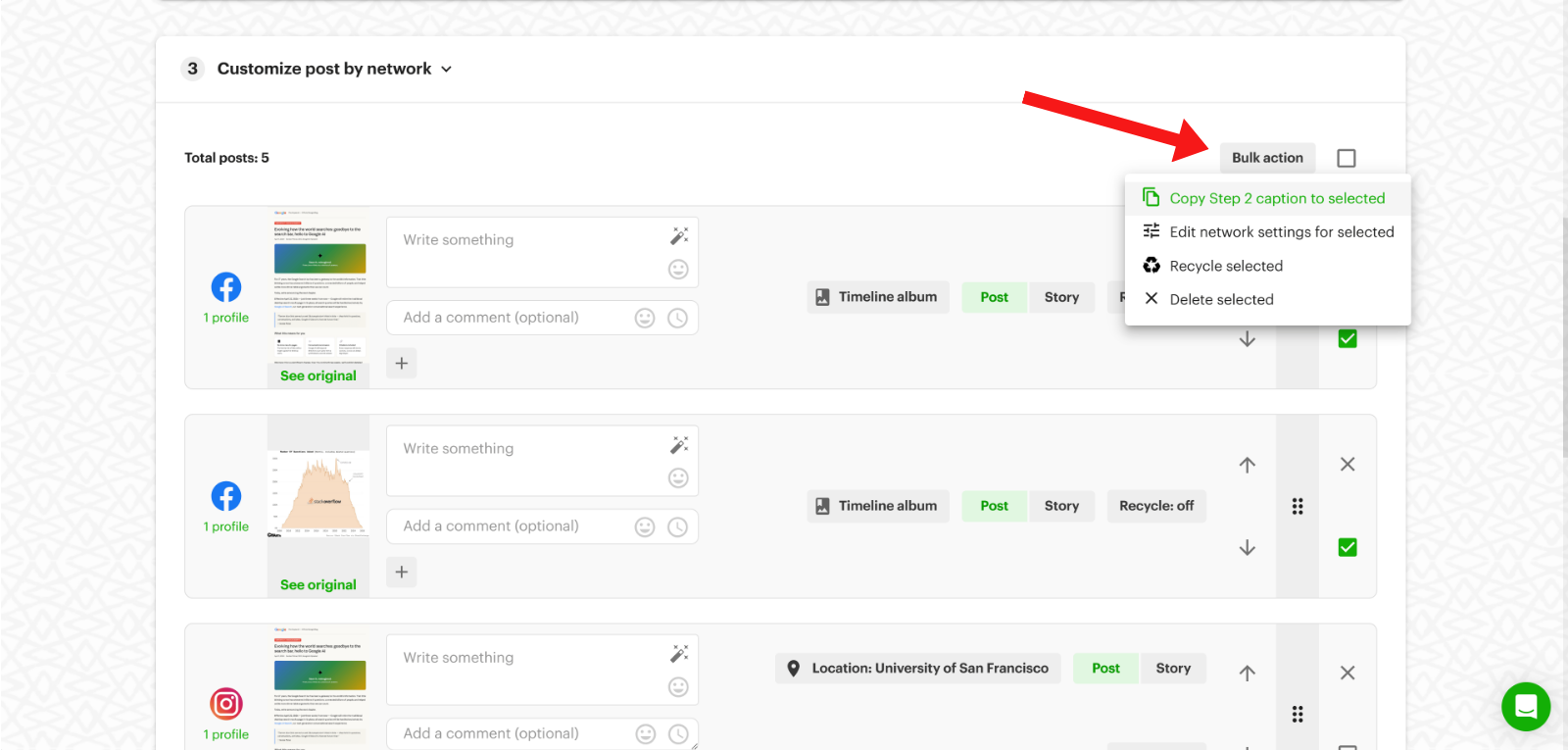
You can edit network settings for platform-specific posts, recycle, or delete them as part of your bulk actions.
How to schedule recurring Facebook posts
Make sure you’re recycling content that performs well on Facebook.
You can ONLY create recurring posts natively as a group admin or moderator in a Facebook Group, using the Admin Assist tool. To recycle content on a Facebook Page, you need a tool like Post Planner.
Post Planner helps you identify great posts that knock it out of the park so you can recycle those posts for future use. (It’s like getting 2 posts for the price of 1!)
When creating a post, click the recycle icon, then choose how often you want the post to cycle back through your plan.
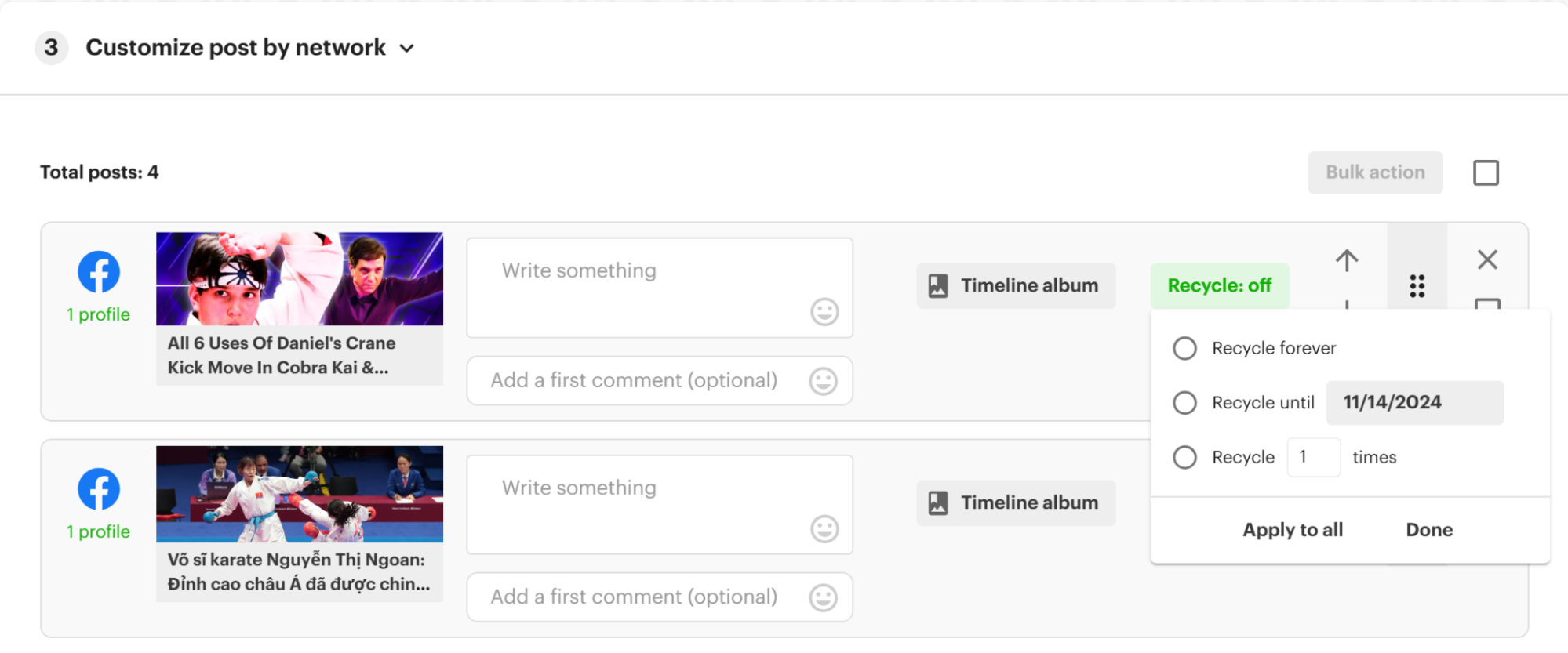
Post Planner will do the heavy lifting and make sure it gets posted when you want.
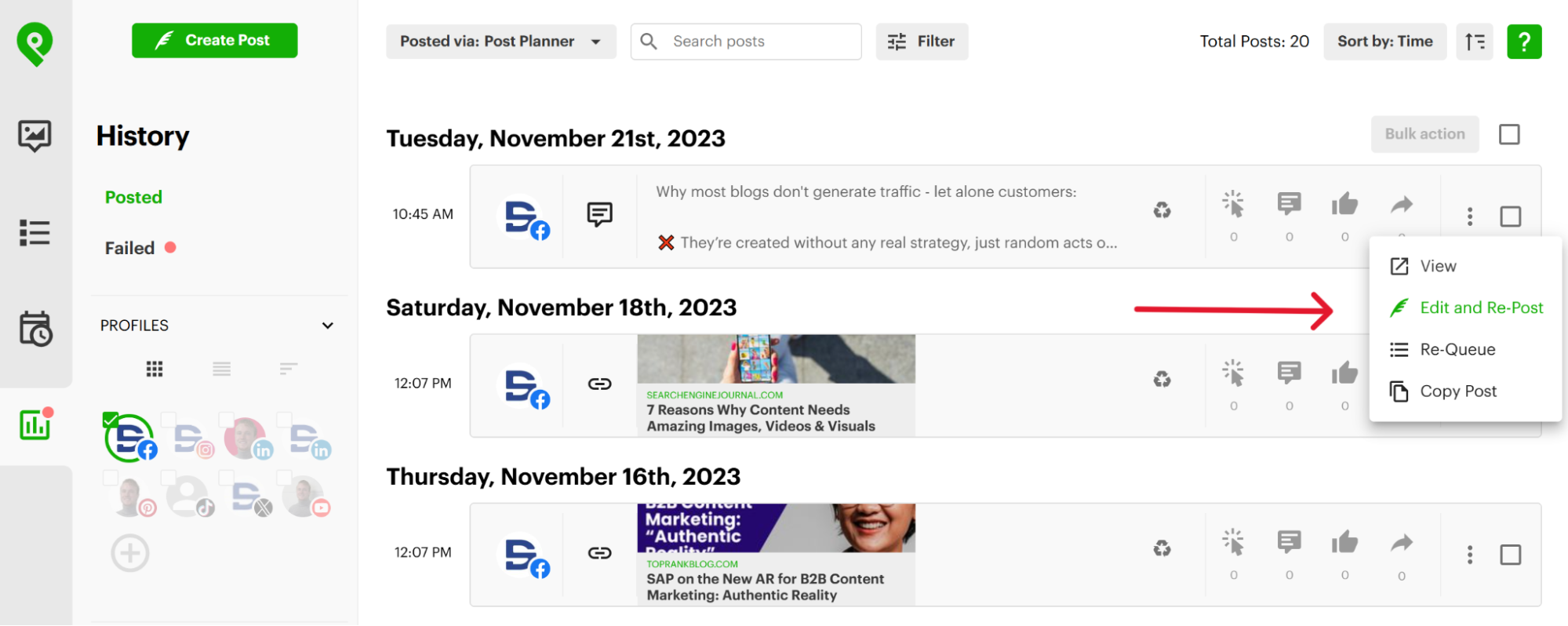
You can also view how past posts performed in the "History" tab. Then, filter through your content to find posts you want to recycle.
As a side note, you don’t want to recycle a post too frequently.
For example:
Posting the same post 7 times in a week is OBNOXIOUS.
But posting the same great content 2-3 times a year is SMART.
To sum up, here’s how Post Planner’s Facebook Scheduler fares against Facebook’s native scheduler:
| Feature | Meta Business Suite | Post Planner |
|---|---|---|
| Free to use | Yes | Yes (free plan available) |
| Max schedule range | About 29 days | Unlimited |
| Bulk post scheduling | No | Yes |
| Recurring posts / Evergreen recycling | No (Groups only, via Admin Assist) | Yes |
| Content buckets (categorization) | No | Yes |
| Content curation tool | No | Yes (search viral posts, blogs, images, videos) |
| AI post, caption & hashtag generator | No | Yes |
| Post to other platforms | Facebook and Instagram only | Yes (LinkedIn, TikTok, X, YouTube, Google Business, Pinterest, Threads, Bluesky) |
| Mobile app scheduling | Yes (separate app) | Yes (iOS and Android) |
| Post performance analytics | Basic (native Insights) | Yes (dedicated analytics dashboard) |
| Customer support | Meta Help Center / community forums | Direct support (in-app chat or email) |
| Interface stability | Subject to Meta's redesigns without notice | Consistent workflow across updates |
How to create a Facebook post automation strategy
All of these tools are useless if you don't have a strategy BEFORE automating.
Here are some tips to get started:
Define your goals
Before you start automating Facebook posts, you need to clearly define goals so you can measure success and improve your marketing efforts.
A few of your goals could be:
- Get more Likes, comments, or shares
- Become a thought leader in the industry
- Increase engagement with customers
- Drive traffic to your blog or website
- Drive sales
Your goals should dictate the mix of content you add to your Facebook automation tool.
Choose a content scheduling tool
A content scheduling tool is an ESSENTIAL piece of the puzzle to automate Facebook posts.
Find a tool that's easy to use AND aligns with your goals.
Bottom line, here are a few qualities to look for when choosing a content scheduling tool:
- How easy is it to use?
- How far can you schedule in advance?
- Can you post at specific dates and times?
- How is your content stored?
- Can you use the SAME tool to automate posts for other social platforms?
Don't know where to start? Try Post Planner for FREE!
Create a content calendar for your posts
Facebook shows the pages you enjoy the most on your newsfeed.
BUT no one wants their feeds flooded — not even by their favorite page in the world.
So, when looking to automate your Facebook posts, think of a posting frequency that maximizes engagement potential while STILL minimizing "annoyance."
(Social media experts recommend you post on Facebook at least 3-7 times a week and up to twice per day.)
Create and adopt engaging content
Creating content is one of THE most important pieces to the puzzle.
So decide which types of posts you want to create. What's hot & trending? How can you tailor your content to that fad?
Look at competitors and think:
- What is working for them?
- What's not working for them?
- How can you improve on their work?
An easy way to create engaging content is to recreate successful content that competitors put out, but put your own spin on it (emphasis on “put your own spin on it”).
Keep content fresh
Don't post the same type of content every time.
Keep it fresh.
Mix in photos, videos, blogs, etc.
Diversify your content as much as possible initially.
Then, refine your strategy once you see what works and what doesn’t.
Evaluate, refine & repeat
Once you have automated your Facebook posts, it's important to track progress and improve efforts.
Just because you automated your Facebook posts doesn't mean your engagement will skyrocket.
Moving the needle takes time.
Also, don't forget to engage with your audience in your comment section, as it'll invite more discussions.
Remember: Facebook rewards engagement. So, the more you have, the higher the likelihood that Facebook will recommend your content to more people.
Best tips for Facebook scheduling with Post Planner
Set your schedule before adding posts
Most people start with content, but that leads to messy timelines and awkward gaps. Instead, define your schedule first with a posting plan.
Lock in variety using Buckets
If you’re using Post Planner, don’t just ‘wing’ your content mix — assign themes (memes, product tips, blogs, promos) to specific days using Buckets. It automates variety and keeps your feed from getting stale.
Frequently asked questions about automating Facebook posts
When should I NOT use Facebook automation?
Although it’s extremely efficient, here are a FEW scenarios when you shouldn’t use automation on Facebook.
- Friending or following pages or people
- Commenting on posts using 3rd-party apps
- 3rd-party Facebook messenger bots (that do outreach)
When people interact with your brand, they DON’T want to deal with a robot.
They want to see YOU.
Don't squander the opportunity to interact with your community and potential customers by automating your conversations.
Are there any risks?
Some marketers are hesitant to use 3rd-party posting apps because they think Facebook might filter out their content.
Posts published through an approved third-party app using Meta's official API (like Post Planner) are treated the SAME in the feed as posts you publish by hand. Engagement depends on the content, not on how it was published.
What types of content can I schedule on Facebook?
You’ve got TONS of options. You can schedule text posts, photos, videos, links, events, reels—you name it.
How to schedule FB posts on mobile devices?
Open the Meta Business Suite app → tap “Create Post” inside post creation tool → Create your post → tap “Next” → select “Schedule for later” → pick a date and time → tap “Schedule”.
How can I automate moderation for Facebook posts?
In Facebook Groups, you can use Admin Assist to auto-approve, decline, or flag posts based on specific criteria.
For Pages, you can combine keyword filters in Meta settings with external tools like Zapier to trigger alerts (e.g. notify you via Slack or email if a comment contains a flagged keyword).
How can I automatically generate post performance reports periodically?
You can use Zapier to create a Zap that logs new Facebook posts and their key metrics (likes, shares, comments) into a spreadsheet— then use scheduled workflows to email a summary weekly or monthly.
How do I find the right Facebook automation tool for me?
The amount of scheduling apps to choose from can be OVERWHELMING. So before you commit to any scheduler, ask these questions:
- Can I connect to all my social platforms?
- How many posts per day are allowed?
- Can I choose specific posting times and set up a queue schedule for different content types?
- Does it support evergreen content (automatic reposting)?
- Does it provide post ideas and help find quality content to share?
- Can I organize content into accessible folders?
- Does it easily target different demographics and time zones?
- Is it within my budget?
Ready to automate your Facebook posts?
By now, if you’re not convinced that an automation tool will make your life easier, check out Post Planner’s Demo Video:
We know you want to save HOURS every week, so start your FREE Post Planner account today. You won't regret it.








ViewHide comments (3)